Want to connect with potential customers before your competitors do? Adding a click to call HTML button or link to your site is a quick way to make that happen.
All people have to do to go from landing on your site and hearing that first “Hello” is tap or click a button or link. Then, it’s on to booking a service or asking a question before the next business on their list even gets a ring.
And yes, both mobile device and computer users can use your click-to-call element to connect with you.
In this article, we’ll cover a few different ways to add an HTML click-to-call element to your website using popular site builders like WordPress, Wix, and Squarespace. You’ll also learn how to add a click-to-call button to your Google Business Profile to improve local SEO.
How to add your phone number as a clickable link with HTML
You don’t need a ton of HTML knowledge to add click-to-call HTML links to your website. You don’t even need to know how to code. Here’s a code template you can copy/paste:

<a href=”tel:8882977662″>Call us now!</a>
Now that you’ve got the code, here’s how to integrate it into your site:
- Open your HTML editor. Its name and location will change depending on the website builder you’re using.
For instance, in the Gutenberg Block Editor on WordPress, click the + button and type in HTML inside the pop-up Block Inserter menu.

Then select Custom HTML to create an HTML block.
On Wix, you’ll click the + sign in the top left-side corner to add an element. Then, click Embed Code, followed by Popular Embeds and Embed HTML.

On Squarespace, click the + Add Block button on the page you want to add your code, followed by Code.

If you’re having trouble finding the HTML editor to add click-to-call HTML, try searching for “edit HTML” or “custom code” in your website builder’s support center.
- Copy/paste the HTML code at the beginning of this section into the code box. Here’s the code snippet again for reference:
<a href=”tel:8882977662″>Call us now!</a>
- Input your phone number and Call to Action (CTA) (like “Call us now”)into the respective fields, replacing the existing information in the template.
Don’t have a business phone number yet? Tools like Quo let you get one in minutes so you can keep your personal number private and still stay connected to customers.
Your CTA will serve as the display text for your click-to-call link, so make sure it tells visitors what to expect when they click the link.
🤚 Remember: Make sure there are no spaces or dashes between “tel:” and your business phone number. The same goes for your CTA and the start and end tags (“>Call us now<”, not “> Call us now <”).
- Publish and test your click-to-call link. Push the changes live on your site and visit the updated page on your smartphone. Click the link to see if it dials the number you expect.
It should look like this:
Call us now!📚 Want to give visitors more options to get in touch with you? Check out our guide to SMS links or generate a click-to-text button for free.
How to embed a click-to-call button on your site
You can add a clickable phone number with a button as well as a text-based link.
Here’s how to make a call button in HTML:
- Navigate to your site builder’s block editor.
- Add a Buttons block from the Block Inserter menu.
On WordPress, you’ll need to click the + button and type Button inside the pop-up Block Inserter menu. Then pick Button. Like this:

On Wix, click the + button on the top left side of your editor, followed by Button and Text & Icon Buttons. Then, pick the button you like the most. (Don’t worry, you can always customize your pick to an extent later.)

On Squarespace, click + Add block on the top left side of your screen, followed by Button.

- Type your button text. This is your CTA.
- Click the hyperlink icon in the Buttons toolbar. To create a call now button, you’ll need to add your business number as a link.
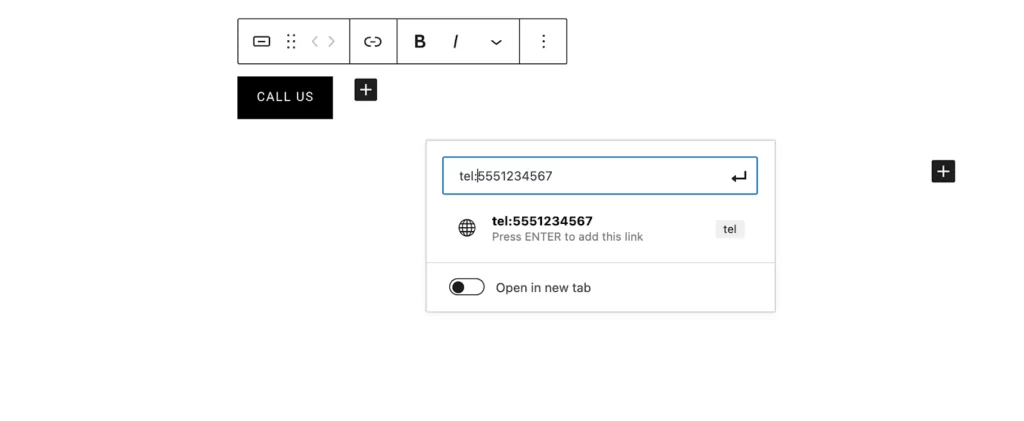
Here it is on WordPress:

Here’s where you’ll find the hyperlink icon on Wix:

And here’s where to find the hyperlink icon on Squarespace:

- Link your phone number to the button.
On WordPress, type tel: in the field, followed by your business phone number. Don’t include any dashes or spaces.
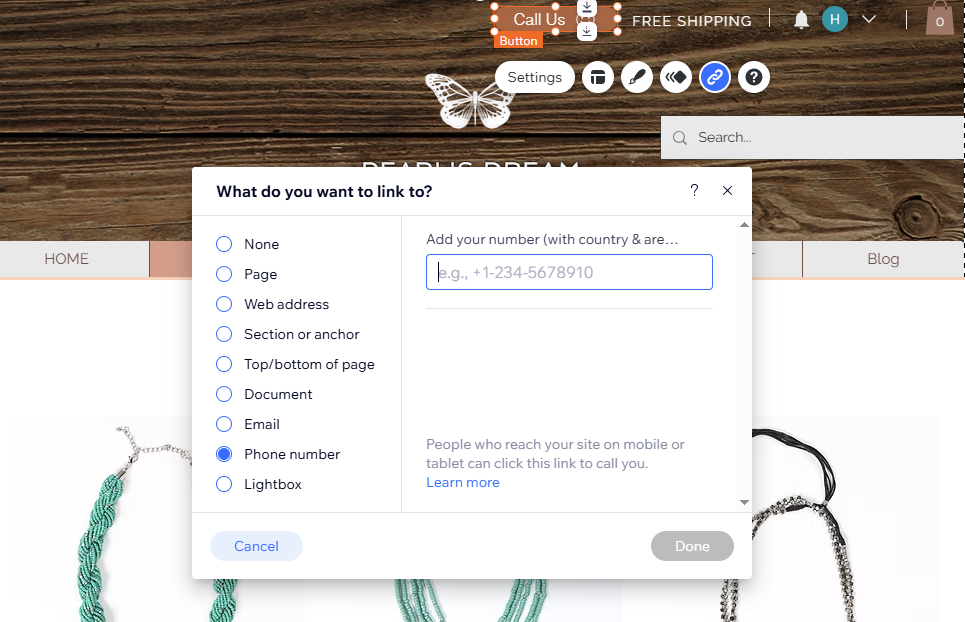
On Wix, select Phone number from the left-hand side menu and enter your number with country and area code in the empty field. Like this:

On Squarespace, click URL to access the drop-down menu. Then, select Phone, make sure the Call option is selected, and enter your phone number.

- Preview, publish, and/or test your click-to-call button on your site.
It should look like this:
Call us!If you like, you can customize the look of your click-to-call button with the settings in the sidebar or by adding custom CSS (Cascading Style Sheets) or the code that tells your website how colors, fonts, and styles should look.

Change the button color, size, font style, or anything you like to align with your brand and style.
If you’re not sure how to code a button for your website, you can use the free click-to-call html tool below to generate code for you.
Adding click-to-call HTML code to your site’s header or footer
To make sure your customers can easily reach you, consider adding a click-to-call button in your site’s header or footer. Add it once, and visitors can call you from any web page on your site.
The process of adding a click-to-call button in the site’s header or footer can vary between site builders or CMSs. Here’s a quick step-by-step guide for each platform:
Adding a click to call HTML code to your WordPress site header or footer
If you’ve been using WordPress for your site, the process of adding a click-to-call button to your header or footer is pretty straightforward:
- Navigate to your header or footer menu. The exact location will depend on your theme and editor (like Gutenberg vs Elementor), but you’ll often find this listed separately from editing the body content within pages of your website.
- Click Edit.
- Click + to add a new element.
- Type Button in the bar to add a button element.
- Add your CTA text, like “Call us now!”
- Add a new link by selecting the hyperlink icon.
- Type tel: and your business phone number (no spaces or dashes).

- Publish and test your link.
Adding a click to call HTML code to your Wix site header or footer
To add a contact button for inbound calls on Wix:
- Navigate to your home page through your site builder.
- Add an element by clicking the + icon on the top left-hand side.
- Select Button followed by Text and icon buttons.
- Choose the button you like and drag-and-drop it into your header or footer area. Like this:

- Resize and customize your button to fit your requirements.
- Click on the button and choose the link icon to add your phone number.
- Select Phone number, enter your number, and click Done.
This button is now on the header (or footer) section of every page on your site.
Adding a click-to-call HTML code to your Squarespace site header or footer
Adding a click-to-call HTML button to your Squarespace site follows a similar process to that of Wix:
- Navigate to your home page through your site builder.
- Hover over your footer or header area.
- Click + Add Elements to add a button to your header or Add Block to add a button to your footer.

- Select Button.
- Click on your button and select the link icon followed by Phone.

- Enter your phone number.
And you’re good to go!
Adding click-to-call to your Google Business Profile
If you’re a local business, you shouldn’t stop at adding click-to-call functionality to your site. You should also consider adding your number to your Google Business Profile to help with local SEO so you show up (and are easily reachable) when customers search for businesses like yours in their area.
This is especially helpful for improving the experience of mobile users since your number appears as a phone icon with a tappable link right in Google search results or Google Maps. No need to visit your site, copy/paste a number, or wait for a response. They can call you instantly.

If you’re using Quo, you can choose a local US or Canadian number that matches your area — which can help build trust with nearby customers and boost your visibility in local searches.
To add or update your business phone number on your Google Business Profile, follow these steps:
- Sign in to your Google Business Profile account.
- Click Edit profile.
- Navigate to the Contact tab.
- Scroll down to phone number and click the edit icon.
- Type in your business phone number. It will automatically add the country code and dashes.
- Click Apply.
▶️ Need to add click to call to a Google ad? Learn how to set up Google Ads call extensions
Click-to-call brings you closer to your customers

Why make customers wait hours or days for a callback? Give them a way to reach you instantly with a click-to-call link — whether they want to place an order, ask a question, or book your services.
But here’s the thing: being available to answer those calls is just as important as making it easy for customers to reach you. When you manage all your business calls and conversations in Quo, your entire team stays on the same page. Using shared numbers, anyone on your team can jump in and review the full conversation history with any contacts.
And if you need a fallback option for when you can’t get to the phone, you can integrate Sona, Quo’s AI voice agent, directly into your call flow. Sona can answer FAQs, capture leads, and take messages so you can call back with full context once you’re available.
But we’re biased. So try Quo for free for seven days to see how we support growing businesses like yours.
FAQs
A click-to-call button is a clickable element on a website that automatically dials a phone number when tapped or clicked. It uses HTML code with the “tel:” protocol to connect visitors directly to a business phone line from any smartphone or computer with a phone app (like Quo or FaceTime) installed.
HTML click-to-call widgets boost lead conversion by letting customers reach you instantly with one tap. On mobile, they save people from having to copy and paste phone numbers. They also improve your local SEO rankings and help you connect with leads faster than businesses that only use contact forms.
To trigger a phone call from a website, add a click-to-call HTML code to your site using the tel: protocol: <a href=”tel:1234567890″>Call Now</a>. Replace the numbers with your phone number (no spaces or dashes) and customize the display text. This works on smartphones and computers with calling apps installed.