If you’re managing a small business, you might find it hard to set strict business hours.
Even when you’re out of the office, your customers may try to get in touch. If you want peace of mind after hours, on vacation, or when life gets busy, you need a break from your phone while reassuring clients that you’re not ignoring them.
Out-of-office text messages might be your solution. We’ll show you how to write and set up texting auto-replies from your Android or iPhone. We’ll also show you a better way to do this so you can give a great customer experience even when you’re away.
What are out-of-office text messages and why use them?
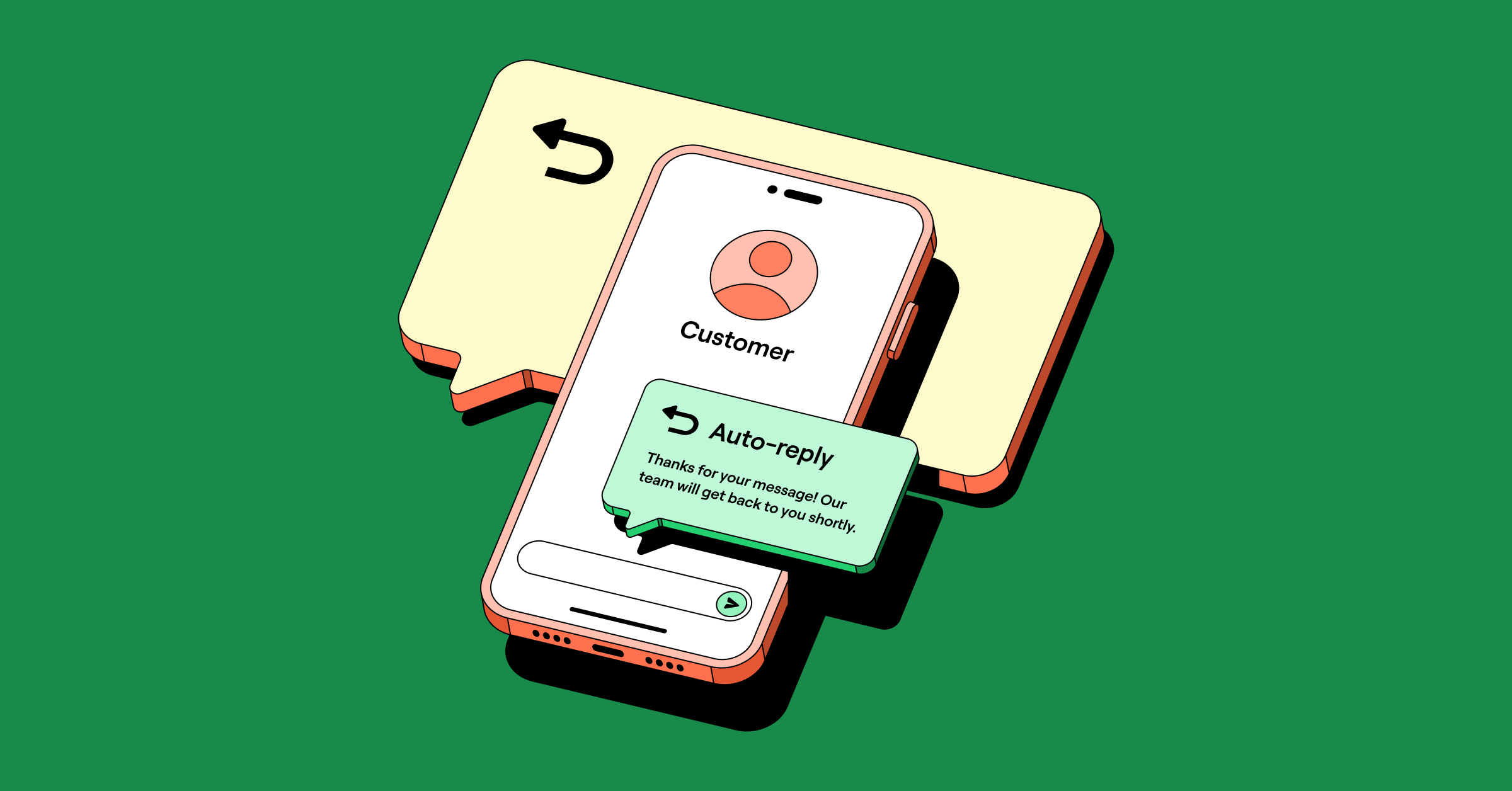
An out-of-office (OOO) text message is an automatic reply to an incoming text message. This reply informs people you’re unavailable and when they can expect to hear back from you.
OOO texts are a standard customer communication best practice. You can also use them to direct customers to available colleagues who can quickly attend to their requests.
How to write an out of office text message
Wondering how to write an effective out-of-office text message? Here’s what to include:
- OOO timeframe: The time period you’re unavailable
- Reason: An explanation for why you can’t respond right away
- Response time: When clients should expect a reply from you or your team
Now for what to avoid — here are a couple of items you shouldn’t include in your OOO texts:
- Media like photos, videos, and GIFs: Try to avoid attaching any media to your OOO texts. Some of your customers may not be texting you on a smartphone, so they won’t receive any media you attach. Photos and videos also increase your message sizes, which can impact deliverability.
- False promises: If you can’t commit to a 24-hour response time, don’t state that you’ll respond within that time frame. Good business texting etiquette starts with following through on expectations.
How to automate OOO text messages
While you can manually send out-of-office replies, automation helps you stay consistent and saves time. With a business communications platform like OpenPhone, you can easily customize automated messages to give customers a better experience. Here are a few ways you can set it up:
- Set auto-replies for triggers like missed calls, voicemails, and incoming text messages
- Schedule messages to go out at the start of a planned vacation or time-off
- Connect with Zapier to automatically respond when someone fills out a contact form or sales inquiry
This way, you keep customers informed and prevent them from reaching out to a competitor when you’re unavailable.
16 out-of-office message templates
To help you craft an out-of-office message for your missed phone calls and texts, we’ve created 16 auto-reply templates you can customize.
1. After-hours message
When your team clocks out of work, an after-hours message can reassure your customers you’re not ignoring their texts or calls. Your message can also inform your clients when they can expect a response so they don’t wait by their phones.

Template: Thanks for contacting XYZ Company. Our business hours are M-F, 8 AM to 5 PM ET. We’ll get back to you within one business day.
2. Vacation message
Let your customers know you won’t be available to respond while you’re on vacation or that you’ll have limited access to the internet. If you’re taking an extended break, give your clients alternate contact information they can use to get support.
I’m currently on vacation. I’ll be back on April 15 to respond to your message. For immediate assistance, please reach out to Allison at 555-555-5555.
3. Holiday message
When your entire team is away in observance of a holiday, inform your customers so they know you’ll be back to work soon.
Happy holidays! Our team is out of the office until January 2. For urgent matters, please call 555-555-5555. Otherwise, we’ll respond when we return.
4. Temporary out-of-office text message
Planning to be out of the office for a short time? Whether you’re running errands, in a meeting, or out for lunch, you can set up a temporary out-of-office message that reassures clients you’ll respond in no time.
Thanks for calling Sam at XYZ Company. I’m currently out of the office. I’ll be back at 2 PM and will respond to your message shortly.
5. New business-hours message
Changed your business hours? Customers who are used to your previous hours might not understand why they can’t reach you. Set up an after-hours text to let them know why and when they can contact you.
Thanks for contacting XYZ Company. Our business hours have recently changed. Our team is available M-F, 8 AM to 5 PM ET. We’ll respond to you within one business day.
6. Customer support outside normal hours
If your team provides customer service over text and someone contacts you in the evening, this message can set expectations for when they can expect to hear back.
Hi there, you’ve reached us outside of our support team’s business hours. We’ll get back to you within 24 hours.

💡 If your team provides support over SMS, check out our customer service text examples guide.
7. Internal away message
Have a phone number your team only uses to contact you? You can provide a point of contact while you’re off.
Hi, I’m out of the office until March 5. For anything urgent, please reach out to Kim at 555-555-5555.
8. Missed call text while you’re out message
With this example, you can let callers know why you missed their call.
Hi, sorry I missed your call. I’m out of the office until June 15. If you need immediate assistance, please call our main office at 555-555-5555.
9. Conference away message
If you’re away from your devices for a conference, use this template to give a contact who reaches out to you a heads-up.
Hi, I’m attending a conference and will get back to you as soon as possible. For urgent matters, please reach out to my colleague Alan at 555-555-5555.
10. Funny out-of-office hours message
If being fun or punny is on-brand, consider using an example like this to delight your customers.
Hi, I’m currently out of the office recharging my batteries so I can come back with even more electrifying ideas! If you need immediate assistance, please contact my colleague Esmerelda at 555-555-5555.
11. Taking maternity leave
Planning on being off for maternity leave? Use this message to let your customers know how long you’ll be out of the office and when you plan to return. If a colleague will fulfill your role while you’re gone, provide their contact details in the message.
Hi, I’m currently out of the office on maternity leave until December 10 and won’t check or respond to emails while I’m away. Until then, please contact my colleague Isiah for assistance at 555-555-5555.
12. Long-term OOO message
If you’re taking an extended leave of absence for medical reasons, sabbatical, or family matters, you should let customers know. You can also provide clear alternative contact information.
Hi, I’m currently out of the office on extended leave until September 1 and won’t be checking messages. For immediate assistance, please contact our team at 555-555-5555 or email [email protected].
13. Text support hours closed message
If your text support team works different hours than your regular support team, this message helps customers know when they can expect text-based help.
Thanks for your message! Our text support team is available M-F, 9 AM to 6 PM ET. We’ll respond to your message during our next business day. For immediate phone support, please call 555-555-5555.
14. Emergency contact information message
For businesses that handle urgent matters or provide essential services, this template makes sure customers know how to reach someone when you’re unavailable.
I’m currently unavailable until tomorrow at 9 AM. For urgent matters that can’t wait, please call our emergency number at 555-555-5555. Otherwise, I’ll respond first thing in the morning.
15. Meeting in progress away message
When you’re in important meetings or client calls throughout the day, this message lets people know you’re working but are temporarily unavailable to respond.
Hi, I’m currently in meetings until 4 PM today. I’ll respond to your message as soon as I’m available. For urgent matters, please call our main number at 555-555-5555.
16. Seasonal business closure OOO message
Some businesses close for extended periods during slow seasons or for annual maintenance. This template helps customers know when you’ll reopen.
Thanks for reaching out! XYZ Company is closed for our annual winter break until January 8. We’ll respond to all messages when we reopen. Happy holidays from our team!
5 more OOO text message example ideas
Out-of-office text messages can serve a greater purpose than informing your customers you’ll be away. You can turn your away message into a sales or marketing touchpoint that helps you reach your business goals.
Here are five ways to make the most of your auto-replies, along with more out-of-office message examples:
1. Drive traffic to your website
Instead of having customers wait for you to come back to work, direct them to your website so they can find answers to their questions on their own.
Thanks for reaching out! We’re on a team retreat until June 10 and will respond when we return. For now, you can learn more about our services at xyzcompany.com.
2. Capture new leads
Your sales team can use their OOO message to gather new leads by dropping newsletter perks, inviting them to a webinar, or offering other enticing lead magnets — like downloadable whitepapers and free consultations.
Our sales team is out of the office until 3 PM PT but will respond shortly. Subscribe to our newsletter for 20% off our product at xyzcompany.com/subscribe.
3. Promote a sale
Use your out-of-office text message to hype up your sales event and direct people to your ecommerce website or store. Make the sale feel time-sensitive by giving customers a deadline so they’re more likely to make a purchase.
Thanks for calling. I’m out of the office and will respond within one business day. In the meantime, mark your calendars for our one-day BOGO sale on August 5!
4. Educate customers
Like pointing customers to your website, share links to blogs or videos to help them find answers to their questions or learn more about your product.
Try to use shorter links to adhere to SMS character limits, but don’t use link shorteners like bit.ly because your message might get flagged for spam.
Thanks for calling! We’ll respond during business hours, M-F, 9 AM to 5 PM MT. Watch our walkthrough for help navigating our app: xyzcompany.com/walkthrough.
5. Boost social media engagement
Like telling customers to sign up for your newsletter, sharing your social media handle can help you talk to potential customers.
Your out-of-office text message can even suggest apps like X and Reddit as alternate support channels if your social media specialists or customer service team are available to respond there.
Thanks for reaching out. I’m at a business conference until May 20. Connect with me at linkedin.com/in/username to learn with me or for a faster response!
💡Pro Tip: When setting up your out-of-office replies, remember that text messages are more immediate and personal than emails. In fact, 72% of consumers have made a purchase after receiving a text from a brand.
Use automated text responses for calls and texts and keep out-of-office email auto-responders for email inquiries. This ensures faster response rates for customers without forcing them to switch communication channels.
How to set up out-of-office texts on an iPhone

If you use your iPhone for business calls and texts, you can use your smartphone’s built-in Driving Focus feature as an auto-responder when you’re not available. However, this iOS feature can be a hassle since it isn’t built for out-of-office text messages.
When you set up iPhone auto-replies through Driving Focus, you can’t customize your availability or schedule auto-replies ahead of time. You’ll have to manually enable auto-replies after hours or when your vacation starts and manually disable them when you’re available again. Plus, you can’t set up different auto-responses for missed calls and texts.
Still, if you want a workaround, you can follow these steps to send automatic texts from your iPhone:
- Go to Settings and Focus.
- If you don’t see Driving Focus on your list, tap on the + in the upper right corner, then tap on Driving.
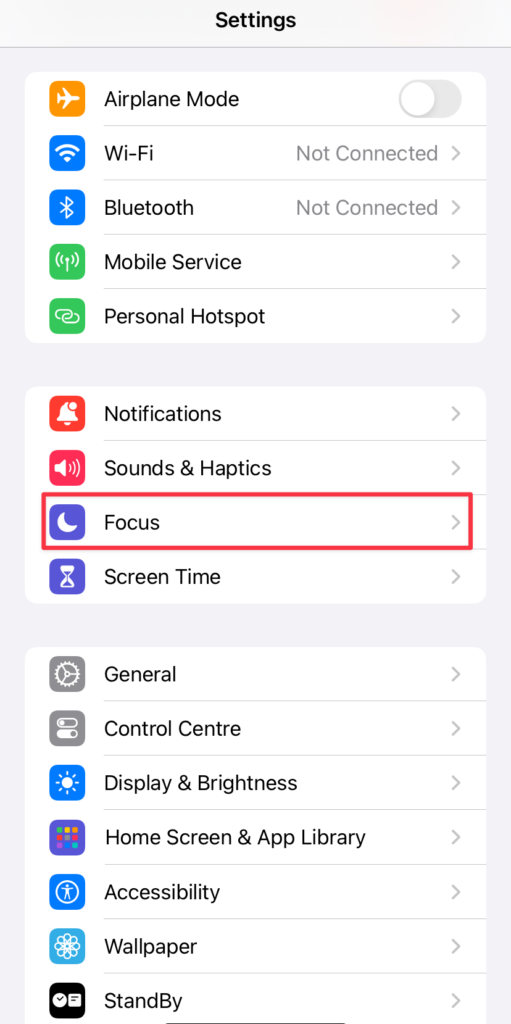
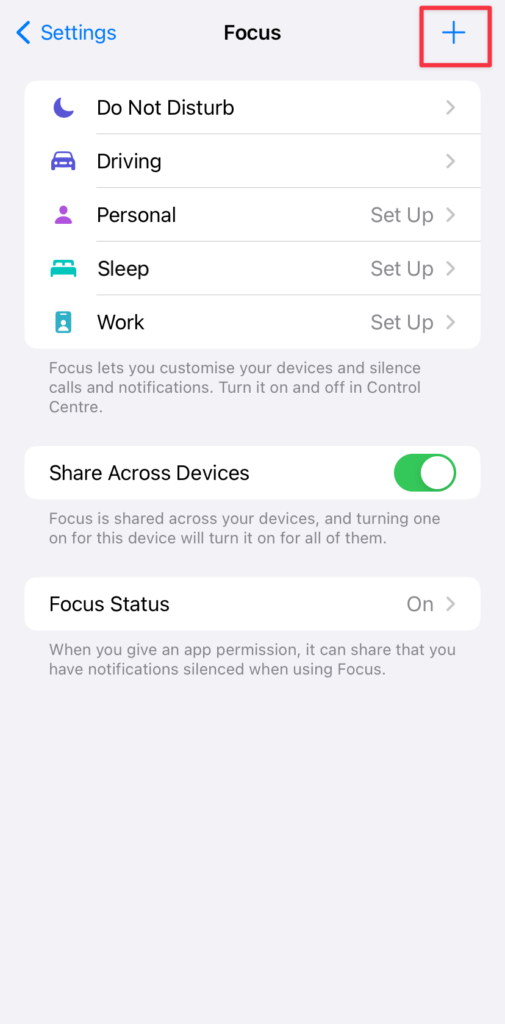

- You’ll see a list of available Focus modes. Tap on Driving.
- On the next screen, tap on Customize Focus.
- Select Auto-Reply, then All Contacts to automatically reply to incoming messages when you choose Driving Focus mode.
- Type in the Auto-Reply Message you want to send.
- To use auto-replies outside of driving, like during the evenings when you’re at home, select Activate Manually.


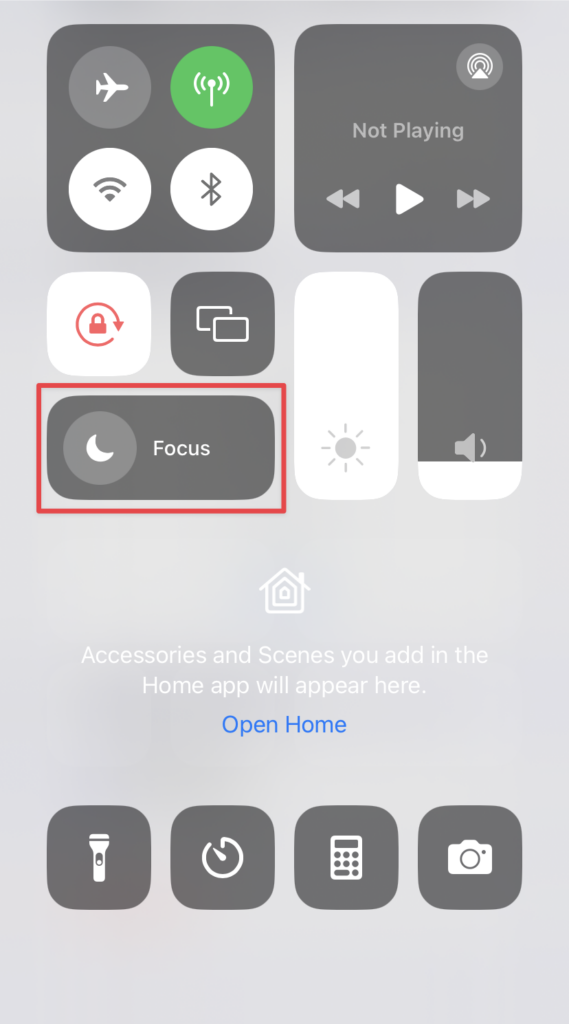
- To turn on Driving Focus mode, swipe down to access the Control Center, tap Focus, then Driving.
- From your available Focus modes, tap on Driving to turn it on. To turn it off, you’ll repeat the steps in your Control Center and tap on Driving again.
Setting up automatic responses takes quite a bit of effort on iPhones. After all that work, customers can get around your Driving Focus mode by texting “urgent” after their first text. This is even if they think an urgent matter is asking for discounts at midnight.
With Android phones, setting up your OOO text is less complicated, but it doesn’t offer any additional business texting features, like shared numbers and automated text flows. This reduces shared context for your team, keeps information siloed, and limits your team’s efficiency.
The best way to set up out-of-office text messages is with a VoIP app like Quo.
How to set up out-of-office texts on an Android
Android doesn’t have a built-in auto-reply feature that lets you send out-of-office texts. This means you need to use a workaround, like a standalone app. Here’s how:
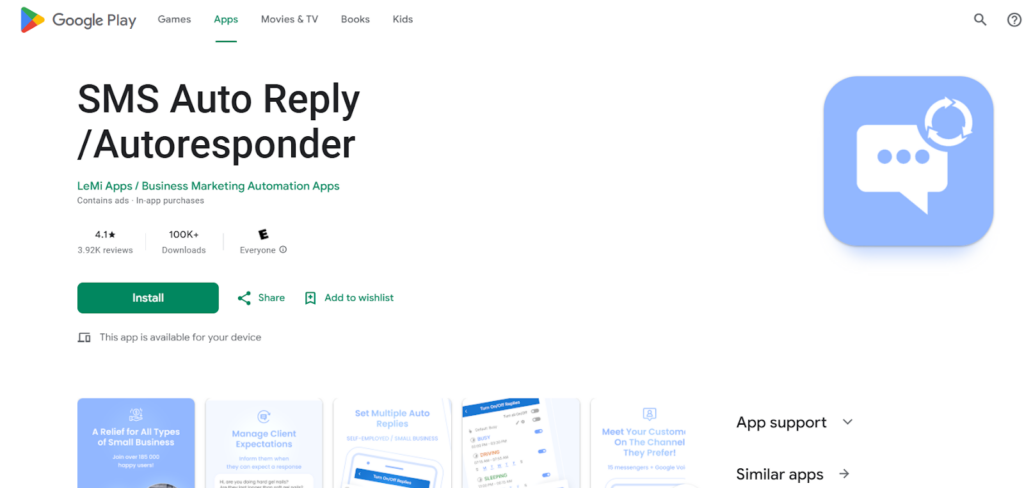
- Download SMS Auto Reply, a free auto-response app from the Google Play store. You can download another autoresponder, but we’re using this for the tutorial.
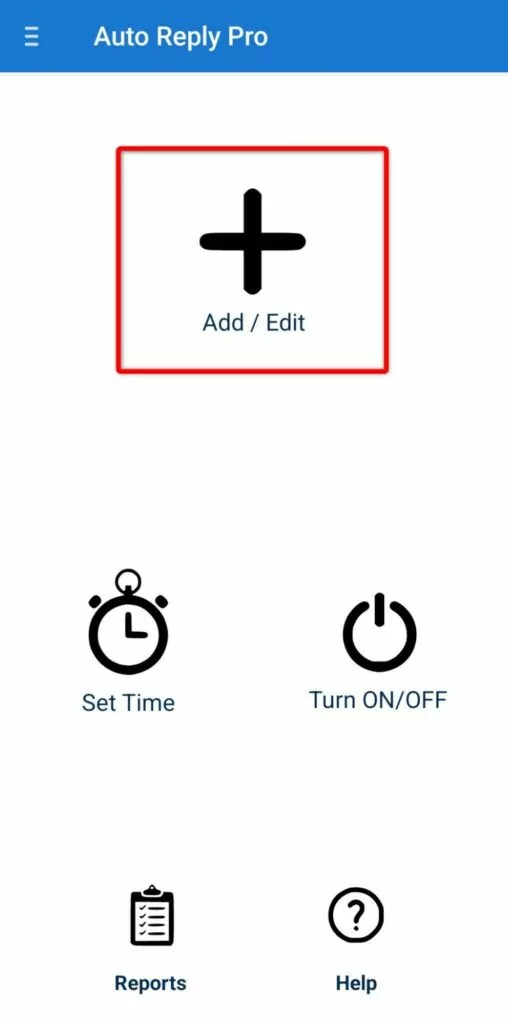
- After launching the app, tap Add/Edit.
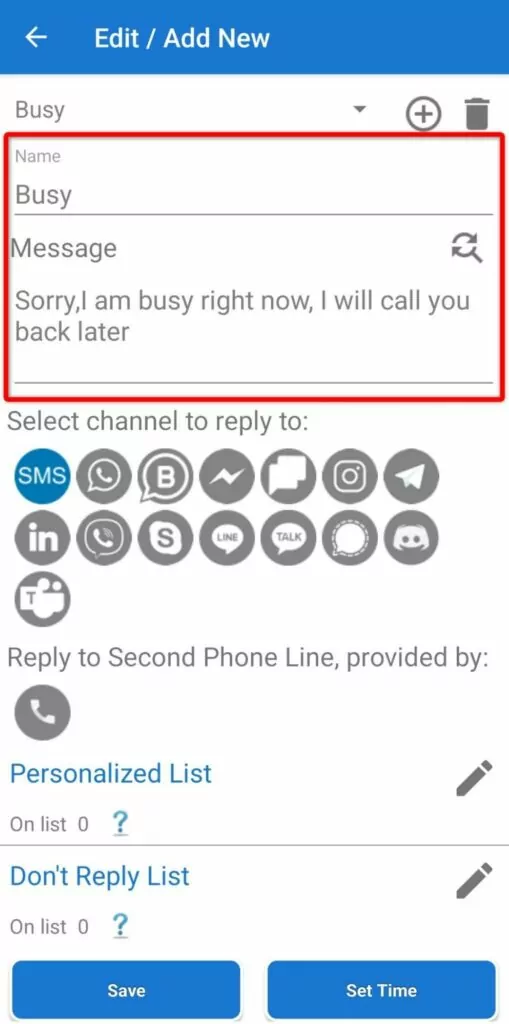
- Name your automated text template like ‘Out Of Office’ or ‘On Vacation.’ Then write the message you wish to send.
- Select SMS as the channel you want to automate.
- Tap Save to activate your auto-reply.
Both methods of setting up out-of-office texts work fine, but what about when your team grows? Do you want to wait for pending deals to close based on when team members return from their time off? Are you ok with banking on customers to call backup numbers when their point of contact is away? And what are you going to do if a team member decides to leave your team and join a competitor?
All of these scenarios put your business growth at risk, but it doesn’t have to be this way. That’s where a VoIP provider like Quo comes in.
How to set up out-of-office texts as auto-replies in Quo

Quo is a modern business phone solution that offers multiple text message automation features. These help you better support your customers, even when you’re off the clock. With our auto-replies feature, which is available with every Quo plan, you can set up out-of-office text messages in a matter of minutes. Here’s how:
- Create a Quo account.
- Select a phone number from the web or desktop app. Choose from either local US and Canadian numbers or North American toll-free numbers.
- File for A2P 10DLC registration. As Quo is a virtual phone platform, you’ll have to register your virtual number before you can start texting customers.
- Go to Settings, Phone numbers, and Auto-replies to set your text auto-replies. Under During business hours or After business hours, set up out-of-office auto-reply messages for:
- Missed calls without voicemail
- All incoming text messages
- Missed calls with voicemail

With Quo (formerly OpenPhone), you can share your business phone number and not even have to set up an OOO text message to keep the conversation going with customers. Shared numbers give your team access to your customer interactions, including calls, call recordings and transcripts, texts, and voicemails.
When a team member on a shared number goes on vacation, your available team members can sub for them and manage their ongoing customer conversations, whether they’re existing customer accounts or prospective deals.
The advantage of using a platform like Quo is that your team can use whichever device they prefer to communicate with customers. Quo is available for Windows, Mac, iOS, and Android. And for every other platform, it’s available as a web app, too, so you can respond to incoming calls and texts in your browser.
3 tips for handling communication when you’re out of office
Setting up OOO text messages is just the beginning of an effective communication strategy. These tips will help you manage customer expectations and keep your business running smoothly during your time off:
- Direct calls to another team member or answering service when you’re OOO. Don’t leave customers hanging when they need to speak with someone immediately. Instead, route incoming calls to available team members or a professional answering service when you’re out. You can easily do this in Quo by customizing temporary call flows.
- Set different auto-replies for different contact groups. Your most valuable customers deserve personalized attention, even when you’re away. Create separate auto-reply messages for different contact groups like VIP clients, urgent sales prospects, and general inquiries. That way, VIPs might get immediate alternate contact information, while general inquiries get your standard OOO message.
- Schedule your OOO messages to activate automatically. The last thing you want to worry about when heading out for vacation is remembering to turn on your OOO messages. Schedule your auto-replies to activate and deactivate at specific times so you never forget to set them up or turn them off.
Quo: The best phone system for automated text messages

Whether you want to set up OOO text auto-replies or schedule messages, Quo is the best phone system to send automated texts:
- SMS auto-replies automatically keep your customers informed when your team is unavailable or busy. Set up auto-reply text messages for missed calls, unanswered texts, or voicemails.
- Scheduled messages help your team send texts at times that are best for them and your customers. Schedule messages for any time you want and we’ll deliver them based on your customer’s time zone so they’ll see your text and respond.
- Our Zapier and Make integrations help you set up automated text message workflows that send the right text at the right time to your contacts. Send appointment confirmation texts, appointment reminders, payment reminders, sales demo reminders, service notifications, and more.
- The Quo API gives you even more control over automated messages. Design comprehensive text flows with even more detail by connecting your tech stack together.
Want to put your texting on autopilot? Start your free trial of Quo today.
FAQs
How you create out-of-office text messages for your mobile phone depends on its operating system. For example, if you have an Android, you need to download a standalone app. For iPhones, you can use the Driving Focus app.
However, you can choose a better alternative like Quo, which lets you for automatic during and after business hours text messages. Plus, it has more VoIP texting features, like AI-suggested text responses that’ll write an OOO message for you. You can save this as a snippet to use later.
A good out-of-office message should be concise and polite. It should include the information your customers need so they know why you’re unavailable and when they can expect a response.
To set up and send out-of-office text messages on your Samsung device, you’ll need to download and install an app like SMS Auto Reply. While this may work for personal use, it lacks the business-friendly features a VoIP provider like Quo can provide.
Yes, but it requires using the Driving Focus feature as a workaround, which isn’t ideal for business use. A dedicated business phone app like Quo offers much more flexibility and professional features for automated text replies.
The process depends on your device — Android users need a third-party app, while iPhone users can use Driving Focus mode. For the best business solution, use a VoIP platform like Quo that offers built-in auto-reply features.
iPhone users can use the built-in Driving Focus feature, but Android users will need a third-party app. Both methods have limitations compared to professional business messaging solutions like Quo.