Forwarding text messages to your team helps ensure everyone is on the same page. Without SMS forwarding, you can’t:
- Handle texts when a teammate is sick or on vacation
- Easily troubleshoot customer issues with your team
- Share context on a customer relationship with team members
Without full context about customer conversations, your team can’t build strong relationships. This makes sales harder.
So here’s how to forward texts. We’ll go over six methods, including for traditional SIM-based phones and VoIP phones.
6 message forwarding methods
You have several ways to forward text messages. Manual options work on iPhone and Android. Automatic forwarding to email, Slack, or your CRM usually involves a virtual phone system.
1. Forward text messages using an iPhone
Here’s how to forward text messages on an iPhone, step by step:
- In the Messages app, select and hold the text messages you wish to forward.
- Select the More… option from the pop-up menu.
- You’ll see the selected message with a blue checkmark icon next to it. Here you have the option to select additional messages to forward.
- Select the arrow icon in the lower right-hand corner of your screen.
- Enter the name of the contact for the forwarded message.
- Tap the green Send arrow to forward your message.
- To exit the text message forwarding selection screen, select the Cancel option in the top right corner of the screen.


There are two drawbacks to keep in mind with text forwarding on iPhones:
- Forwarded texts come from your number, not the original sender, which means recipients will lose the context of your forwarded messages.
- You can’t automatically forward specific texts on an iPhone. You can only automatically forward all messages to another Apple device with your same Apple ID. And not to your teammates.
2. Forward a text on Android
The process to forward a text message on Android can be slightly different from phone to phone. For example, a Samsung phone may look different from a Google Pixel phone. But the basic steps are the same. Here’s how to forward a text message to someone else on Android:
- Open the Messages app.
- Tap and hold the message you’d like to forward.
- Choose the three vertical dot icon on the top right-hand side of your screen.
- Tap Forward.
- Select a contact to send the message to.
- Tap Next.
- Select the send button to forward your message.


Android has the same limitations as an iPhone when forwarding texts:
- Recipients won’t see who originally sent the message. They’ll only see it came from you, which removes important context.
- You can’t automatically forward any texts to teammates. If you want automatic forwarding on Android, you’ll need a third-party app.
💡 Related: How to forward a text in Google Voice
3. Forward a text message to email
Certain virtual phone services let you automatically forward texts to an email account. This is a reliable way of gaining access to multiple phone numbers on the go. If you need to leave one or more of your devices at home, you can still check your texts via email.

Quo, formerly OpenPhone, is a VoIP provider with built-in text-to-email forwarding. After signing up for a Quo business phone account, you can forward texts to any email address. You can even give your teammates access to your number, just like a shared email inbox.
Here’s how you can forward a text to your email using Quo:
- Go to Settings and Phone numbers in your Quo workspace.
- Select the number from which you want to forward your messages.
- Scroll down to Integrations and Connect to your email.
- Select which notifications you’d like to send to your email. These include:
- Messages: Send incoming messages to your email.
- Missed calls: Get notified every time you miss a call.
- Voicemails: Send voicemail transcriptions every time you receive a voicemail.
💡Pro tip: Want to notify multiple people on your team, including teammates who aren’t using Quo? You can edit the email on file and enter multiple addresses separated by commas.

5. Forward text messages to Slack

If you use Slack for internal communication, you can set up text forwarding so your team sees business texts on Slack. This is useful if you want to share customer feedback with the whole team, for example.
Forwarding your text messages to Slack is a feature you can only find in virtual phones. Here’s how to forward a message to Slack on Quo:
- Sign in to your Quo account.
- Go to Settings and Phone numbers in your Quo workspace.
- Select the number from which you want to forward your messages.
- Scroll down to Integrations and Connect to your Slack.
- Choose the Slack channel you’d like to post to, then press Allow to grant Quo access to your Slack workspace.
- Select which events — incoming new messages, missed calls, or voicemails — you want automatically forwarded to Slack.

5. How to automatically forward messages to your CRM
With traditional cell phones, you have to manually log texts in your CRM. This adds extra work for your team. VoIP phones connect to your CRM and automatically log customer texts when they come in.
On Quo, you can integrate with HubSpot, Salesforce, and Jobber in-app — the process is the same.
For example, to connect your Quo account with HubSpot:
- Go to Settings, Integrations, and HubSpot in your Quo workspace.
- Choose the HubSpot account you want to connect to your Quo account.
- Click Connect to HubSpot and follow the instructions to give Quo access to your CRM.
Once you’re connected, you can toggle which activities to sync, like calls, messages, or both. You can also choose which numbers should sync activities to HubSpot.
Here’s what Quo messages automatically logged in HubSpot look like:

Using another CRM? You can also use the Quo API to automatically sync:
- Texts
- Call recordings
- Transcriptions
- Call summaries
💡Related: The 10 best HubSpot SMS integrations
6. Automatically forward text messages to other apps
On Quo, you can use apps like Zapier and Make to automatically share a text message to another app. With these integrations, you can move information between Quo and 8,000+ applications.
Setting up an SMS workflow is useful when you want to:
- Keep track of support inquiries in a spreadsheet or Notion database. Send texts to these tools automatically to see support trends over time.
- Divert texts with customers to your help desk ticketing software and continue the conversation there.

Ready to speed up customer communications? Here’s how to set up Quo’s Zapier integration:
- Create a Zapier account.
- Click App connections from the sidebar menu on the left.
- Click on + Add connection.
- Search for Quo, then click Add connection.
- Use your credentials to connect your Quo account to Zapier. You’ll need to be an owner or admin user in Quo to set up the Zapier integration.
Success! You can now start creating Quo automations.
Want to quickly forward your SMS messages to a spreadsheet? Try the template below to set it up in minutes:
Why shared numbers are a better alternative to text forwarding
Forwarding SMS to another number may be helpful in the early days of your business. But as your team grows, it makes less sense.
For most businesses, text forwarding is an outdated method of sharing texts with your team.
The better alternative to text forwarding is shared numbers. Shared numbers give your team access to the same virtual number on each of their devices. This way, you don’t have to forward texts to share them. Each person on the same number can automatically see everything.

With shared numbers, you can:
- Split responsibility for calls and texts: Multiple team members can access the same business number, so anyone can jump in to answer customers. No more bottlenecks when one person is busy or unavailable.
- Maintain clear oversight: Everyone on your team can see the same contacts, phone calls, and text messages in one view. This basically BCCs you on texts, call recordings, and other interactions.
- Have increased flexibility: You can take over for a team member when they’re on vacation, off the clock, or out sick. That’s because you see all the same interactions and conversation history they do.
- Text and call from different devices: Virtual numbers are available on desktop, mobile, and browser apps. This means team members can send and receive texts on any device.
- Collaborate with ease: Shared numbers allow you to tag team members in internal text threads to collaborate on the right responses to customers.

Transform how your team handles texts with Quo
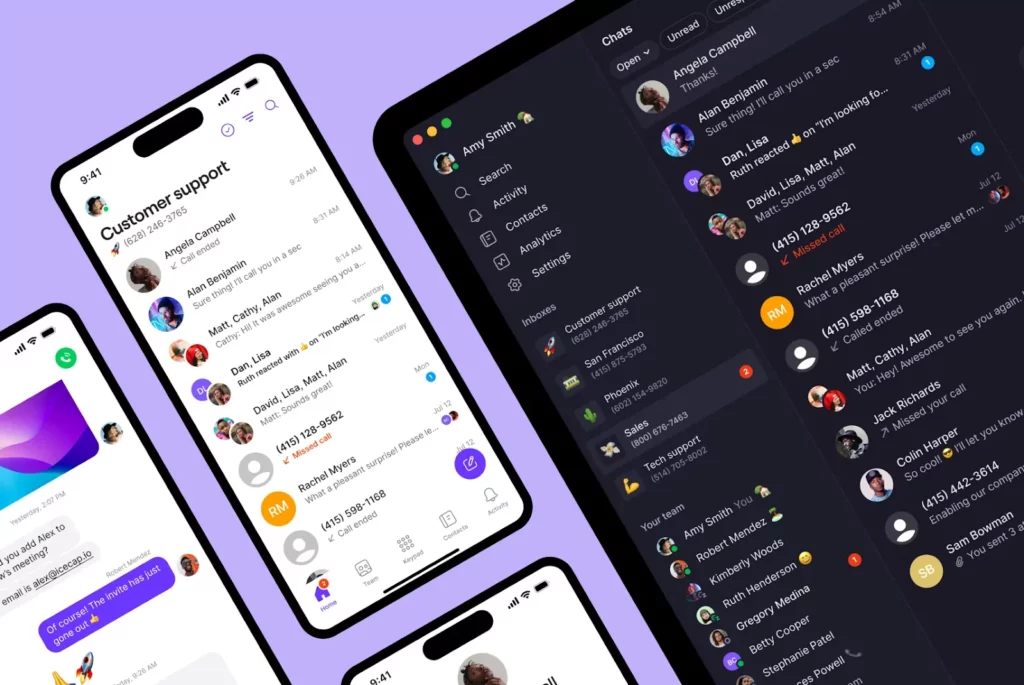
Forwarding texts works in a pinch. But shared numbers are the better long-term solution. With Quo, you don’t have to manually forward messages to another number. Your entire team accesses the same conversations automatically. They can jump in when needed and collaborate on responses together.
Beyond shared numbers, Quo also lets you:
- Offer professional call experiences with phone menus, business hours, call transfers, and call-routing features.
- Reply to customers at the right time with scheduled messages, automated texts, and auto-replies.
- Keep track of customer requests with call recording, AI call summaries, and transcripts.
- Never miss a call with Sona, Quo’s AI voice agent that answers calls when your team can’t.
- Track your team’s performance with call analytics and the ability to export your call and text data.
So, can you forward a text message? Yes. But with Quo, you won’t have to. Read to move beyond manual text forwarding? Sign up for your free seven-day trial of Quo today.

See how texting works with Quo

FAQs
If you can’t forward text messages, here are some common reasons:
– No network connection: Check if you have cell service or a WiFi connection.
– SIM card issues: Your SIM card may be loose or damaged. Try removing and reinserting it.
– Carrier problems: Your carrier may be experiencing outages. Contact them to check.
– App glitches: Close and reopen your Messages app, or restart your phone.
– Software updates needed: Make sure your phone’s operating system is up to date.
– iMessage issues: Check if iMessage is turned on in Settings and Messages. Try toggling it off and back on.
If these steps don’t work, contact your phone carrier for support.
Android and iPhone don’t notify the sender when you forward SMS to another number. The forwarded message appears as if you wrote it yourself.
The downside is that your recipient won’t see who originally sent the message. They’ll only see it came from you, which removes important context about the conversation.
No, if your provider offers a VoIP call forwarding service, it typically doesn’t include texts. You’ll need to find a separate solution for forwarding SMS text messages.
There are several ways to automatically forward text messages. You can:
– Forward texts to additional Apple devices natively on iPhone
– Use a third-party SMS forwarding app to forward texts on Android
– Use a virtual phone system like Quo to automatically forward texts to email, Slack, your CRM, or other apps
Yes, you can forward texts to email manually on both iPhone and Android.
On Android:
1. Select and hold the message.
2. Tap the three dots.
3. Choose Forward.
4. Enter your email address.
5. Tap the send arrow.
On iPhone:
1. Select and hold the message.
2. Tap More.
3. Tap the forward arrow.
4. Enter your email address.
5. Tap Send.
Keep in mind that these methods might not always work for every device and message type.
Need automatic text-to-email forwarding? You’ll need a virtual phone system like Quo. Once you set up Quo’s email integration, all incoming texts will automatically go to your email.
To copy-paste a message to someone on iPhone:
1. Tap and hold the message you want to copy.
2. Select Copy.
3. Open a new message to your contact.
4. Tap and hold in the text box and select Paste.
5. Tap the arrow button to send.
To copy a message to someone on Android:
1. Tap and hold the message you want to copy.
2. Select the Copy to clipboard icon at the top of your screen.
3. Open a new message to your contact.
4. Tap and hold the text box.
5. Tap Paste.
6. Select the Arrow icon to send.
Yes. Most phones let you forward MMS messages the same way you forward regular texts. Open the message, tap and hold the MMS, then choose Forward and select the contact or number you want to send it to. Keep in mind that large files may be compressed or fail to send if they exceed your carrier’s size limits.
Google Messages doesn’t include a built-in email forwarding option. However, you can use some workarounds, like:
– Using a third-party SMS forwarder app
– Setting up Google Voice
– Using Zapier
Auto-forwarding in VoIP platforms automatically redirects messages or calls to another:
– Number
– Email address
– Application
For example, if a message comes in after business hours, it can automatically forward to another team member or your email.
An automated SMS forwarder is a tool that automatically sends incoming texts to another phone number or email address. It helps you share customer texts with your team, keep records, or check messages when you’re away. With Quo, you don’t need a separate forwarder. Shared numbers let your whole team view and reply to messages from the same inbox in real time.
Some mobile carriers provide a message forwarding code, like *72 or #004#. You can dial this number to set up call or text forwarding. The exact code and process depend on your carrier. So make sure to check their site or contact them directly.
For VoIP users, message forwarding is usually handled through your account settings rather than by using a code.