With businesses staying remote or going hybrid, business communications don’t happen in just the office anymore. It’s become easier than ever to get SMS and MMS messages on any device, including your computer.
Whether you’re at home, at the library, or visiting your parent’s house, all you need is a WiFi connection to read texts on your laptop or desktop. This guide will show you how to do this so you can review messages wherever you go.
Are you a business owner who wants to improve your SMS workflows? We’ll also show you the best solution for getting texts on your computer and building better relationships with your customers.
How to get text messages on your computer
There’s a lot to love about getting texts on your computer. You can probably type faster than you can swipe, and it’s usually easier to read and respond to multiple conversations at once.
Depending on your use case, you can get text messages on your computer in five different ways.
Let’s start with the most efficient solution for small and growing businesses:
1. Get text messages on computer with a VoIP provider

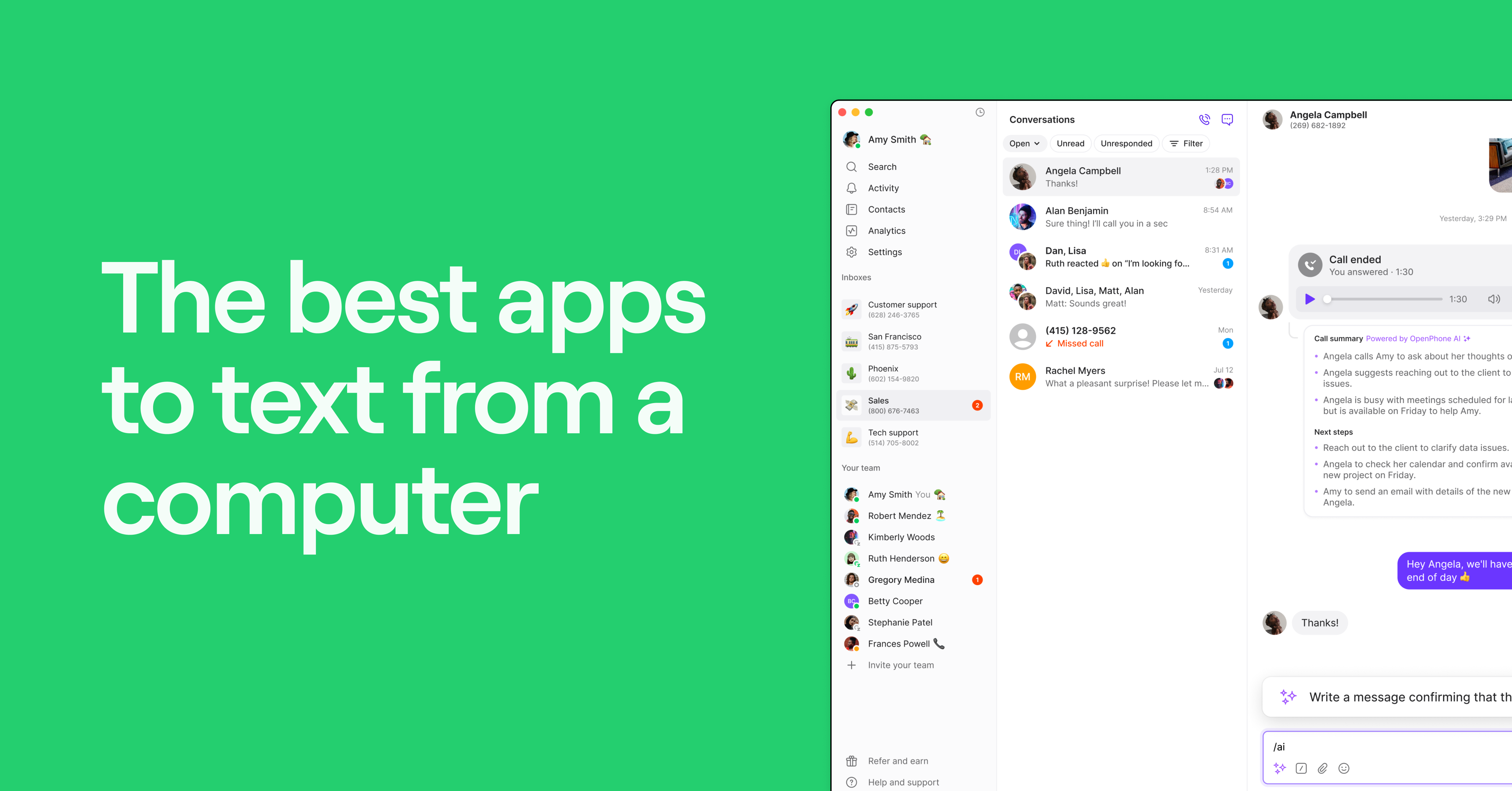
With a VoIP service like Quo, you can get calls and text messages on your computer as long as you have an internet or WiFi connection. This means all you need is an existing device — like a laptop or desktop.
Quo offers a desktop app that’s compatible with Windows PC and macOS. This means there’s a good chance you already own the right hardware to get text messages on your computer. The app lets you customize your phone number’s settings to match your workflow — like setting business hours so you don’t get texts after hours.
You can also text in your browser with our web app, which means you can use any computer to read your text messages.
Of course, you don’t just get text messages with Quo: you can also respond to and automate them. For example, you can:
- Set up and send auto-replies and scheduled texts. That way, you can easily respond to customers when you’re unavailable or out for the day — without interrupting them outside business hours.
- Answer messages faster. For example, you can use AI-suggested message responses to quickly brainstorm replies. You can also save time with snippets or pre-saved messages to quickly answer FAQs from your laptop, computer, or mobile device.
- Send more than basic SMS messages. With MMS support, you can send emojis, videos, pictures, and PDFs to help customers get the answers they need. You can also offer visual support — customers can send screenshots or short videos so you can help resolve their issues.
- Connect to the tools you already use. Quo offers 7,000+ integrations with Zapier so you can sync your data in the right places. You can integrate our business phone system with HubSpot for SMS or Salesforce to automatically log new messages in your CRM. Want to push your data to other applications? You can integrate with the Quo API on any plan.
The best part?
Quo offers free texting to US and Canadian numbers with all its plans, which means your reps can send and receive as many texts as needed.

How to send and get texts on your computer with Quo
- Sign up for a Quo account. You’re welcome to start with our seven-day free trial — but keep in mind that you’ll need a plan if you want to send and receive text messages. Note: You’ll need to complete US carrier registration before you can text any US phone number.

- Purchase or port a local or toll-free number. Porting typically takes one day to two weeks.
- Download the Quo desktop app or use the Quo web app. For computers, we support Mac and Windows.

- Open the desktop app and select the chat bubble icon.

- In the To field, enter a contact’s name or phone number.

- Type your message and tap Send.

- You’ll receive push notifications, letting you know when there’s an incoming text. You can also customize your notifications so you only get messages during business hours.


Quo is cloud-based, so every text message sent to your Quo phone number will appear on devices with the Quo app installed. This includes your Android phone, iPad, iPhone, desktop computer, or browser.
2. Get text messages with iMessage

If you’re an iPhone user, you can get and respond to texts via iMessage on other Apple devices with your Apple ID, like your Mac. This may be helpful if you prefer to work from multiple devices or want to stay on your computer while answering texts.
Just keep in mind that this forwarding feature was designed for personal use — not business or team collaboration. For example, you can’t share numbers to collaborate on texts with team members. You can’t coach or train reps using SMS logs or call recordings, either.
Another side note: iMessage isn’t compatible with PC or Android devices. This could make things tricky if you own an iPhone but use a Windows PC for work.
The best workaround for this is to set up Microsoft Phone Link, which we’ll take a look at below.
How to get messages on Mac with iMessage
Here’s how you can send and receive text messages on your computer with iMessage:
- Launch the Messages app on your Mac.
- Turn your iPhone on and make sure it’s connected to the same WiFi network as your Mac.
- Log in to the Messages app on your Mac using the same Apple ID credentials linked to your iPhone.
- On your iPhone, navigate to Settings, then Apps, and tap Messages.
- Enable iMessage to allow your Apple devices to send and receive messages using the same phone number.
- Scroll down and turn on Text Message Forwarding for your Mac.


Now you can get text messages on your computer.
Troubleshooting + limitations for texting on computer with iMessage
Don’t see Text Message Forwarding on your iPhone? Make sure iMessage is enabled and that you’re signed in with your Apple ID on both your iPhone and the device you’re trying to forward messages to. If not, you won’t see the option for text forwarding in Messages.
Keep in mind these limitations as well:
- You can only iMessage on Mac to other Apple users.
- Both devices need to be connected to the internet.
- Message history might not fully sync if devices weren’t previously connected.
3. Get SMS on PC with Microsoft Phone Link

Microsoft Phone Link allows you to sync, receive, and send text messages to any PC on Windows 11 and up. That way, messages on your cell phone — Android or iOS — automatically appear in your computer’s notifications. If you don’t want to juggle multiple devices, this method might be quick, simple, and free.
But Phone Link was also designed for personal use, so you’ll have limited functionality with collaboration tools or business features. For example, you won’t have key tools like text message templates or auto-replies. And if you want third-party integrations, you’ll need a business phone system.
How to get messages on your computer with Phone Link
Here’s how you can get messages on your computer with an iOS device and Microsoft Phone Link:
- Install the Link to Windows app from the App Store on your iOS device.
- Download and install the Phone Link app on your PC.
- Launch the Phone Link app and use your iPhone to scan the QR code displayed on your computer.
- Connect your iPhone and PC via Bluetooth.

- Navigate to the Messages tab within the Phone Link app.
- Tap New Message to start a conversation.
- Type the name or phone number of the contact you want to reach.
- Choose the contact you wish to receive messages from, and a new chat window will open.
To get messages on your computer using an Android device, follow the same instructions but download the Link to Windows app from the Play Store instead.
Troubleshooting + limitations of viewing text messages on computer with Phone Link
Devices not pairing? First unpair any existing connection in both devices’ Bluetooth settings, restart both devices, then start the pairing process from the Phone Link app on your PC.
Messages not showing up on your PC? Make sure both devices are connected to the same WiFi network and that message syncing is enabled in your Phone Link settings. Also check that your phone isn’t in Do Not Disturb mode, which can block message syncing.
Keep in mind that there are a few drawbacks with the Phone Link app:
- It only shows text messages that you’ve received or sent within the last 30 days.
- You can’t manage or delete messages on your PC.
- You can’t create or respond to group messages on the iOS app.
- You can’t send or receive images, GIFs, or emojis on the iOS app.
4. Get text messages with Google Messages for web

With Google Messages, you can synchronize and send texts from a specific number so they’re available on your computer and phone. This is especially useful if you already use Google Workspace tools since you’ll need to sign in to Google Messages for the web with your Google account. It can also be helpful if you already have an existing carrier like AT&T, Verizon, or T-Mobile.
Keep in mind that you might have to pay carrier fees if you use Google Messages to text from your computer. Plus, you can’t use virtual numbers with Google Messages, so your options are limited if you don’t already have a carrier.
How to get messages on your computer with Google Messages
Here’s how you can set up Google Messages to get texts on your computer:

- Launch the Google Messages app on your phone.
- Tap your profile icon at the top of the conversation list and choose Device Pairing.
- Select the QR Code Scanner option.
- Use your phone to scan the QR code shown on messages.google.com.
- Once your chats sync, pick a conversation in your browser and start sending messages.
Troubleshooting + limitations of computer texting on Google Messages
Can’t see the QR code or having trouble connecting? Make sure your phone has a stable internet connection and that you’re signed in to the same Google account on both devices.
There are a few drawbacks with Google Messages:
- It only works with Android 5.0 or higher.
- You need Chrome, Mozilla Firefox, Safari, or Microsoft Edge. It’s not available on Internet Explorer.
- Messages sync only when your phone is connected to the internet.
5. Get text messages with messaging apps

The cheapest way to get texts on your computer is to download WiFi texting apps like Google Voice, WhatsApp, and Facebook Messenger. That way, you can receive and send cloud-based messages from the mobile app and your laptop — as long as you can deal with their limitations.
For example:
- If you want to send texts via Messenger, you and your clients will need the app installed.
- If you want to use WhatsApp, you’ll have to use your phone number to get messages on the desktop app or pay extra for WhatsApp business tools.
- Google Voice is only available in the US, and using it for business, like for mass texting and calling, may violate its terms of service.
If you’re looking for a more robust texting app, you’ll need to upgrade to a dedicated business phone service.
Could it be time to make the leap?
Keep reading to see if you’re ready.
💡Related: Best Apps to Text from Your Computer
Advanced business texting features to keep in mind
Standard texting apps work great for personal use, but professional communication often requires additional features:
Scheduling messages
Working on a customer’s project quote late at night? You can schedule texts in a recipient’s time zone to keep up with conversations without interrupting your workflow.
Platforms like Quo give you the option to automatically cancel your scheduled text if the recipient messages before your text goes out.
Message backup and sync
Beyond scheduling, business texting requires reliable data management. Important data like your contacts, call logs, and messages should be stored for record-keeping and legal purposes.
With Quo (formerly OpenPhone), data is stored for 30 days after your subscription cancellation. You can easily export data before cancellation for permanent backup. You can also automatically sync call recordings, SMS texts, and voice messages with CRMs like HubSpot and Salesforce.
Text message templates
With text templates, or snippets, you can set pre-written message templates that instantly answer your FAQs. This can likely save you hours of time each month. For example, you could create templates for common responses like appointment confirmations or delivery updates.
Scenarios where you need more than a free computer app to receive texts
Not sure if you’re ready for a business texting app?
Here are four scenarios where you’ll need more than a free texting app:
Scenario #1: Split responsibility for incoming texts among team members
If you manage a business with multiple team members, you know how tricky it can be to coordinate texts on mobile phones. You don’t want key messages to fall through the cracks, but text forwarding isn’t enough to split responsibility for incoming texts — especially when it risks slowing reps down with redundant work.
But with a professional business phone system, everyone on your team can share a single phone number. They’ll receive text notifications on the devices they already use, including computers. This will let them read and respond to messages as a team.
Scenario #2: Have flexibility to work on different devices
Spend lots of time on the road? Don’t have access to your laptop in the field? Getting texts on your computer has its place, but what happens when you need to work from your phone?
If you need the flexibility to work on different devices, a free device pairing app might not make sense. Some free app users cite problems with message syncing, and depending on your work schedule, it might not be easy to respond to messages quickly.
VoIP systems like Quo let you receive messages on any device, whether you’re working from your tablet or laptop. Since you always get notified of incoming messages, you don’t have to stress about missing important conversations — or feel like you’re glued to your phone.
Scenario #3: Save time with texting automations
Free texting apps might help you easily review text messages, but they don’t make it easy to respond.
With auto-replies, for example, you can instantly respond to customer questions when you’re off the clock. Reply to every missed call, text, and voicemail with an automated message, letting them know you’re unavailable but will be back in the office soon.
Scenario #4: Create a better work-life balance by separating personal and professional texts
As a business owner, the lines between your personal and professional life can get blurry fast — like ‘working vacations’ and ‘on-call dinners.’ This is especially true if you send messages from your personal phone, making it harder to disconnect when you’re out for the day.
But if you direct text messages to your computer instead of your cell, you won’t stress whenever your phone screen lights up. You’ll know those messages are for personal matters only. You can save work-related texts for whenever you sit behind your computer.
Choose Quo to get texts on your computer

Getting texts on your computer is nothing new — but it sure makes life easier when you’re a growing business owner. With Quo’s business texting tools, you can get started in 15 minutes or less. We make it easy to send SMS and MMS messages through any laptop or desktop connected to the internet.
Quo can do a lot more than that, though — our platform was designed to help you build better relationships with your customers. That’s one of the reasons we’re trusted by 60,000 businesses and rated the #1 business phone system on G2.
Curious to give us a try? Sign up for our seven-day free trial so you can test out the platform for free.
FAQs
Yes, Quo’s Windows desktop app makes it easy for you to receive texts on Windows PCs. You can also log in to your account via your browser and send and receive messages with our web app.
If you’re syncing messages from a personal phone number, you can use Microsoft Phone Link, Google Messages, or a third-party app to sync texts. If you’re using a Mac and an iPhone, you can sync your texts with iMessage. If you’re syncing texts from a business phone number, you’ll want a VoIP provider like Quo to send and receive secure business texts on your desktop or web browser.
After you create a Quo account and download the iOS app for your iPhone and the Windows app for your PC, you’ll have access to your texts on both devices.
OpenPhone supports SMS and MMS messages. This means you can receive PDFs, audio files, video files, GIFs, static images, and phone contact cards on your computer.
You can receive text messages online for free using Google Messages for Web for Android users, iMessage on Mac computers for iPhone users, or Microsoft Phone Link for both Android and iPhone users with Windows PCs.
The main apps are Google Messages for Web, Apple’s iMessage app on Mac, Microsoft Phone Link for Windows, and business platforms like Quo. All of these sync your phone’s text messages to your computer in real-time.