When you’re already working from your computer, it makes sense to want to call from it, too. Maybe you want to check your notes, pull up some files, or share your screen while you’re calling, and it’s easier to just do everything from your computer.
Or maybe your phone’s on silent, buried under a pile of receipts, and you need to make a call ASAP — a call from PC it is. In this guide, you’ll learn how to call someone from a computer and the best apps to get started.
How to make a call from a PC: 2 Top methods
There are two main ways to call from your computer. You either need to link your phone to your PC or use a standalone app for calling over WiFi, such as a VoIP app.
Linking your phone to your computer is fine for personal use, but it’s a much more limited method. Here’s how it works:
1. How to call from a PC by linking your phone to your computer
Linking your phone and computer is free, and the setup is simple.
On the flip side, there are some limits you should know before you set this up:
- To link your phone, it needs to be turned on and nearby.
- Your phone must be connected to Bluetooth and/or the same WiFi network as your computer.
- If your phone doesn’t have a cellular connection, you can’t call from a PC.
- The call may use your existing cellular plan minutes.
- You don’t get any business calling features like call routing, CRM integrations, or phone menus.
- You don’t get a second phone number so you can separate your work and personal calls.
If you’re okay with all of that, here’s how to call from a PC by linking your devices together:
How to call from a PC for Windows users

Phone Link is a free Windows app that pairs your Android or iOS phone to your Windows 10 or 11 PC. It basically mirrors your phone onto your computer. You can use your existing number to make calls from your Windows PC or answer incoming ones from a desktop pop-up.
Here’s how to set it up:
- Open the Phone Link app on your computer. It comes pre-installed.
- Select your device to get started: Android or iPhone.

- Follow the prompts to pair your devices.
- Once your phone is connected, go to the Calls tab. Press Get started, and follow the instructions to begin pairing. Make sure your Bluetooth is turned on.
- From the Calls tab, use the dial pad or look for a contact from the search bar to start a call.

Just remember, you can handle your personal calls more conveniently, but Phone Link falls short for business use. It lacks essential business features and you’re still reliant on your cellphone. . If you want a PC calling app that’ll help your company grow, you should consider a different option.
How to call from your MacBook
If you have an iPhone and a Mac, you can use the iOS Continuity features to make and receive calls on your computer. Just know your iPhone and Mac need to be logged in to the same Apple ID and be connected to the same network. They also need to be within 30 feet of each other.
Final note, according to Apple Support, the call may be charged to your carrier plan. And not all carriers support WiFi calling.
Here’s how to set this up:
- On your iPhone, go to the Settings app, tap Apps, Phone, and Call on Other Devices.
- Toggle on Allow Calls on Other Devices, then pick your computer from the list of devices.
- Now you can make calls from your Mac just like you would from your phone. You can do this from the Phone app or from other apps, like Contacts, Calendar, Messages, and FaceTime.
- If someone calls you, you’ll also receive the call on your Mac. Just swipe, tap, or click the notification to answer.
But again, remember this doesn’t give you any other features that your phone doesn’t already have. The experience is the same as on your iPhone, just not pocket-sized.
2. How to call from a PC using desktop VoIP apps
VoIP stands for Voice over Internet Protocol. It’s the technology that lets you call and text over the internet. It doesn’t rely on traditional phone lines, so all you need is a WiFi connection. This can be a cellular connection, an Ethernet connection, or a hotspot.

Using VoIP apps is a smarter option for business conversations compared to mirroring your phone. That’s because they:
- Give you a separate number, keeping personal and work calls distinct
- Come with business features that make running your business easier
- Work completely independently from your phone. No need to have it nearby, turned on, or on the same network.
- Uses WiFi calling, which lets you call certain areas for free. For example, with Quo, formerly OpenPhone, you get unlimited calls and texts to the US and Canada.
The exact process of PC calling can vary app to app, but you generally need to:
- Choose a VoIP app and sign up. Most have a desktop app you can download or a web app you can use straight from your browser. For business calling, look for an app that offers features like shared numbers, team collaboration, and call handling so you’re not limited as your business grows.
- Make sure your internet connection is stable. VoIP calls don’t actually need much bandwidth. You only need download speeds of around 0.5 Mbps, according to the FCC. But if you’re experiencing choppy audio, try switching from WiFi to a wired Ethernet connection. You should also close any bandwidth-heavy apps like video streaming. Check out our guide to call quality for more information.
- Get your sound set up. Most built-in computer mics and speakers work fine for calls. For better audio quality and less background noise, a VoIP headset is worth the upgrade.
- Start calling! Once you’re set up, making a call is as simple as dialing a number or selecting a contact, just like on your phone. Depending on the app, you can also send texts, check voicemail, access your full call history, and more right from your desktop.

Top 5 calling apps for PCs in 2026
Here are the five best WiFi calling apps for PCs:
| App | Best for | Pricing | Desktop app |
|---|---|---|---|
| Quo | Calling and texting for small and growing businesses | $15 per user per month | ✔️ |
| Google Voice | Google Workspace users | $10 per user per month | ❌ |
| FaceTime | Free calling between iOS users | Free | ✔️ |
| Cross-platform calling | Free | ✔️ | |
| Zoom | Video calling on desktop | Free | ✔️ |
Let’s start with the tool ranking #1 on G2 for customer satisfaction:
1. Quo: Best calling and texting app for growing teams

Pros
- Free calling from a computer and other devices to US and Canadian numbers
- Local and toll-free second numbers are available
- Internal threads, contact notes, and direct messaging for team collaboration
- Call recording, transcripts, and summaries
- AI voice agent to take calls 24/7 when you can’t
- Auto-attendant functions or IVR for inbound calls
- Messaging automation, including auto-replies, snippets, and scheduled messages
- Integrations with 8,000+ apps, including Slack, Salesforce, and HubSpot
Cons
- Can’t verify accounts through two-factor authentication*
*Nearly all virtual phone numbers share this limitation. For safety reasons, companies like Facebook, Uber, and Google rarely let you authenticate accounts through a virtual phone number.
Quo is a VoIP phone service that supports phone calls and text messages, both SMS and MMS, on any internet-enabled device. When you don’t want to use your iPhone or Android phone, you can use our desktop or web apps.
Every user gets a free US, Canadian, or toll-free number and can make free phone calls from computers and other devices to the US and Canada. You can also make international calls from a PC with our competitive international calling rates.
From any device you log in from, you’ll have full access to your contact list, recent calls, voicemail inbox, and more. Everything you need to successfully make calls is in one place. Working on building better customer relationships? Use call recording, phone menus, and shared phone numbers to improve their experience with your business.
You can multitask to your heart’s content while taking a call since Quo’s AI call summaries take notes for you. On the Business plan, you also get call transcripts and automatic call recordings.

Quo plans start at just $15 per user per month. You can try out Quo with a seven-day free trial and try calling from your computer for free to confirm it’s a great fit.
During the signup process, you’ll be asked for a credit card to help keep bad actors off the platform. And when your trial is set to expire, we’ll email you a heads-up to the email address you used to sign up.
Key features of Quo
- Easily call and text from your computer, laptop, tablet, or smartphone
- Free VoIP calls from a PC to any US or Canadian number
- Free texting, both SMS and MMS, to US and Canadian numbers
- Each user comes with a local US, Canadian, or North American toll-free number
- Work together with your team from a shared number
- Save time texting with auto-replies, snippets, and scheduled text messages
- Integrates with Slack, Zapier, Make, HubSpot, Salesforce, and more; integrate other tools using the Quo API
Quo pricing
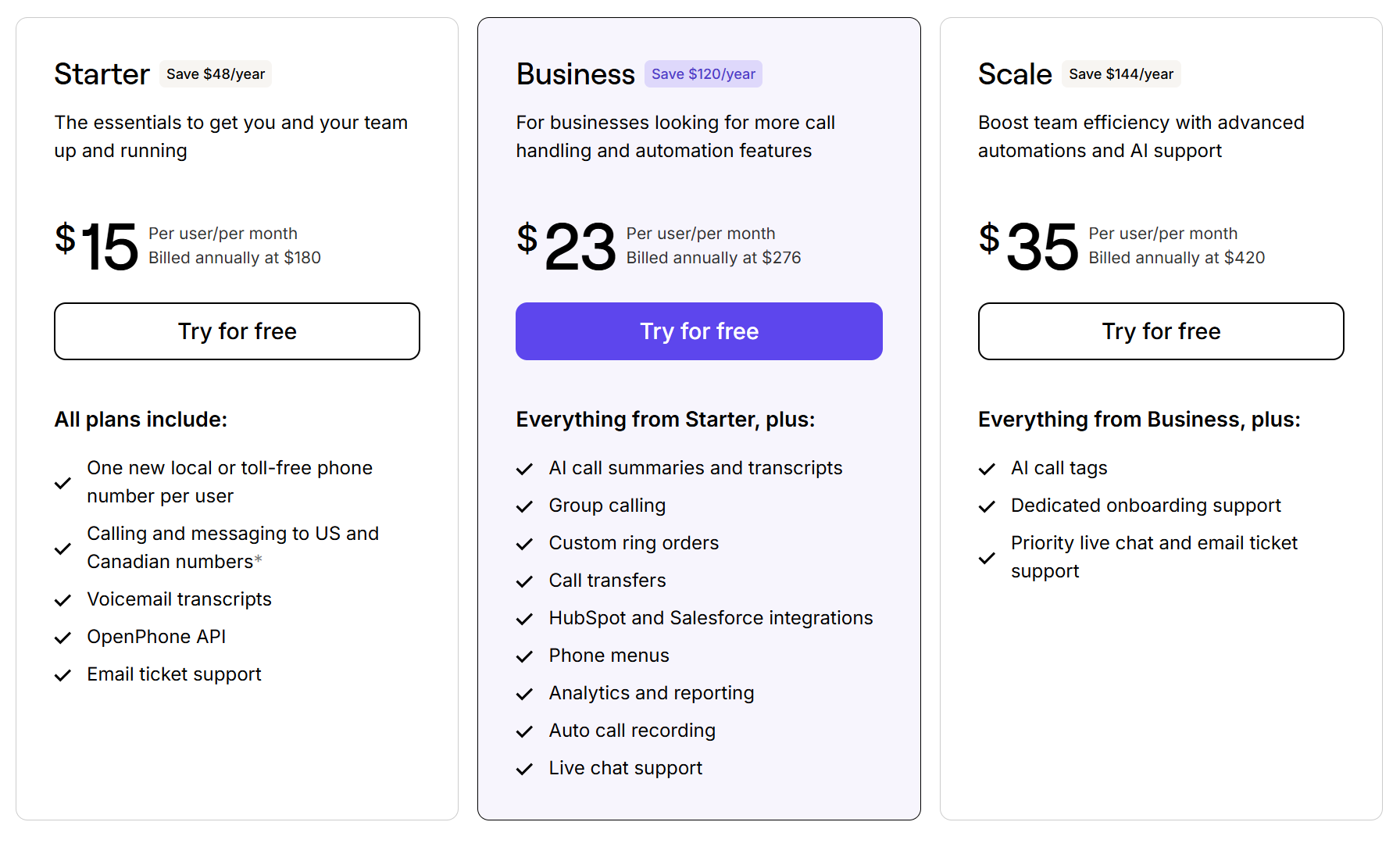
Quo’s pricing plans offer three ways for businesses to make a voice call from a PC:
- Starter: $15 per user per month for unlimited calls and texts in Canada and the US, voicemail transcriptions, on-demand call recording, access to 10 free calls per month with our AI voice agent, Sona, and more
- Business: $23 per user per month for automatic call recording, phone menus, analytics and reporting, call transfers, custom ring groups, AI call summaries and transcripts, and more
- Scale: $35 per user per month for AI call tags, inbound phone support, dedicated onboarding, and priority chat and email support
How to call from a PC with Quo
Once you create an account with Quo, there are three ways to make free calls from a PC:
- Dial a number from the browser or desktop app. Go to your workspace and click the Phone icon, called the Make a call button, at the top left. As a shortcut, tap C on your keyboard to open the dialer.

- Select a contact from your contact list, then tap the call icon on the top left.
- Call from a conversation thread. Open a conversation with the person you want to call, then select the phone icon at the top.

2. Google Voice: Best for Google Workspace users

Pros
- Free VoIP calls to the US and Canada
- Integrates with other Google Workspace apps
- Share responsibility for incoming calls with ring groups requires an upgrade
Cons
- Texting is available in the US only
- No toll-free numbers
- No desktop app
- Call recording is unavailable on the base plan
Google Voice for Google Workspace is a popular business VoIP app for Windows and Mac users. While Google Voice doesn’t offer a desktop app, you can call from the browser app or make calls using its Google Chrome extension.
Personal users based in the US can get a Google Voice number for free, plus unlimited calling and texting in the US. The free plan also comes with features like voicemail transcripts and call forwarding.
If you run a business, you have two choices:
- Purchase a Voice-only plan with basic features like unlimited domestic calling, unlimited US texting, and voicemail transcription. But this plan is only available in the US and for one user.
- Add Google Voice to a Google Workspace plan. These plans are available in 14 countries and allow for at least 10 users. This will cost you at least $10 per user per month, plus at least $7 per month for Workspace.
- Whether you choose the Voice-only or Workspace plans, the features you get are limited compared to other business VoIP apps. For example, you don’t get toll-free numbers, texting outside the US, and proper integrations. Basic features like on-demand call recording and phone menus also require multiple upgrades.
Key features of Google Voice
- Unlimited domestic calling
- Unlimited US texting
- Call recording with an upgrade
- Business call recordings, requires an upgrade
- Ring groups, requires an upgrade
- Phone menus, requires an upgrade
Google Voice pricing

For individuals, Google Voice is free.
For businesses that want a second phone number, you can choose from one of four Google Voice plans:
- Voice only starter: $10 per month for one user, one phone number, unlimited domestic calling and US texting, three-way calling, and call recording; only available in the US
- Starter: $10 per user per month* for a maximum of 10 users, unlimited calls and texts in the US and Canada, call forwarding, and Google integrations
- Standard: $20 per user per month* to access on-demand call recordings, ring groups, and phone menus
- Premier: $30 per user per month* to access automatic call recordings and advanced reporting
*You’ll also have to pay at least $7 per user per month for Google Workspace.
3. FaceTime: Best free calling app for iOS users

Pros
- Free to use
- Ability to share links and files during calls
- Can switch to a FaceTime video call
- Screen sharing
Cons
- Basic calling functionality
- No business features like shared numbers, call routing, or ring groups
- Can only call other iPhone users
FaceTime uses your personal phone number to make video and audio calls from your iPhone, iPad, or macOS computer. It’s easy to use, free, and even lets you record 1:1 audio calls, complete with a transcript.
The caveat is that Android users can’t initiate a FaceTime call, which makes it hard for some customers to contact your business. You’d have to create and send them a FaceTime link first, which adds extra steps and might not come off as very professional.
FaceTime also doesn’t offer shared numbers or any other features like auto-attendants, call transfers, or ring groups. So it’s not a sustainable solution for handling customer calls for a growing business.
Key features of FaceTime
- Have a Group FaceTime call with up to 32 people
- Transfer a call to your iPhone
- Record 1:1 audio calls
- Add an incoming caller to a current call
- Record a video or audio message
- Create a link to a FaceTime call to send to your customers
- Turn on Live Captions
FaceTime pricing
FaceTime is free.
4. WhatsApp: Best free VoIP app for cross-platform calling

Pros
- Free audio and video calling
- Multimedia sharing, including photos, videos, and files
- No time limits on calls
- End-to-end encryption on calls and messages
Cons
- Both parties need a WhatsApp account
- No call handling features
- Requires an existing phone number to sign up
WhatsApp is a free calling and messaging app that works on both Mac and Windows. You can use it to make free calls without time limits. This makes it a practical option for calling international contacts.
The WhatsApp help center notes you can make calls on your computer using the browser or the app. But while testing the tool on my browser, WhatsApp asked me to download the app to make calls. So keep an eye out for that.

The main catch with WhatsApp is that both you and the person you’re calling need a WhatsApp account. It also doesn’t offer any business calling features like call routing or ring groups. This makes it unsuitable as a primary phone system for a growing business.
WhatsApp does offer a paid option for businesses, the WhatsApp Business API. But it’s built for automating large-scale enterprise texting, not for everyday calling.
Key features of WhatsApp
- Free audio and video calls to any WhatsApp user worldwide on iOS, Android, and PC
- Chatlock and other privacy features, like disappearing messages
- Desktop app and web browser access
- Multimedia sharing, including photos, videos, and files
- Groups and communities
- Group messaging
WhatsApp pricing
WhatsApp is free for personal use. The WhatsApp Business API charges per message delivered based on four categories. Service texts, meant for answering customer inquiries, are free in the US. Charges start at $0.0034 per text.
5. Zoom: Reliable video calling app for desktop

Pros
- Offers a free plan for single users
- Easy to use and widely adopted
- Offers screen sharing and recording
Cons
- Time limit of 40 minutes per call on the free plan
- Texting and traditional calling require a separate Zoom Phone subscription
- Doesn’t offer call handling features like call queuing
- Doesn’t replace your main number
Zoom is a video calling app with screen sharing for a PC. With a straightforward interface and few bells and whistles on the base plan, it’s a solid choice for solo businesses and personal use. But it also offers features like meeting recordings, an AI companion, whiteboards, waiting rooms, and more.
That said, Zoom is more of a meeting tool than a business phone system. It doesn’t replace your main number or allow you to text from a PC. And if you want to send texts or make regular phone calls, you’ll need to upgrade to Zoom Phone — a separate service with its own pricing.
Key features of Zoom
- Screensharing
- Meeting chat
- Whiteboard for in-call collaboration
- AI companion
- Call recording, cloud storage requires an upgrade
- Breakout rooms
- Waiting room
- Limited VoIP calling
Zoom pricing

Zoom offers four pricing plans:
- Free: Includes meetings of up to 40 minutes, 100 participants per meeting, VoIP calling, team chat, notes, and three editable whiteboards
- Pro: $14.16 for meetings of up to 30 hours, 10 GB of cloud storage, AI-first task management, workflow automation, and live chat support
- Business: $18.33 for 300 meeting participants, unlimited whiteboards, scheduled, and advanced security
- Enterprise: Custom pricing, includes full-featured PBX phone, 1,000 participants per meeting, webinars, and translated captions
Is calling from PC secure?
Generally, yes. As long as you use a reputable service and keep your software updated, calling from a PC is safe for both personal and business use.
So what makes a PC calling tool secure? According to the NSA, a good VoIP provider uses protections like transport layer security, or TLS, and end-to-end encryption to protect your calls. In addition, Quo implements enterprise-grade cloud infrastructure and firewalls to keep you safe.
To stay protected, here are a few things to keep in mind:
- Avoid free and unreputable consumer apps. Apps like random free web dialers or obscure consumer calling apps often come with weaker encryption. They might have fewer access controls and no compliance requirements compared to paid business VoIP. This can expose your calls to eavesdropping and make your account an easier target for unauthorized access.
- Be mindful of who can access your call data. All VoIP calls pass through the provider’s servers. Free consumer apps may use that data to serve you ads, and it can be difficult to verify who else they share it with. Paid providers typically have clear data policies that prohibit using your call data for advertising.
- Watch out for phishing scams. A common attack involves scammers impersonating a legitimate company like Microsoft. Then, they’ll ask for remote access to your computer to “fix a problem.” Once in, they can install malware or steal information. Be cautious about unexpected calls that request remote access, and brush up on how to recognize and avoid phone scams.You can read more about Quo’s security practices on our security and compliance page.
Quo: The best PC calling app for growing teams

IIf you want to make a personal call from your computer, all you need is a solid internet connection and a decent sound setup. But for business use, the calling app you choose makes the biggest difference.
Quo gives your team everything you need to call and text professionally from any device, including your PC. You get a dedicated business number, powerful call handling features, and AI tools that take the busywork out of conversations.
Quo also makes it easy to call from a different number, ensuring your personal cell number is kept private while you run your business. See why thousands of growing companies use Quo. Start your free seven-day trial today.
FAQs
Using a PC phone call app can help you:
– Access helpful business features like shared numbers, call routing, call recording and transcripts, and screensharing
– Work efficiently on calls by pulling up notes, calendars, or CRM tools while you talk
– Have a reliable backup when your phone is charging, out of reach, or in use elsewhere
– Keep everything in one place so you don’t have to switch between devices during the workday
– Present a more professional setup, especially when paired with a VoIP headset
Several apps let you call from a PC for free without a paid subscription. Phone Link and iOS’s Continuity feature mirror your existing phone number to your computer. FaceTime is free for Apple-to-Apple calls but can’t reach Android users. Zoom’s free tier covers video calls up to 40 minutes but requires an upgrade for regular phone calls. WhatsApp lets you call any other WhatsApp user worldwide for free with no time limits.
Keep in mind these apps are great for personal use, not for making business calls and managing customer relationships.
A few simple adjustments can make a noticeable difference:
— Use a wired Ethernet connection instead of WiFi for a more stable connection.
— Close any bandwidth-heavy apps running in the background, like video streaming or large file downloads.
— Use a dedicated VoIP headset for clearer audio and better noise control.
— Run a quick internet speed test before your first call to make sure your connection is stable. You need around 0.5 Mbps for VoIP calls.
You can place calls without a phone by getting a virtual number with a VoIP provider and using it to call from your PC.
To get started:
1. Choose a VoIP provider.
2. Create your account by verifying your identity with a mobile number and a credit card.
3. Import your contacts.
4. Start calling from your computer.
Yes, a reliable computer calling app like Quo lets you make international calls from your PC with competitive international calling rates.
Yes, you can call landlines from your computer using a VoIP app. Just make sure the app supports outbound calling to regular phone numbers, as not all personal apps, like FaceTime, do.
It depends on the app. Apps like Phone Link and iPhone Cellular Calls mirror your existing number to your computer, so yes. VoIP apps like Quo give you a new dedicated business number instead, which works independently of your phone entirely. If you want to bring an existing number to a VoIP service, most business providers, including Quo, let you port it in easily.
You can call any phone from your computer using a WiFi calling app such as Quo.
If you’re looking for a free calling option for Mac-to-iPhone calls, you can use FaceTime, which is exclusive to Apple’s ecosystem. You can also use WhatsApp on a PC or Mac to call iPhones that have a WhatsApp account.
Yes, you can send texts from your computer using apps that connect to your mobile phone or give you a separate number. Some sync with your phone to send texts from your existing number. Others, including VoIP apps like Quo, let you text from a dedicated business number right on your desktop.
WiFi calling is a carrier-related feature. Some carriers let you route your calls over a WiFi network instead of the cellular network, which is ideal in areas of low coverage. But calls still go through your mobile carrier, so your existing plan and phone number apply. VoIP is the broader technology that lets you make calls over the internet. It includes WiFi calling, as well as standalone apps and services that work independently of a carrier or phone plan. In practice, most PC calling apps use VoIP, which is why you can call without a SIM card or mobile plan.