Trying to remember what a client said during an important call? Or scrambling to fill in your team member on yesterday’s conversation? Odds are you won’t be 100% accurate unless you record the call. From pivotal meetings to customer service calls, you could find yourself needing call recordings for all kinds of reasons.
How you record a phone call depends on the device you use — iPhone, Android, PC, or Mac.
Read on to learn about the easiest way to record a phone call, the legality of recording, and how to select the best phone recording app.
How to record phone calls on an iPhone
Apple does have a built-in recording feature that lets you record calls from your iPhone. Keep in mind call recording isn’t available in all countries and regions and you need to be on iOS 18 or higher to access it.
Here’s how it works:
- Go to the Phone app on your iPhone.
- Start a call.
- During the call, tap the More button, then tap Call Recording. Both call participants will hear an audio message that the call is being recorded.
- To stop recording, tap the Stop button or just hang up. iPhone automatically saves call recordings to the Call Recordings folder in the Notes app.
- To see the call in the Notes app, tap View Saved Call.
How to record phone calls on an Android
Just like iPhones, some Android phones do have a built-in recording feature. To record calls, non-Pixel devices must run Android 9 and up. Pixel devices must be Pixel 6 and up with Android 14 and up. Keep in mind the feature isn’t available in all regions and countries.
Here’s how it works:
For non-Pixel devices:
- Open the Phone app.
- Make or receive a call.
- To record your call, tap Record on the call screen.
- To stop recording, tap Stop recording.
For Pixel devices:
- Open the Phone app.
- Make or receive a call.
- To record your call, tap Call Assist and then Call Recording.
- To stop recording, tap Call Assist and then Stop.
If your Android doesn’t have built-in recording, you could manually record calls on Android using an external recorder, but this isn’t reliable. Plus, exporting the recording and sending it to team members can be time-consuming. Another option is to use a business phone app with built-in business call recording like Quo.
The best 4 apps for recording calls
Call recording apps don’t require a second device to record your calls, but for some calls, you may need more than a basic recording app. Let’s take a look at four of the most popular on the market depending on different use cases.
1. Quo: Best for growing teams that need recording with transcripts and summaries
Quo, formerly OpenPhone, is a VoIP app that lets you easily call, text, and record business phone calls from your computer, tablet, or smartphone.
AI call summaries and transcriptions help you review customer conversations faster since you automatically get a summary of every call after it ends. Plus, you’ll get a transcript broken down by timestamp and speaker, which helps you find specific information you need.
Here’s how call recording works:
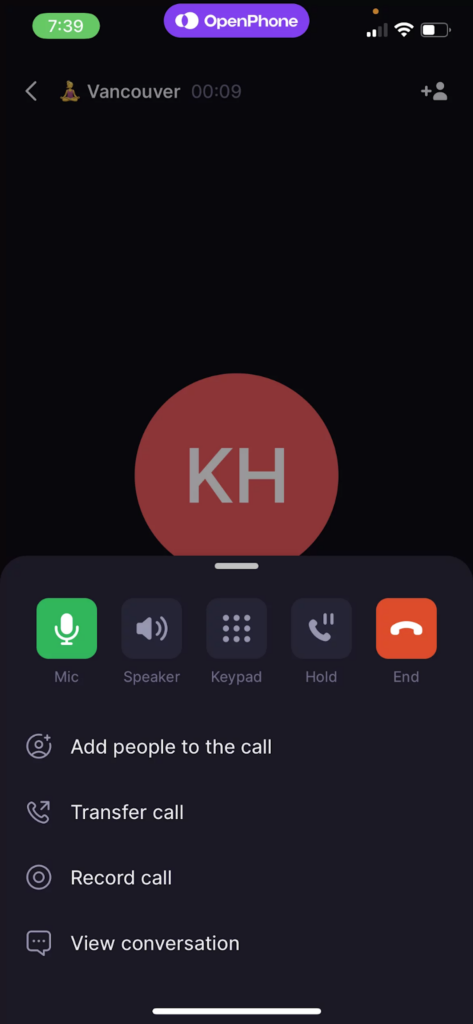
- During a phone call from your mobile device, simply swipe up on the call control panel to select Record, and you’re good to go.
- On a call from your computer, just click the Record button in the call control panel.
- Users on Business and Scale plans can turn on the Auto-record feature via the desktop app, so you don’t have to hit record every time.
Plus, you can set up automatic call recording notifications that let callers know that the conversation is being recorded. That way, you can stay compliant.
Call recordings are stored in the relevant conversation thread. From there, you can play, download, export, or delete the recording if you’re an admin user. Quo offers other advanced business call features, like auto-reply and auto-attendant, to provide service to customers more quickly.
When it comes to recording phone calls, Quo’s mobile app makes it easy whether you’re using an iPhone or Android device. Anyone with access to shared numbers can access the recordings anytime, making it easy to keep your whole team on the same page when solving customer issues.
Quo pricing
There are three Quo pricing plans to choose from:
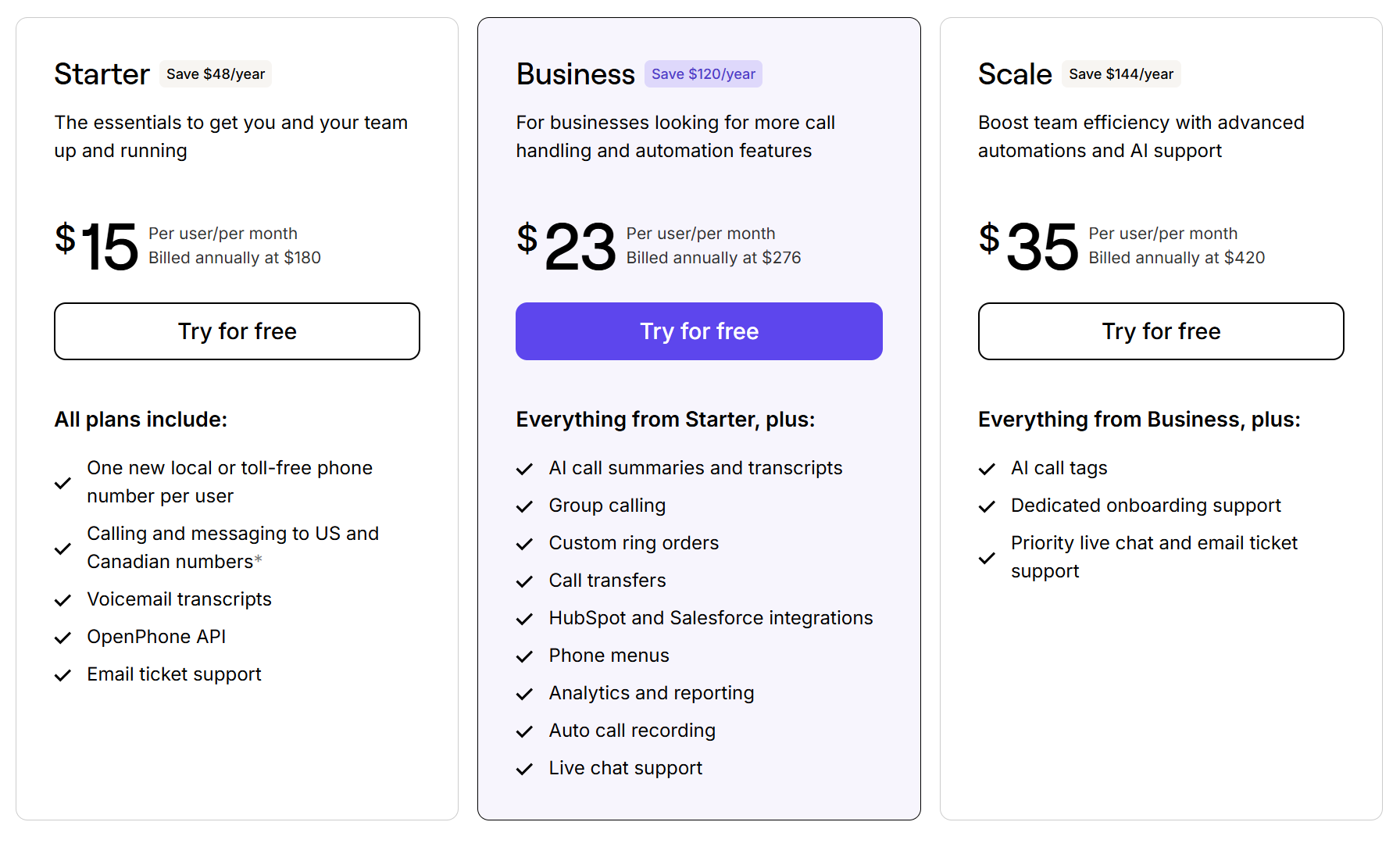
- Starter: $15 per user per month for unlimited calling and texting in Canada and the US, shared phone numbers, voicemail transcriptions, on-demand call recording, one new local or toll-free number per user, and more
- Business: $23 per user per month for automatic call recording, call transferring, CRM integrations with Salesforce and HubSpot, analytics, IVR auto-attendant, and more
- Scale: $35 per user per month for priority live chat and email support, inbound phone support, dedicated onboarding, and AI call tags

How to record your calls with Quo
Quo has plenty of advanced functionality, but it’s simple to get started recording calls. Once you create an account and try out Quo during a free seven day trial, follow these steps to record a call from your phone:
- Answer or make a call from either of the mobile apps.
- Press the Record button to start recording the call.
- Find the call recording, transcript, and summary in the customer’s conversation inbox.
2. Rev Call Recorder: Best for one-off call recordings

Rev is a call recording app designed for iPhone and Android users who want to record their incoming and outgoing calls. With Rev, you can get a human audio transcription of your recorded phone calls, which costs $1.99 per minute. If you have a large team that makes and receives a lot of phone calls, these costs can add up over time.
Rev also offers a cheaper option: AI automated transcriptions, which cost 25 cents per minute and are generated in minutes.
Rev’s transcripts are accurate and searchable by specific words or phrases, so you can easily locate certain points of your conversations. You can get your transcriptions in the app or via email. Plus, you can share call recordings with team members via Dropbox, email, or Evernote.
Ultimately, Rev doesn’t offer a full business solution. All of your recordings will be stored in that app rather than embedded within your existing contact’s conversation thread. That means your team will lack context when they need to review past conversations. A VoIP system like Quo makes more sense for growing businesses looking to stay organized and professional.
Rev pricing
Rev offers the following pricing plans:
- Free: Unlimited call recording for outgoing and incoming calls and up to 45 minutes of AI-generated transcriptions
- Basic: $9.99 per user per month for 20 hours of AI transcription per month; 90 minutes per recording, and 15% discount on 99% accurate human transcripts*
- Pro: $20.99 per user per month for 100 hours of AI transcription per month; no limit on file length, and 30% discount on 99% accurate human transcripts, captions, and subtitles
- Enterprise: Custom price for 100 hours of AI transcription per month; no limit on file length, and custom discounts on 99% accurate human transcripts, captions, and subtitles
*Human transcription service costs $1.99 per minute and automated call transcriptions cost 25 cents per minute
3. TapeACall Pro: Best for Zoom call recordings

TapeACall Pro is a call recording app for iPhone and Android users. It lets you record incoming and outgoing calls for an unlimited amount of time, so you don’t need to worry about how long you’re on the phone. While there’s a standard TapeACall app available, TapeACall Pro offers better annual pricing — though it requires a $10.99 upfront download fee plus a subscription.
With TapeACall Pro, you can record Zoom conference calls on your smartphone, which is great for jumping on a call while you’re away from your computer. You’ll need additional setup time to record meetings and have information handy, like the Zoom location number, Zoom passcode, and Zoom Meeting ID.
Once you record your calls, you can share them with team members via SMS, email, Google Drive, Dropbox, and Facebook. Plus, TapeACall Pro offers unlimited call storage, so you don’t have to worry about the app deleting important customer conversations later.
TapeACall Pro pricing
In addition to the $10.99 fee to download the app, subscriptions cost the following:
- Monthly: $9.99 per month for incoming and outgoing call recording, unlimited storage, transcriptions, and more
- Annual: $59.99 per year for the same features as the monthly pricing model
The standard TapeACall app offers the following plans:
- Weekly: $9.99 per week for unlimited recordings
- Annual: $99.99 per year for unlimited recordings
4. Google Voice: Best for Google Workspace users

You’ve probably heard of Google Voice, one of the most popular VoIP calling solutions, and their free version is available in the US. But it’s limited in terms of your ability to work as a team. Google Voice for Business is a paid service you can use to receive calls over WiFi.
To record your Google Voice calls, you need to:
- Turn on call recording in the Google Voice app settings.
- When you pick up the phone on a call you wish to record, press 4 to start recording and gain permission to record. Press 4 to stop recording.
- When you hang up, the recording will be stored in Google Voice, just like a voicemail.
Perhaps Google Voice’s biggest flaw: you can’t auto-record calls unless you pay $37 per user per month. That includes paying a minimum of $7 per user per month for Google Workspace. They also only allow you to record incoming calls, making it an impractical long-term business solution.
Plus, Google Voice doesn’t provide a desktop app, which means you might waste time trying to find the right browser tab. You’ll also miss out on ways to save time due to their limited integration options — Voice is only compatible with Google’s ecosystem, including Gmail, Calendar, and Chat.
Google Voice pricing
Google Voice’s paid plans give you the following options:
- Starter with Voice only: $10 per user per month for one user, free calls in the US and Canada, access to mobile and web apps, and voicemail transcriptions
- Starter with Workspace: $10 per user per month for up to 10 users, free calls in the US and Canada, access to mobile and web apps, and voicemail transcriptions
- Standard: $20 per user per month to unlock unlimited users, on-demand call recordings, ring groups, and phone menus
- Premier: $30 per user per month to unlock automatic call recordings and advanced reporting
An additional $7 per user per month for Google Workspace is required to use Google Voice for business, except on the individual Starter plan.
How to record a phone call legally
You can legally record phone calls under US federal law. In most states, only one person needs to consent — meaning you can record a call you’re participating in. However, best practice is to let everyone on the call know if it’s being recorded.
Here’s what you need to know:
- One-party consent: Most US states allow you to record a call as long as you’re part of the conversation.
- Two-party consent: Some states require you to inform everyone on the call that you’re recording for it to be legal. These include California, Florida, Pennsylvania, and others.
- The golden rule: Always inform the other person you’re recording. This keeps you legally compliant and builds trust with your callers.
How to record telephone conversations on your computer

Not all phone calls are conducted via mobile devices. Signing up with a VoIP provider like Quo allows you to place and record phone calls from any supported WiFi-enabled device, which includes iPads, web, or desktop apps.
That’s right — you can auto-record all calls from the comfort of your desktop screen.
If you wish instead to manually record a specific conversation, you can do that as well. When you place or receive a call through Quo, the call menu will appear on your screen. Among the call menu options, you’ll find the record button. Simply press it, and a clock will begin counting for the duration of your call.
💡Check out our guide to learn how to call someone from your computer.
4 reasons to record phone calls for your business
Maybe you take meticulous notes or have a good memory. But in every line of business, you’ll need to conduct job interviews, meetings, customer service calls, and more. Learning to record a phone call will give you a clear record of who said what and provide quality-control assurances.
Here are several scenarios where call recording could prove useful for your business.
1. Find coaching opportunities for your sales or customer service reps

Quality assurance monitoring is one of the top uses for phone call recording. Your team can use the recordings to better train customer service representatives and support struggling employees.
Your sales team can also use call recordings to improve their pitches, show examples to new hires, review abandoned calls for opportunities, and better understand how to satisfy clients and potential clients.
2. Allow team members to listen to interviews at a later date and time
There are different kinds of interviews, including job interviews and journalistic interviews. For instance, if a member of the hiring committee is unable to attend a candidate’s interview, they may wish to listen later via the recording.
And if you’re conducting an interview for your website, call recording is useful for catching direct quotes and protecting you from potential lawsuits.
3. Make it easy for team members to collaborate
Businesses have a lot of moving parts. When it comes to client communication, it’s easy for things to get forgotten. Your teammates may also be on different pages, making your company look unorganized to clients.
When you record client calls, all your teammates have access to the same reliable information. You can use this information to update project progress, respond to client requests, or review your communication strategy.
4. Protect your business from disputes
Call recordings are proof of verbal agreements, commitments, and conversations with clients. When disputes arise about what was discussed or agreed upon, you can refer to the exact conversation rather than relying on memory or conflicting notes.
For example, let’s say a client claims they never authorized additional work or disputes the terms of your agreement. The recording provides clear evidence of what was said and eliminates he-said-she-said situations that damage relationships.
In legal situations, having an accurate record of your conversations adds a layer of security for your business.
Get better call recordings for your business with Quo

Quo strives to be the best choice when it comes to VoIP call recording and business phone service. Call recording works in tandem with Quo’s other stand-out business features to create an easy-to-navigate platform where you can keep track of all customer conversations.
No matter what device you’re working with — iPhone, Android, web, or desktop — Quo allows you access to high-quality call recordings, which you can automate. Just remember to inform the party on the other end that you’re recording, and you’re good to go. Plus, you can store all your calls for an unlimited amount of time on every plan.
Sign up for your free seven-day Quo trial today to begin recording your phone conversations and taking advantage of shared numbers, auto-replies, and other unique calling features.
Frequently asked questions about recording phone calls
Yes, you can record your cell phone conversations using Quo. Simply download the app on your iPhone or Android device and enable call recording in the settings. You can then manually record each call or set up automatic recording for all calls. Just remember to inform the other party that you’re recording the call.
Yes, iPhones on iOS 18 or higher have built-in call recording. During the call, tap the More button, then tap Call Recording to record the call. Recordings are saved in the Notes app. Keep in mind call recording isn’t a feature available in all regions and countries on iPhone.
In many regions, it’s required by law to inform the other party about the recording with a call recording disclosure. The legality varies between countries and states or provinces. Research and learn the laws in your region to legally record calls. If you’re unsure, it’s best to inform the other party beforehand to avoid legal issues.
Yes, you can record phone conversations for business purposes. They help with training, collecting feedback, and keeping accurate records of key conversations. Remember to follow laws and regulations and notify the other party before recording calls.
Yes, there are alternatives to recording calls on an Android device. For example, you can use a VoIP provider like Quo. Simply sign up for an account and download our mobile app to get started.
Voice recorder apps are standalone tools that just record and transcribe audio. A business phone system like Quo takes call recordings to the next level. They’re automatically organized, stored with contact history, and easy to share with your team. Plus, you get automatic transcripts, summaries with action items, and call tags to spot trends over time.
To record a phone call on your smartphone, follow these steps:
1. Create an account with Quo.
2. Download Quo from the app store on your phone.
3. Answer or make a call on either of the mobile apps on your Android or iPhone.
4. Press Record to start recording the call.
That’s it!
Automatic call recordings are included in Quo’s Business and Scale plans. To set up automatic audio recording, follow these instructions from our web or desktop app:
1. Go to Phone Numbers in your Workspace settings.
2. Select the phone number where you want all calls to be recorded, like your team’s shared number.
3. Scroll down, and hit the Auto-record calls switch.
Note: You’ll need to have Admin permissions in your Quo account to turn on this setting,
With a basic recording app, you’d have to manually send the file. But with a business phone system like Quo, recordings can be shared automatically. When you use a shared number, any recorded call is automatically available to everyone who has access to that number, right in your shared inbox. No extra steps needed.