When the iPhone came out in 2007, it was shocking to think you could send emails from the same device you use to make calls.
Phones were just…phones. But now, you can use these mini-computers to pay for your coffee, stream your favorite show, and record phone calls.
This guide explains how to record a phone call on an iPhone. We’ll highlight what you should know about iPhone call recordings, including why they fall short. . We’ll also look at four recording apps you can use when the native recording app just doesn’t cut it.
Because TL;DR — it’s not a comprehensive solution for businesses.
How to record phone calls on an iPhone
If your iPhone runs on iOS 18.1 or higher, you can record calls using Apple’s built-in feature.
Here’s how to record a phone call on an iPhone:
- Open the Phone app.
- Make a call.
- Tap More and Call Recording in the bottom left of your call screen. You’ll hear an audio recording letting everyone know the conversation is being recorded. To stop recording, press the Stop button or hang up.


- Open the Notes app and find the folder titled Call Recordings.


- Choose the recording you wish to listen to.
- Tap Play to play the recording or open the note to read the transcription.

Depending on your iPhone model, you might also have summaries via Apple Intelligence.
Keep in mind that call recording isn’t universally supported in every region and language. Here are the supported options listed on Apple’s website:

Is it legal to record phone calls?
Legally recording phone calls depends on where you live.
Most US states require one-party consent, which means only one person needs to give consent for call recording, like yourself. But some require everyone on the call to give consent. This is known as two-party consent, or all-party consent, depending on where you live.
There are 13 all-party consent states:
- California
- Connecticut
- Delaware
- Florida
- Illinois
- Maryland
- Massachusetts
- Michigan
- Montana
- Nevada
- New Hampshire
- Pennsylvania
- Washington
So, how do you legally record phone calls if you call from a one-party consent state to a two-party consent state? Or what if you need to call abroad?
Typically, local laws apply where the call originated from. But to be on the safe side, you should always ask for consent from all parties and inform callers what the recording will be used for.
Please note that this information is for general guidance only and should not be considered legal advice. We recommend consulting with an attorney for any legal concerns.
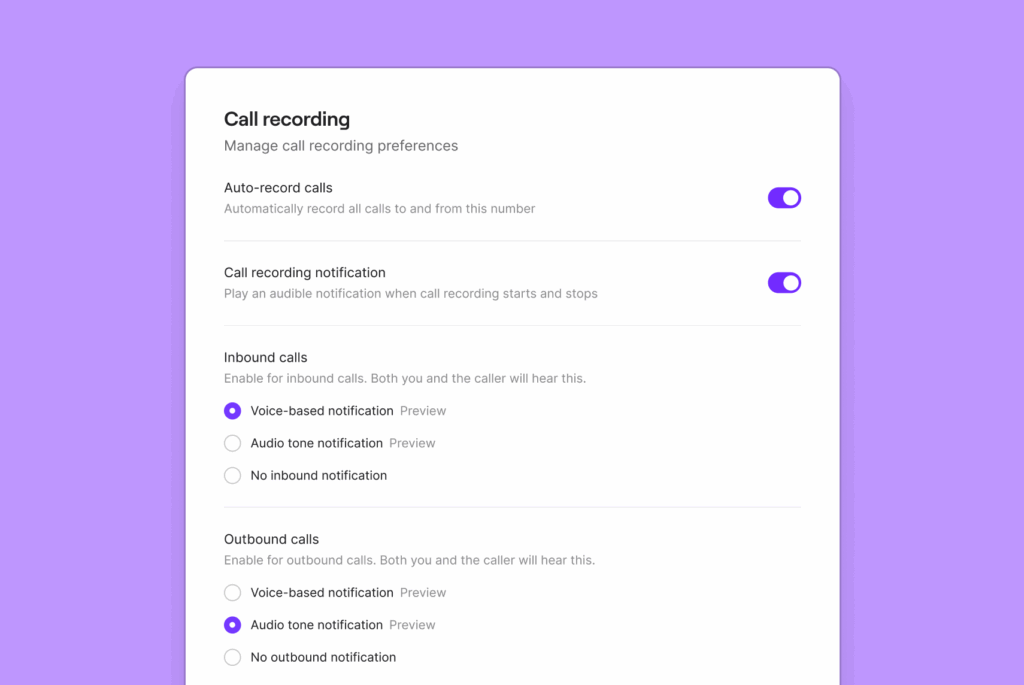
Pro tip: With Quo, formerly OpenPhone, you can add an automatic call recording notification. This informs call participants that their call is being recorded. If call participants choose to stay on the call, their participation is considered as verbal consent. You can choose to make it a voice notification or an audio tone notification.
Want to customize your recording notification? You can add a Play audio step in your call flow. Record a custom message for callers to let them know the call will be recorded.
Note: Quo users are responsible for complying with their jurisdiction’s requirements. Quo’s call recording notifications don’t cover international variations on recording laws.
5 Scenarios when you need more than Apple’s built-in recording feature
iPhone call recording works great for personal calls. However, if you’re running a business, it’s pretty bare-bones. You’ll eventually need more communication features. Most of them are only available in a dedicated business phone platform.
Here’s how you know it’s time to upgrade:
1. You need call recordings in context

iPhones are great at storing individual call recordings. They’re not great at capturing your communication history with each contact. Your calls, texts, voicemails, and recordings are stored in different places. This silos your communications and prevents you from fully understanding your customer relationships.
Fortunately, business tools like Quo let you store and review all customer communications in one place. This gives your recordings context and keeps you from having to search through multiple apps to find what you need.
Quo also makes it easier to get up to speed on conversations.
Need to prepare for an upcoming sales pitch? With AI summaries and call transcripts, you can recap conversations in minutes. Have questions about specific messages, voicemails, or recordings? You can tag teammates using internal threads.
2. You work together with a team
If everyone on your team uses their own phone to record, prepare to have information scattered everywhere. What if someone forgets to share a recording you need and then goes on vacation? Or they accidentally delete a recording you really needed before your next sales call?
iPhones can only record calls on iOS 18.1 or higher. If your team has an older iOS device, they won’t be able to record their calls without a third-party call recorder app. Sharing recordings is also a challenge; you have to track which call happened with which contact.
With Quo’s shared phone numbers, every recording is automatically accessible to everyone.
Every team member can share responsibility for incoming calls. And users on the same number can manage calls, texts, voicemails, and recordings from anywhere with a WiFi connection.
The best part is Quo works on any device. Your team can use their preferred devices to make calls with Quo. It’s available on Mac, Windows, iOS, and Android. Your team can even take calls on their browser if they prefer.
3. You want to share call recordings with other tools
Sharing recordings in your business phone is useful for sharing context in the moment with your team. But as you scale your business, you’ll need to keep track of customer relationships in other tools like your CRM.
With iPhone call recording, you have to manually add recordings to the right contact record in your CRM every time. It’s an additional manual step that your team can easily forget as your call volumes increase.
With Quo’s third-party integrations, you can automatically share call recordings with 8,000+ tools. You can even share your call summaries with tools so that your team saves time when they review every recording.
We offer direct integrations with CRMs like Salesforce, Jobber, and HubSpot. You can also connect to Zapier and Make, which give you instant integrations with thousands of other tools. If you want more control over your integrations, you can build a custom integration with the Quo API.

4. You want to leave notes with a recording
Want to call out key moments or ask for clarification? Contact notes let you add more context to call recordings.
Let’s say you have a customer who prefers early morning calls. With contact notes, you can leave a quick update under their contact information. That way, your team knows that they shouldn’t make calls outside that window.
With Quo, you can use custom properties to note important details, like a customer’s company, deal stage, or last follow-up date. Help your team keep track of your prospects easily. If you’re out of the office, your colleagues can pick up the conversation where you left things off.

5. You need to identify communication trends
The secret to growing your business? Finding and solving your customer’s biggest problems. Once you figure out patterns — like frequently asked questions, recurring complaints, and missed sales opportunities — you can create solutions that nip them in the bud.
Spotting trends is difficult with the iPhone’s built-in recording features. Quo’s call tags makes it straightforward. With call tags, AI automatically categorizes your incoming calls. You can identify improvements based on recurring themes or comments.

Just define the categories you need, like “cancellation request” or “customer feedback.” Quo will automatically assign them to calls based on their content.
This helps you quickly identify why customers are leaving or what issues keep coming up. You can address problems proactively and improve customer satisfaction along the way.
4 Best third-party apps for recording calls on an iPhone
Is your iPhone’s built-in call recording tool not enough to meet your needs?
Here are four of the best call recorder apps to consider:
1. Quo (formerly OpenPhone): Best for small business owners

Quo is a VoIP phone system specifically designed for growing businesses. We offer call recording features on every plan so you can easily capture incoming and outgoing calls.
Unlike your run-of-the-mill call recording app, you can use Quo to:
- Record calls on all devices, including recording calls on Android, iPhone, and desktop
- Set up automatic call recording so you never miss anything
- See recordings in the context of the conversation so nothing gets lost
- Access call summaries with next steps and action items
- Generate call transcriptions with speaker breakdown and timestamps
- Create AI call tags so you can organize conversations into groups, like complaints from customer service recordings
- Set up integrations with Make, Zapier, or the Quo API to connect your phone solution to the tools you already use
- Automate your outbound texting with auto-replies, scheduled messages, snippets, and solutions like Make
- Answer incoming calls 24/7 with accurate information and custom conversations with our AI voice agent, Sona
Sign up today for a seven-day free trial and test Quo for yourself.
Quo pricing:
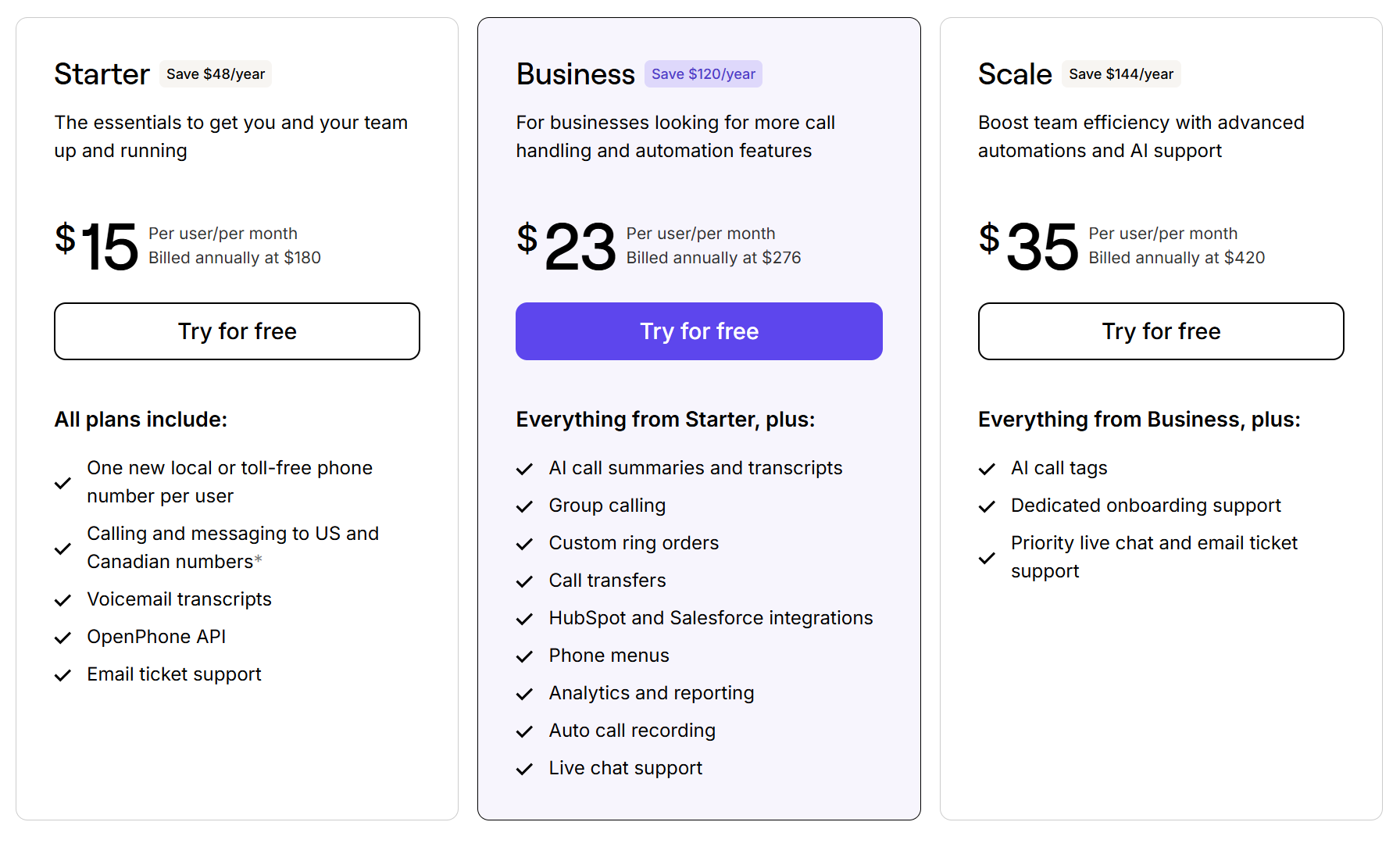
Quo pricing offers three plans:
- Starter: $15 per user per month for on-demand call recording, voice mail transcripts, one new US, Canadian, or toll-free phone number per user, email ticket support, and more
- Business: $23 per user per month for automatic call recording, AI call summaries and transcripts, native HubSpot and Salesforce integration, live chat support, and more
- Scale: $35 per user per month for AI call tags, dedicated onboarding, and priority chat and email support
How it works: You can record your calls with the Recording button on our web or mobile app dialer. Recorded audio appears in the specific contact thread so you can go back and listen whenever you need.

2. Cube ACR: Best for voice recordings

Cube ACR is a call recording app designed to capture incoming and outgoing calls. Its free version allows you to capture short voice memos, but its call recording features require a Premium plan.
Cube ACR offers more features in its Android version compared to iOS. It advertises features like WhatsApp and Line call recording, which aren’t available in its iOS version. Unfortunately, Cube ACR’s performance isn’t guaranteed. We signed up for its Premium plan but were unable to verify our phone number to start recording calls.
Cube ACR pricing:
- Free version: Offers voice recording, archiving, and message storage
- Premium for iOS: $49.99 per year for all features and unlimited call recordings
How it works: For incoming calls, open the Cube ACR app and tap the Record button. For outgoing calls, select Record a Number in the app before placing the call.
3. Call Recorder for iPhone: Best for personal call summaries and transcripts

Call Recorder for iPhone is a highly rated call and voice recording app. It allows you to record incoming and outgoing calls. You can store recordings on your phone or in your iCloud Drive. What makes this app stand out from the crowd is its instant AI call summaries and transcripts. It can summarize a call immediately and provide metrics like speaker count, talk-time split, and key call takeaways.
Unfortunately, Call Recorder for iPhone has too many manual steps to be a reliable call recording app. It uses a conference calling feature to record calls. For incoming and outgoing calls, you need to add a separate number that the app uses to record calls. Otherwise, calls won’t be recorded automatically due to Apple’s call recording restrictions.
Another drawback: it isn’t great for collaborating with your team. Recordings, summaries, and transcriptions are shared in separate files, which can be difficult to gather context for conversations. AI call summaries and transcriptions are also not reliable, especially for incoming calls.
Call Recorder for iPhone pricing:
- $9.99 per week or $49.99 per year after a three-day free trial
How it works: For incoming and outgoing calls, you need to add Call Recorder’s Assist Number to record your conversations. For incoming calls, you have to put your caller on hold, add the assist number separately, and then merge your calls. For outgoing calls, you have to dial the assist number and then add your contact to the existing call.
4. TapeACall Pro: Best for tiered call transcription

TapeACall Pro is a popular call recording app for iOS and Android users. It offers call and voice memo recording. TapeACall also offers call transcription and word searching add-ons to get more value from your recordings.
Similar to other third-party iOS recording apps, TapeACall uses three-way calling to record your calls. It creates a three-way call between you, the caller, and a separate recording number. This means if your carrier doesn’t support three-way calling, you can’t use the app. And since you have to go through multiple steps to record your calls, it’s easy to forget to turn it on for every call.
TapeACall Pro pricing
On iPhone, TapeACall Pro advertises a base price of $10.99. However, you also need to pay for in-app purchases if you wish to have unlimited recordings or unlimited transcriptions. Each of these is a separate purchase, billed monthly:
- Completely unlimited recordings: $5.99
- Unlimited transcriptions: $7.99
- Word searching: $14.99
Quo: The better way to do business from your iPhone

Built-in call recording is an amazing convenience for iPhone users. But as you’ve seen, it can never replace business call recording. So it’s not hard to see why more than 90,000 businesses have turned to Quo. They need advanced tools for collaboration, compliance, and managing customer interactions.
With Quo, you can easily call, text, and manage your contacts from any device connected to the internet. Plus, with automatic call recording and Quo’s AI features, your team can be more productive without adding headcount.
The cherry on top? You can get started for free.
Sign up today for a Quo account to record unlimited calls on your iPhone.
FAQs
Call recording is a built-in feature on iOS 18.1 and up. But your device needs to be compatible with that specific version. Any iPhone device between iPhone X and iPhone 17 should support native recording.
iPhones store your 1,000 most recent calls, although you can only browse the last 100 dials in your call history. But if you store call recordings in your Notes app, you can save unlimited records indefinitely. The only real limit is your storage space.
You can’t automatically record business phone calls on your iPhone. For that, you’d need a separate call recording application, including business phone systems like Quo.
You might not see the call recording button on your iPhone if you’re using an earlier version of iOS. Call recording on iPhone is only available for iOS 18.1 and higher.
Quo doesn’t have those device and software limitations to record calls. If you have an older iPhone model and want to record your business calls, download Quo’s iOS app and sign up for an account.
Apple provides call summaries on iPhones using Apple Intelligence. However, Apple Intelligence is only available for iPhone 15 Pro and later. You have to manually generate summaries for recordings stored in the Notes app.
Another option is to use Quo’s iOS app. Quo has automatic call summaries available for all Business plan users.
There’s no all-in-one tool for doing this yet. You’d have to use your iPhone’s built-in call recording option alongside its built-in screen recording software. Even then, you’d still have to edit both files together.
It’s possible, but only for one side of the conversation (aka only the person on the other end). Another option is putting the call on speaker and using your iPad/Mac Voice Memo app to record. This probably won’t result in great sound quality and might create compliance issues if you don’t get consent from the other parties. The more efficient method is getting a VoIP phone system so you can make and receive calls on a web or desktop app.