Can’t always immediately respond to business calls or texts? Trying to build your work-life balance and put the phone down outside business hours? You might be worried about losing new customers — or pushing existing ones to a more responsive competitor.
Luckily, you can send auto-reply texts on an Android device to let customers know their next steps. This tells them they’ve reached the right number and sets expectations for when they’ll get a response.
This article explains how to send an auto-reply to your contacts using a third-party app on your Android device. If you’re looking for a tool with more business-friendly features, we’ll offer a better alternative at the end.
Does an Android auto-reply feature exist?

Android doesn’t offer a native auto-reply feature — although most Android devices have a built-in scheduled text message feature.
The good news is there are workarounds with third-party apps. They don’t have many business features, but they’ll get the job done.
How to send auto-reply texts from your Android
Here’s how to send auto-reply texts using a workaround app on your Android:
- Download SMS Auto Reply — a free auto-response app — from the Google Play store. You can always download another autoresponder, but this is what we’ll use for the rest of this tutorial.

- After launching the app, tap Add/Edit.
- Create a name for your automated text template (like ‘Out Of Office’ or ‘Busy’). Then, write the message you wish to send. Check out our roundup of auto-reply text examples if you need some message suggestions.
- Select SMS as the channel you want to automate.
- Tap Save to activate your auto-reply.


You’ll have a few other options if you use SMS Auto Reply to send automated texts.
For example, you can:
- Set up a list of contacts who should get automatic replies from you. You can also set up a list of people who shouldn’t get auto-replies.
- Activate your auto-reply according to the time, date, or weekday.
- Read ‘reports’ of recently sent messages so you don’t accidentally miss incoming messages.
There are also some paid features like:
- Text-to-speech auto-readers
- The ability to activate auto-replies when connected to your car’s Bluetooth
- Instant responses to WhatsApp, Telegram, and 14+ other messaging apps
Of course, these features cost $0.49 to $6.69 per item, which may or may not be worth it. You’ll notice they’re also not very business-specific, which may be a dealbreaker if you’re a growing small business.
💡 Need to schedule texts instead of sending auto-replies? Some Android phones, like Samsung’s or those using Google Messages, offer basic scheduling. Here’s how to schedule a text on Android.
Drawbacks of using a standalone app to send auto-replies from your Android
Just because you can use a standalone app for auto-replies via Android doesn’t necessarily mean it’s the best way to go about it.
You may run into the following limitations:
- You can’t share responsibility for customers’ texts and calls with your colleagues. If you manage a large team or work in a high-volume industry like customer service, Android-specific auto-replies could bottleneck your team.
- You can’t access your customers’ full conversation histories. Sure, you can read limited reports, but there’s no way to review every touchpoint with contacts, like call history, messages, and voicemails from one shared number.
- You won’t have access to business features that help you scale. This means no texting from your computer, scheduling texts, using snippets (message templates), or setting up workflows that take repetitive work off your plate.
- Your personal number isn’t private if you’re using it for work. With SMS Auto Responder, for example, you can’t separate personal texts from business texts. This may get frustrating if you receive hundreds of inquiries per day — because you’ll never know if the right auto-reply reaches the intended customer.
- You can’t integrate with existing tools. Do you use HubSpot or another cloud CRM? With SMS Auto Responder, you’ll need to manually log all activities and contacts. Want to instantly send text messages after someone fills out a form on your website? This isn’t possible either with basic auto-responder apps.
The good news is you have another option: VoIP texting with Quo.
Why Quo is the best way to send texts from your Android
Workaround apps for auto-replies on Android offer some usability. But as your business attracts more customers, basic auto-reply features become less and less useful.
That’s why thousands of people partner with Quo to send auto-replies at scale. We make it easy to respond to every missed call, text, and voicemail. This means you can instantly greet customers and set a positive tone for your relationship. Plus, you can split responsibility for incoming calls and messages using a shared number.
Here are a few more advantages to migrating from SMS auto-reply apps to Quo:
- Set up auto-replies based on six different conditions. These include during business hours (missed calls, new voicemails, and incoming text messages) and after business hours texts (voicemails, missed calls, and missed texts).
- Text with snippets. These allow you to set up customizable saved replies so you can instantly respond to common problems or questions.
- Queue up responses in your customer’s timezone. You can rest easy knowing you’re responding to customers at appropriate times and staying TCPA compliant, even while you’re away from your desk when you schedule texts from your Android device.
- Integrate your phone system with 7,000+ third-party apps. These include HubSpot, Salesforce, the Quo API, Make, Zapier, and other tools you already use. Say goodbye to manual tasks and hello to automated workflows that help you save time.
- Automatically forward incoming texts to an email address or Slack channel. That way, everyone on your team can prioritize their day — without needing access to your shared phone number.
- Automate MMS messages, too. You can send photos, GIFs, videos, and more to build stronger rapport with clients. You’re not just limited to automatic SMS messages.
How to automatically reply to text messages with Quo (formerly OpenPhone)

Setting up auto-replies with Quo is as easy as 1-2-3:
- In the Quo web or desktop app, click Settings and select Phone Numbers.
- Select the relevant phone number you want to send auto-replies to.
- Scroll down to Auto-Replies, then select the relevant trigger.

- Write your auto-reply message and select Save.

That’s it! Everything else will happen automatically.
Keep in mind you can set up custom auto-replies for six different conditions. This means you’re not stuck sending the same message to every touchpoint (like phone calls, texts, and voicemails).
Best practices for sending auto-replies
When you start sending auto-replies, follow these best practices:
- Set clear expectations for response times. Customers probably won’t respond well to “Sorry I missed your call, try calling tomorrow.” Instead, create a clear and conversational response, such as, “I’m currently out of the office and will respond between 8 AM and 4 PM tomorrow.”
- Include next steps or additional resources. This shows you care for and value your customers. Not sure what resources to send? Consider your FAQ page, knowledge hub, or relevant articles that could help with diagnostics or troubleshooting.
- Ask for feedback and optimize for performance. The best way to track the performance of your automated text responses is to ask customers for their opinions. You could do this with a focus group, IVR feedback, or customer satisfaction (CSAT) survey, depending on your available resources.
Quo: The better alternative to send auto-replies from your Android
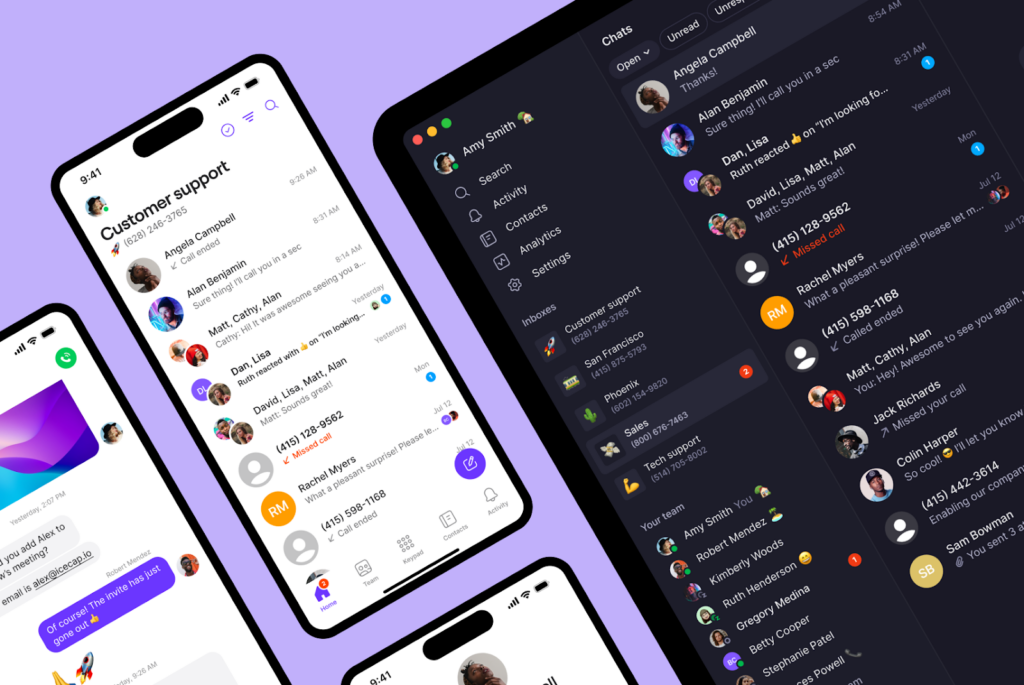
Sending auto-replies through a free personal app may not be a bad option for solopreneurs. But as your business grows (and the missed phone calls pile up), you might want to consider a dedicated VoIP system.
Quo is far more than just an auto-reply app. Trusted by thousands of businesses worldwide, we make it easy to build better relationships with your customers. Thousands of growing teams use Quo to:
- Make sure calls reach the right teammate with auto-attendants
- Collaborate as a team to resolve customer issues using shared phone numbers
- Handle high call volumes with unlimited calling in the US and Canada
- Support different teams or roles by assigning additional phone numbers as you grow
- Deliver a good first impression with custom business voicemail greetings
- Track and filter by trends with AI call tags that automatically label conversations like “Billing issue” or “Sales inquiry”
- Never miss a call with Sona, Quo’s AI agent that handles calls, takes messages, and answers FAQs
- Save and review important conversations with call recordings on your Android
Is it time for your business to graduate to Quo?
See for yourself with our seven-day free trial.

See how texting works with Quo

FAQs
Samsung devices don’t allow you to set up automated text responses. Instead, you’ll have to download a third-party app and configure the settings to your liking.
This method still has some limitations. For example, you can’t keep your personal and professional contacts separate.
If you’re looking to send auto-replies with more business-friendly features, you can get started with Quo free for seven days.
No, you don’t need permission to send auto-reply text messages. Since the person — not your business — initiated first contact, the auto-reply falls under implied consent. You can learn more about this in our guide to SMS consent.
You can’t create custom auto-reply messages on an Android smartphone without using a separate app.
If you’re sending custom auto-replies for personal use, you can tap into tools like SMS Auto Reply. If you need to send auto-replies for business purposes, you can use a VoIP app for Android (iOS, Mac, and Windows also) like Quo.
Not every app is built for business use. The right tool should help your team respond faster without extra manual work. Here are a few things to look for:
– Can you set auto-replies based on certain conditions, like business hours or missed calls?
– Does it work across devices so your team can reply from anywhere?
– Can you schedule texts or use saved snippets to speed up responses?
– Does it integrate with your CRM or other tools your team already uses?
If you need any of these features, a business phone system like Quo will be the right fit for your business.