If there’s one thing every customer can agree on, it’s that businesses should answer the phone. You can avoid long hold times and missed calls by using the call forwarding option on your landline.

To forward a landline to a cell phone, lift the handset, dial *72, wait for the dial tone, enter the 10-digit cell number, then press # and wait for the confirmation tone. To turn it off, dial *73. On most US carriers (AT&T, Verizon, CenturyLink) *72 turns forwarding on and *73 turns it off. Some carriers also offer Selective Call Forwarding, which lets you forward calls only from specific numbers you choose — for example, CenturyLink’s *63. Carrier call forwarding is usually included in your plan, but forwarded long-distance or international calls may be billed per minute.
Here’s what you need to know about how to forward a landline to a cell phone and a solution that makes the process easier.
How to forward a landline to a cell phone
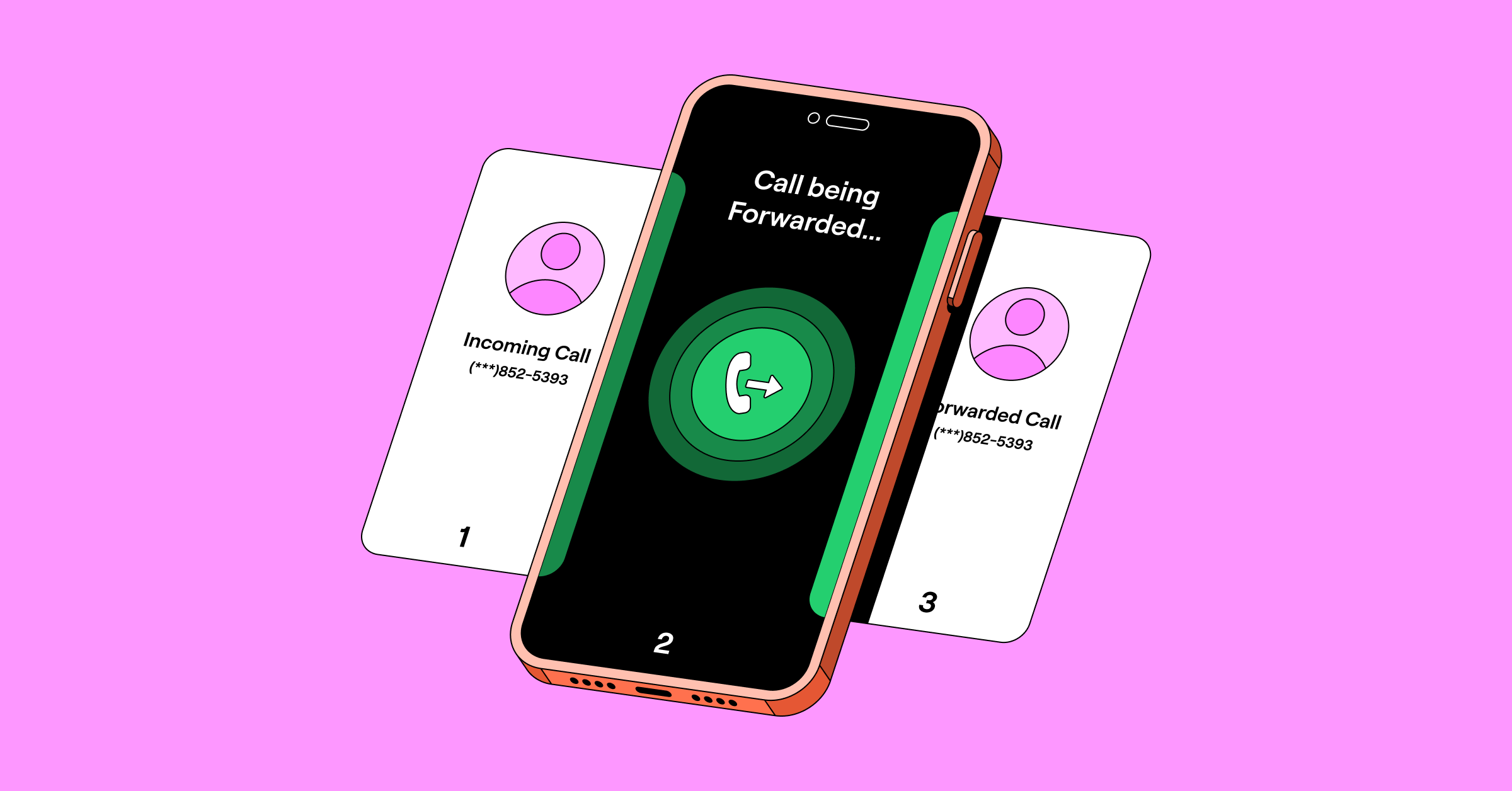
Using the unconditional call forwarding feature on your landline, you can reroute your calls to your cell phone number. Keep in mind the exact process can vary depending on your desk phone model.
To forward your landline to a cell phone, follow these steps:
- Dial *72.
- Type in the 10-digit phone number that you want to forward calls to.
- Press pound (#).
- Wait for a confirmation tone before hanging up.
Note: After the confirmation tone, some carriers like AT&T automatically call the forwarding number to confirm it’s reachable. If that line is busy or doesn’t answer, forwarding won’t activate. If you hear an error message, just repeat the steps. On other carriers, the call going to voicemail counts as answering.
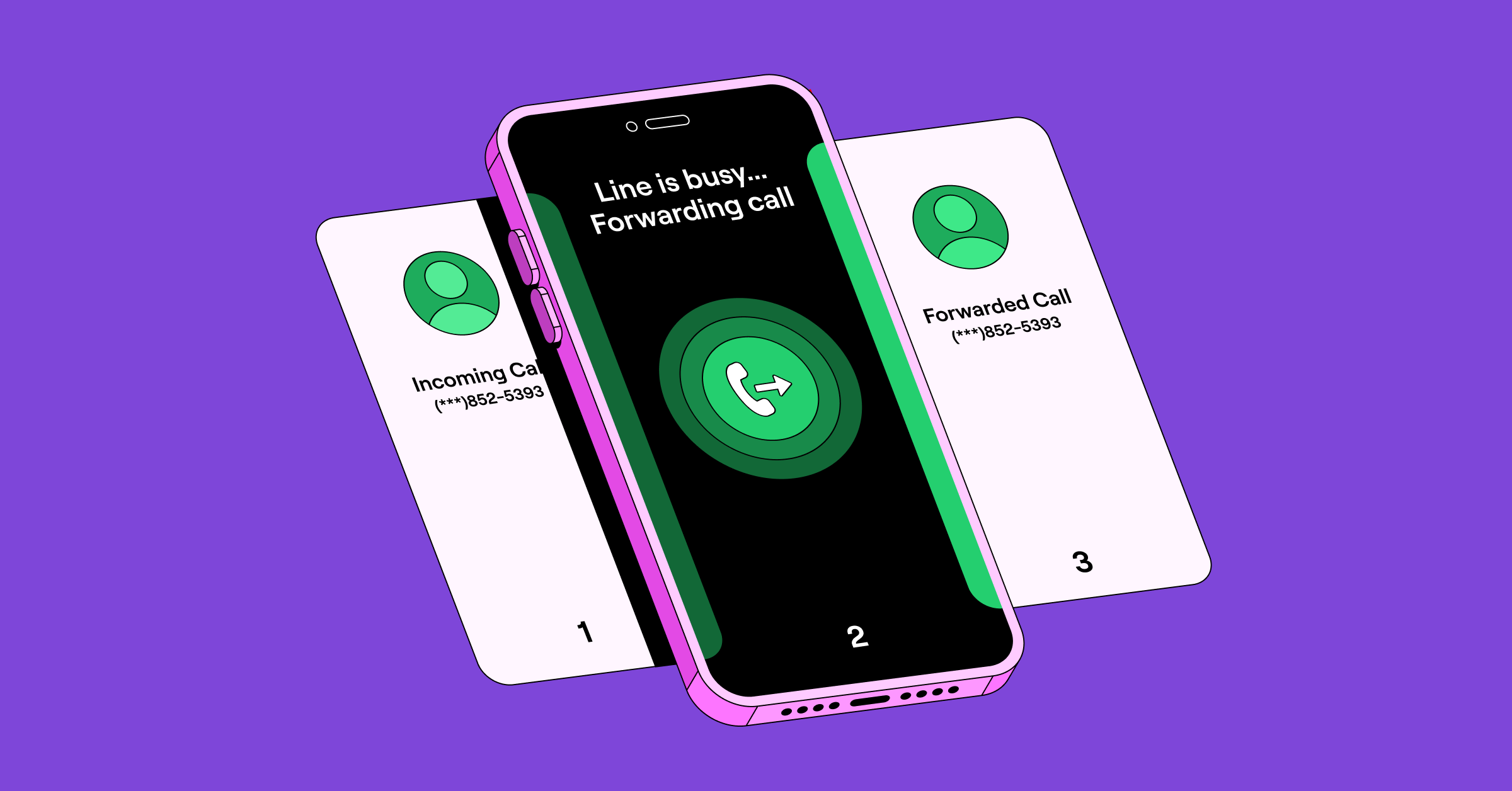
If you only want calls to be forwarded when you’re on another call, you can set up busy call forwarding to automatically redirect calls. To turn off call forwarding and take calls on your landline again, dial *73 and wait for the confirmation tone.
Keep in mind you can still place outgoing calls from the landline while forwarding is on.
Landline call forwarding codes by carrier
| Phone provider | Turn on forward all calls | Turn off forward all calls | Selective/ Conditional call forwarding |
|---|---|---|---|
| Verizon | Dial *72 followed by the 10-digit forwarding phone number. | Dial *73. | Contact support |
| AT&T | Dial *72, enter a forwarding number, and then press # | Dial *73#. | Dial *90, enter a forwarding number, then press # for busy forwarding. Dial *91# to turn off. Dial *92, enter a forwarding number, then press # for no-answer forwarding. Dial *93# to turn off. |
| CenturyLink | Dial *72, then dial the forwarding number. | Dial *73. | For Selective Call Forwarding, dial *63 to turn on and *83 to turn off. |
For the full star code breakdown for mobile phones and how to forward only when busy, see conditional call forwarding codes.
5 Limitations of forwarding a landline
Carrier forwarding solves the basic problem of missed calls when you’re busy, but it comes with real gaps:
- You can only forward to one number at a time. There’s no way to split calls across a team or route them based on who’s available.
- You can’t answer on the landline while forwarding is on. You may hear a brief ring as a reminder, but the call itself has already gone elsewhere.
- Forwarded long-distance or international calls may bill per minute, even if your base plan includes forwarding at no charge.
- No call recording, screening, or analytics. You don’t get a record of calls for compliance or training, and spam callers get directed to the same forwarding number. There’s no shared access either, so if more than one person needs visibility into calls, forwarding alone can’t provide it.
- You’re toggling codes by hand every time you leave or come back, with no way to schedule it.
If the code isn’t taking effect at all, or calls are still ringing the landline instead of forwarding, see why call forwarding isn’t working for troubleshooting steps.
Virtual numbers: A better alternative to call forwarding
A virtual business number on your cell means no second phone in your pocket and no customer ever seeing your personal line. Your team gets work numbers that ring the right device without anyone juggling two handsets. Plus you can take calls from your computer, tablet, or smartphone via WiFi.
Here’s how you can set up a virtual number in Quo:
Set up a virtual number

Getting started with Quo is quick and easy. Here’s how you can set up your virtual number in just a few minutes:
- Create a Quo account — when you sign up, you can try Quo free for seven days.
- Pick a phone number — choose a local US, Canadian, or toll-free number by searching for an area code or city.
- Download the app — after completing the sign-up process, including selecting your plan, download the iOS or Android app to start calling, texting, and customizing your phone settings.
Now you have a virtual phone number you can use to work from anywhere with an internet connection. But what if you need to forward calls when you’re not working? That’s where shared numbers come in.
Separate business from personal
There’s nothing worse than getting business calls on your mobile device after work and feeling pressured to answer. VoIP systems let you have two phone numbers on one phone, making it easy to distinguish between incoming personal and business calls. Plus, you can keep your personal number private and exclusively use a business phone number that forwards to your cell phone for work.
Share access to a phone number
When someone calls a team’s shared number, it rings everyone with access so any available rep can answer. The whole team can also make calls, send texts, and view all conversations in one place, keeping everything organized.
Here’s how to share a business number with teammates in Quo:

- Open the Quo app.
- Go to Inboxes.
- Then tap … on the Phone number you want to share.
- Click Add users.
- Enter the email address of the person you want to share the number with and choose their role (Admin or Member).
- Click Send invitation.
Once a teammate accepts the invite, they’ll have access to the shared number. On their cell phone, the Quo mobile app lets you know if an incoming call is from a Quo number, making it easy to distinguish business calls from personal ones.
Here’s how this works out for one Quo customer:
“As a real estate agent, I’m fielding calls almost 24/7 but Quo has made it easy for my team to help. With one local phone number, we all receive the calls and texts which allows for the quickest and best customer service. It’s very easy to use and I love that I’m able to go back to the dashboard and look at my team’s activity. I would recommend Quo to anyone looking for a way to simplify client communication!” — Frank McKnew, President & CEO, McKnew Realty Group
Text from your virtual number

OpenPhone supports SMS and MMS messages, so you can send anything from text and images to videos and GIFs. It also makes texting easier with features that help you save time and respond faster:
- Auto-replies that let you set clear expectations when your team is busy or away.
- Text message templates (snippets), so you can quickly reply to common questions without typing the same message over and over again.
- Scheduled texts that help you stay TCPA compliant by making sure you only respond to customers during business hours in their timezone.
Never miss a call
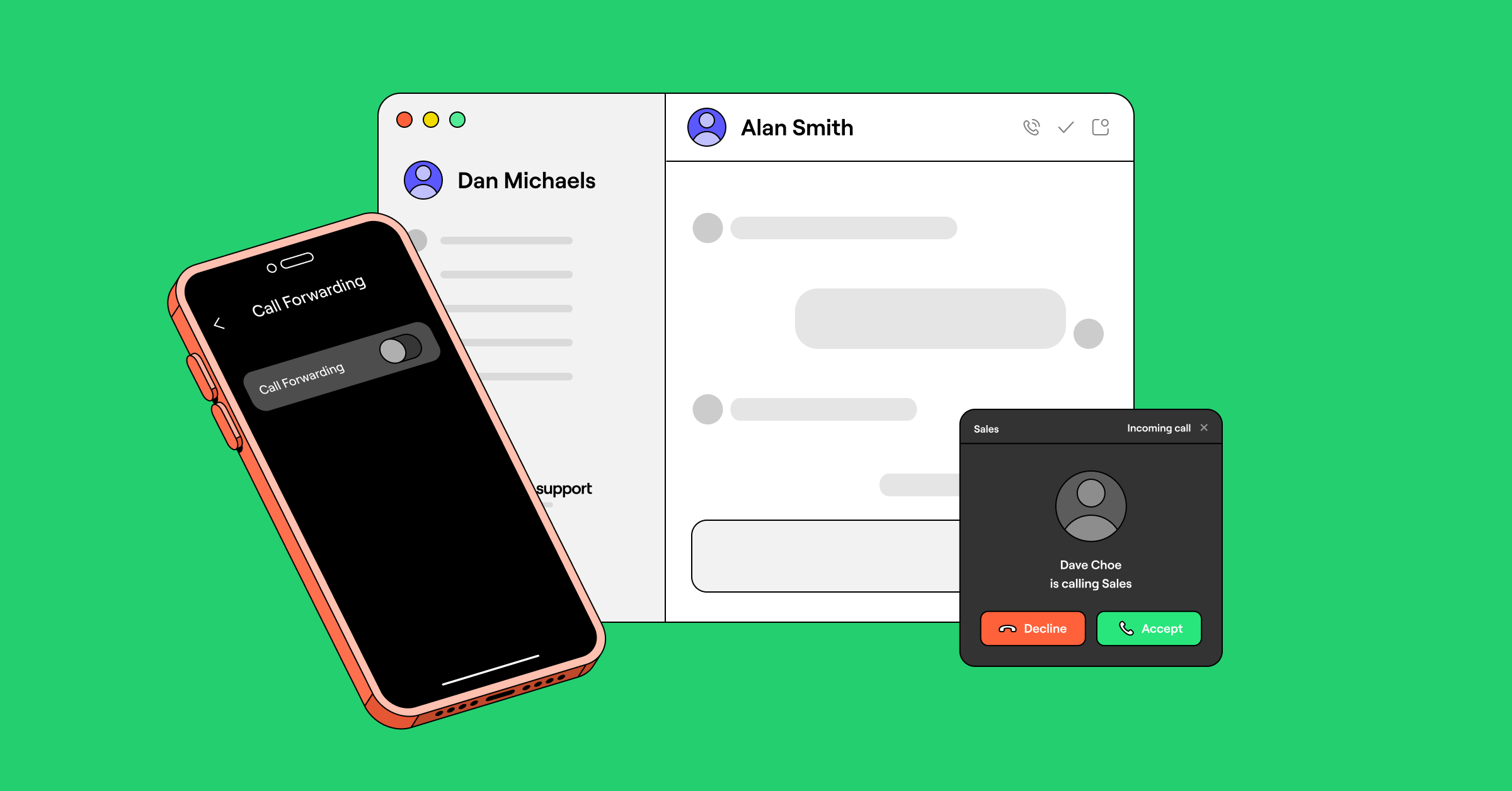
No solid internet connection? No worries. With Quo, you can set up call forwarding on the web, desktop, and mobile apps, ensuring you never miss an important call.
Want the in-between step first? A business phone number that forwards to your cell keeps your personal number private without switching your whole setup.
“The absolute best part about Quo is how easily it lets me keep my business and personal life completely separate. I don’t have to carry around a second physical work phone or deal with a confusing, clunky setup… The shared inbox features are a massive plus, allowing multiple team members to stay completely aligned, view message threads, and jump in to answer calls or texts so we never let an estimate or client follow-up slip through the cracks.” — Quo user on G2 | Read full review
How to port your landline number to Quo
Switching to a virtual number is quick and painless, as it should be. Under the FCC’s local number portability rules, you can transfer your existing number to a new provider as long as you’re staying in the same general area. You can port your landline phone number to Quo in a few simple steps:
- Find out if you can port your phone number.
- Tell your landline service provider you’ll be porting out.
- Complete our phone number porting form in the Quo app. It only takes a few minutes, but it’s helpful to have your account number, account PIN, landline number, and latest phone bill or invoice ready.
- Wait 5-7 business days for your porting request to be processed.
- If you want to send text messages to US numbers, complete the US carrier registration.
Once complete, Quo will inform you of your porting date and time. After the port is complete, you’re all set to cancel service with your landline provider — but avoid canceling before your virtual number is activated to avoid service interruptions.
Weighing your options beyond traditional carriers? Find the best call forwarding apps.
FAQs
Activating forwarding with *72 is usually included with landline service at no extra monthly charge. But your carrier still bills the forwarded leg of the call — so forwarding to a long-distance or international number can incur per-minute charges even if the base feature is free. With a virtual number like Quo, forwarding to numbers in the US and Canada is included.
On AT&T and CenturyLink, *72 turns forwarding on and *73 turns it off. AT&T also offers busy (*90/*91#) and no-answer (*92#/*93#) forwarding. CenturyLink offers selective forwarding (*63) but doesn’t publish busy/no-answer codes. Codes vary by region and equipment — contact your provider for the most accurate information.
Not with standard (*72) forwarding. Every call goes straight to your cell phone, and you can’t answer on the landline while it’s active. To keep taking calls on your landline and only forward the ones you miss, you’ll need busy or no-answer forwarding instead.
Most landline carriers don’t publish a dedicated status-check code. The *#21# check used on mobile phones is a cellular-specific code and doesn’t apply to landlines. The most reliable way to confirm forwarding is active: call your landline from another phone and see where it rings, or check your account through your carrier’s website or app.
A few common causes: the forwarding number is busy or doesn’t answer when your carrier tries to verify it (voicemail picking up usually counts as answered), the number was entered incorrectly, or the feature isn’t included in your plan.
Dial *73 and wait for the confirmation tone. If you set up busy or no-answer forwarding instead of standard forwarding, you’ll need the matching deactivation code.