No one can be available 100% of the time. But even if your business phone is out of reach or you’re too busy to answer calls, you still need to be accessible to keep customers happy. Learning how to forward calls is a simple way for smartphone and desk phone users to avoid missed calls. But if you’re running a business, call forwarding has limitations. There are more flexible options worth knowing about.
This guide explains how to forward calls on iPhones, Androids, office phone systems and basic landlines. You’ll also learn a better method of call forwarding for when the limitations just aren’t worth it.
How to forward calls to another number at a glance
Here’s how to set up call forwarding on the most common devices:
| Device | Steps | Notes |
|---|---|---|
| iPhone | 1. Open Settings → Apps →Phone. 2. Tap Call Forwarding. 3. Toggle it on. 4. Enter the number to forward calls to. | Works only if your carrier supports it. |
| Android | 1. Open the Phone app → three-dot menu → Supplementary services . On Google Pixel phones, tap Calling accounts and select the correct SIM card. 2. Tap Call forwarding . You might have to tap Voice call , depending on your phone. 3. Choose a forwarding condition. 4. Enter the forwarding number and confirm. | The exact steps may vary by device/carrier. |
| Landlines or phones where call forwarding isn’t possible in settings | 1. Dial the forwarding code of your carrier on your dialpad. For example, *72. 2. Enter the forwarding number. 3. Wait for confirmation tone/announcement. 4. Hang up. | Codes vary by carrier — check provider support. |
What is call forwarding?
Call forwarding is a phone feature that automatically redirects incoming calls from one number to another. When you forward calls, you can route calls elsewhere:
- When you’re away from your desk, calls can go to your mobile phone.
- When you’re in meetings, calls can be routed to a colleague who can help.
- When you’re traveling, calls can be forwarded to your cell phone or to a colleague.
How to forward calls on an iPhone

Call forwarding is useful when you’re too busy to pick up. But there’s no way to forward business calls exclusively if you use the same number for both business and personal use.
Most smartphones let you turn on call forwarding directly from your settings app. If you don’t see the option on your device, you may need to use your carrier’s dial codes instead. We’ll cover this scenario in the landline and traditional phone section below.
To set up call forwarding on an iPhone to a different number, follow these steps:
- Go to your Settings app.
- Go to Apps, then select Phone.
- Tap Call Forwarding. If you have a dual SIM, tap the one you want.
- Toggle on call forwarding.
- Enter the phone number that will receive your forwarded calls.


When you want to turn off the call forwarding feature, simply toggle it off, and you’ll receive calls on your iPhone again.
Apple doesn’t offer a built-in conditional call forwarding option. But some carriers let you set up this feature by dialing a code, just like you would on a landline. More on this soon.
💡Did you know? Forwarding calls doesn’t automatically forward texts. Learn how to forward a text on an iPhone.
How to forward calls on Android
Here’s how to forward calls on Android:
- Go to your Phone app.
- Tap on the three-dot menu icon and tap Settings.
- Select Supplementary services. If you’re using a Pixel phone, tap Calling accounts, followed by the SIM card of choice.
- Select Call forwarding. Depending on your phone model, you then might need to tap Voice call.
- Choose one of four options:
- Always forward to automatically forward any call
- Forward only if there’s a busy signal and you’re on another call
- Forward when unanswered to enable call routing anytime you don’t answer
- Forward when unreached to forward if you don’t have a phone signal, your phone is off, or it’s in airplane mode
- Enter the phone number that will receive your forwarded calls and confirm.


To turn off call forwarding on Android, tap the option you picked in your call forwarding settings, then select Turn off.
💡Forwarding calls on Android mobile phones won’t forward your texts. Learn how to forward a text on Android.
How to forward calls on older cell phones or landlines
| Phone provider | Activate unconditional | Deactivate unconditional | Conditional call forwarding |
|---|---|---|---|
| Verizon | Dial *72 followed by the 10-digit forwarding phone number. Listen for a series of beeps, and then wait for the call to end automatically. | Dial *73. Listen for a series of beeps, then wait for the call to end automatically. | Dial *71 + the 10-digit number. Deactivation works the same as unconditional forwarding. |
| AT&T | Dial *72, enter a forwarding number, and then press # | Dial *73#. | Dial *90, enter a forwarding number, then press # for busy forwarding. Press *91# to turn off. Dial *92, enter a forwarding number, then press # for no answer call forwarding. Press *93# to turn off. Dial *372, enter a forwarding number, then press # to forward calls during service disruptions. Press *373# to turn off. |
| T-Mobile | Press **21*1 + phone number # | Press ##21#. | Dial **61*1+PhoneNumber# for no reply forwarding. Press ##61# to turn off no reply forwarding. Dial **62*1+PhoneNumber# to route calls when the device is off or out of signal range. Press ##62# to turn off. Dial **67*1+PhoneNumber# to route calls when busy. Press ##67# to turn off. |
If you’re using a landline or your smartphone doesn’t have a call forwarding option in settings, you can set it up using your carrier’s dial codes.
You have two main options:
- Unconditional call forwarding automatically redirects all incoming calls to another number.
- Conditional call forwarding only forwards calls when you don’t answer or when your phone line is otherwise unavailable.
For office phone systems with IT support, contact your IT department about forwarding calls from a landline. They’ll handle the technical setup for you.
For basic landline phones, you can set up unconditional call forwarding in four steps:
- Dial your carrier’s specific code, like *72.
- Enter the area code and phone number where you want your forwarded calls to be sent.
- Press #. On Verizon, you can skip to the next step.
- Wait for a confirmation tone to beep before hanging up.
All your calls will automatically forward to your chosen phone number. Setting up conditional routing follows the same logic. Just use the star codes in the table above.
Ready to take calls on your landline again? If you’re on Verizon, dial *73, wait for the confirmation tone, and you should be all set. For other carriers, follow the process in the table above.
Why basic call forwarding falls short
Call forwarding gets the job done in a pinch, but it has some notable limitations:
- It only forwards calls, not text messages.
- On most systems, you need to manually activate and deactivate forwarding each time. It’s easy to forget to turn off call forwarding when you no longer need it.
- There’s no way to schedule forwarding for specific hours or days.
Skip the forwarding hassle with a virtual phone system

Forwarding calls to another phone number might have worked in the early days of your business. But as your business grows, manually forwarding calls to different people stops making sense.
The easiest and most useful alternative to call forwarding is using shared numbers through a virtual phone system like Quo. Instead of rerouting calls from one phone to another, your team shares the same business number. Anyone who’s available can pick up. Plus, each person on the same number can see everything, so they never lose context.
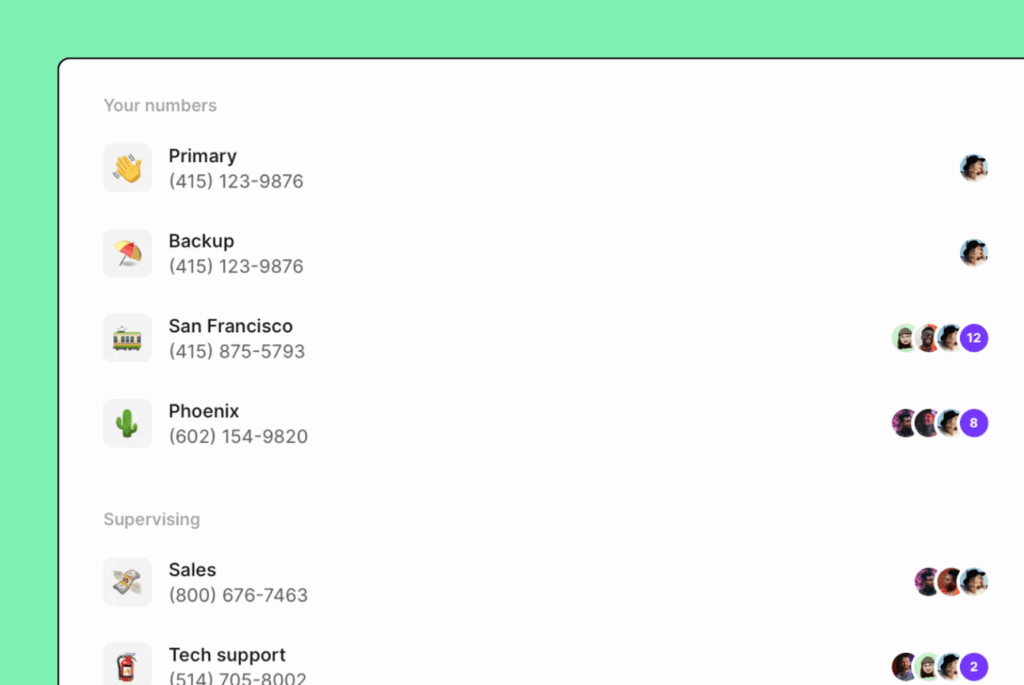
Using shared numbers with Quo, you can:

- Split responsibility for calls and texts. Anyone can jump in to answer customers. No more bottlenecks when one person is busy or unavailable. You can also set a custom ring order in your call flow settings to specify which team members or call groups receive incoming calls first.
- Maintain clear oversight. You can take over for a team member when they’re on vacation, off the clock, or out sick. That’s because you see all the same interactions and conversation history they do.
- Text and call from different devices. You can easily access virtual numbers from Quo’s desktop, mobile, and browser apps. This means team members can send and receive texts on any device.
- Collaborate with ease. Shared numbers allow you to tag team members in internal text threads to collaborate on the right responses to customers.

How to forward calls in Quo
Not in a place with a reliable internet connection and still need to receive calls? You can set up call forwarding in Quo using your mobile device, desktop, or web app.
- Click Settings from the left-hand menu.
- Under Workspace, click Phone numbers.
- Select the phone number you want to set up call forwarding on, then scroll down and tap Edit call flow under Call flow.
- Select Default call flow.
- Choose Forward all calls from the menu.
- Enter the phone number that will receive your forwarded calls. Your forwarding number can be any US, Canadian, or toll-free number you have access to. Then press the Forward button.
- After entering the number, you’ll be taken to the Forward all calls call flow.
Note: This flow cannot include additional steps — you can only change the forwarding destination. - To activate your call flow, click the Publish now button at the top of the screen.
If you want to switch back to your default call flow:
- Click Forward all calls.
- Select Default call flow from the dropdown, then click Publish now.
This will disable Forward all calls and publish your default call flow.
Want more flexibility? You can conditionally forward calls to an external number during or after business hours.

Quo: Why forward calls when you can share them?

Call forwarding can be helpful when you’re getting business calls through your landline or smartphone. Don’t want the hassle of transferring calls to another phone, but still can’t miss calls? Switching to a VoIP business phone system gives you both.
With Quo, you can get phone calls and text messages on any device via an internet connection. Or you can share phone numbers with your team to allow anyone who’s available to pick up the phone. If you ever do need to forward calls, like when you don’t have internet, Quo still offers VoIP call forwarding features to ensure you never miss a beat.
Sign up for a free seven-day trial of Quo to give yourself the flexibility you need.
FAQs
Some common call forwarding types include:
– Unconditional forwarding: Every incoming call forwards to another number or destination.
– Conditional forwarding: Calls forward only when a specific condition is met, like:
– Busy forwarding when you are already on a call
– No answer forwarding after a set number of rings
– Unavailable forwarding when the line has no signal or is offline
– Selective forwarding: Only calls from specific numbers, contacts, or groups are forwarded.
– Time-based forwarding: Calls forward based on schedules, like after-hours, weekends, or holidays.
Call forwarding reroutes an incoming call away from the original destination to a different destination you choose.
At a high level:
1. Someone calls your business number.
2. Your phone system checks whether forwarding rules apply.
3. The system places an outbound call to the forwarding destination, like another mobile phone.
4. When the forwarded destination answers, the caller and the recipient are connected.
The cost to use call forwarding varies depending on your service provider and plan, with some plans including it for free and others charging a per-minute fee. There is no additional cost to forward calls on Quo.
In most setups, the person receiving the forwarded call sees the original caller’s number, so they know who is calling and can call back if needed.
That said, caller ID behavior can vary based on:
– The carrier receiving the forwarded call
– Whether the forwarding setup supports passing the original caller ID through
– Any privacy settings or compliance rules
The most common reasons call forwarding fails include:
– You’re out of your carrier’s network range
– You entered the forwarding number incorrectly
– Your carrier doesn’t support forwarding to the type of number you’re trying to reach, like international numbers
– You’ve activated conflicting rules, like forwarding all calls while being on Do Not Disturb
If you set it up through your phone’s settings and don’t see the option, try using your carrier’s dial codes instead. When in doubt, contact your carrier directly.
If you pick up a call and realize it’s meant for a teammate, you can use Quo’s call transfer feature to hand it off mid-call. You can even include a note so your teammate has context before they pick up. This way, the customer doesn’t have to repeat themselves.
You can always forward texts individually on any phone. Just long-press a message, tap forward, and choose a recipient. For automatic forwarding, iPhone lets you send texts to another Apple device. Open Settings > Messages > Text Message Forwarding, but this only works between devices signed into the same Apple ID. On an Android device, there’s no built-in auto-forward option. You need a third-party app.
For business use, a phone service like Quo supports SMS forwarding to any Slack channel or email address. You can also log texts to your CRM, Slack, email, and more with our native and third-party integrations.