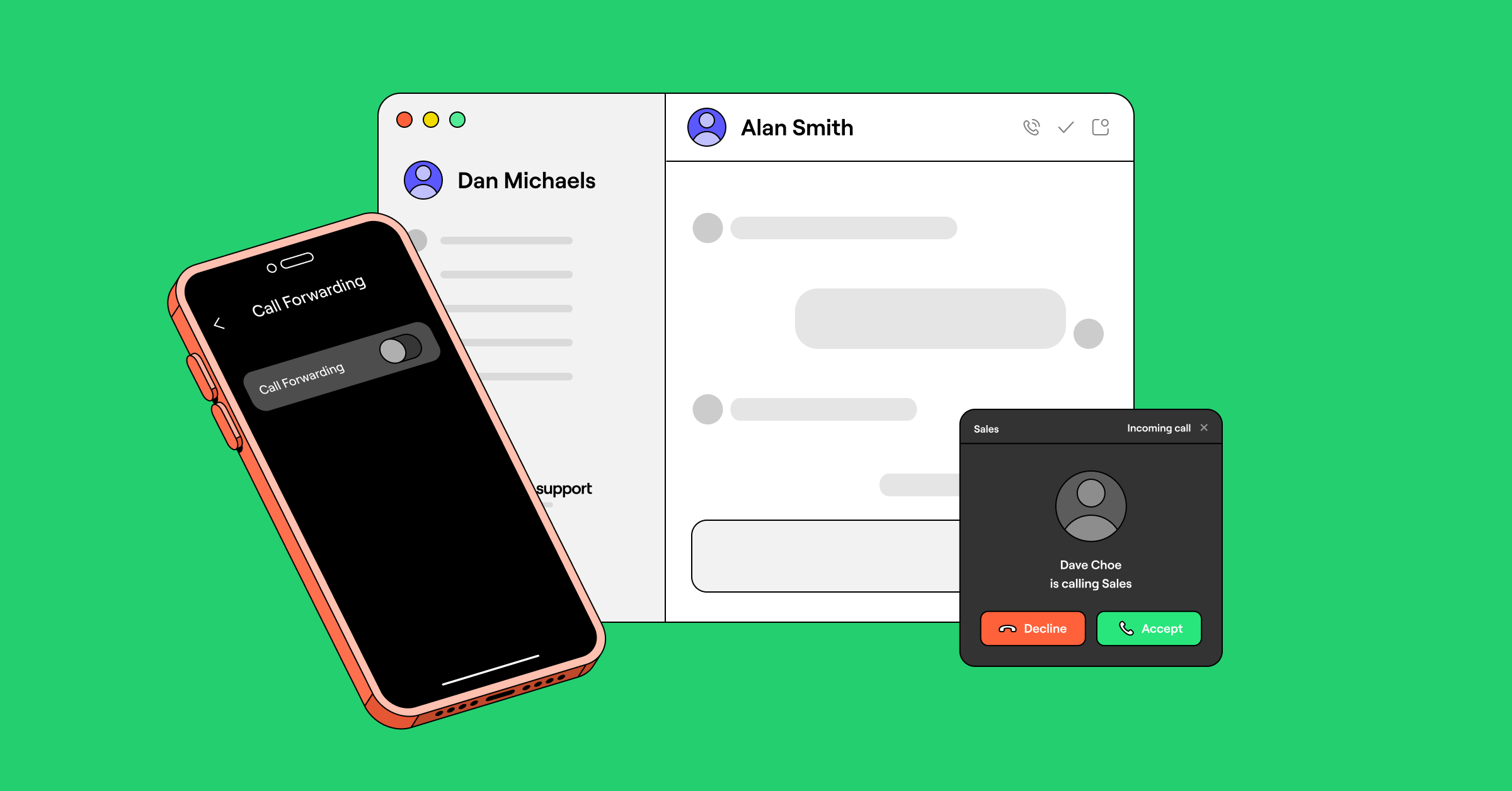
If you want to redirect phone calls from anywhere, whether you’re traveling, away from your desk, or your phone is lost or broken, you may be wondering: Can you forward calls without having the phone on you?

Yes, you can forward calls without the phone in your hand — but not the way most people assume. Carrier forwarding on Verizon and T-Mobile can only be set from the phone itself, using star or MMI codes, so it’s no help when your phone is lost, dead, or left behind. There’s one narrow exception on certain AT&T landline plans, but for a typical cell phone, a virtual number is the real answer. It routes calls to any device over the internet — no codes, no phone required.
Keep reading to learn how to set up remote call forwarding, or redirecting your calls to another number without physical access to your phone.
1. Forwarding calls using AT&T’s landline remote access
Most cell phone carriers don’t give you the option to turn on call forwarding for an iPhone or another device unless you have the phone with you. This is for security reasons. The one exception is on some landline phones — by dialing an access number, you can adjust your call settings remotely. For instance, if you use AT&T and have Remote Access to Call Forwarding turned on, you can forward calls by following these steps:
- Dial the special access number provided when you added AT&T Remote Call Forwarding to your monthly plan.
- Enter the number you want to forward calls from.
- Enter your remote access PIN.
- Dial 72#.
- Enter the number you want to forward calls to.
- Confirm your forwarding number.
Keep in mind that AT&T’s Remote Access to Call Forwarding is a paid add-on for landlines and business phones — it’s not available for wireless accounts. And like our previous option, this call forwarding method isn’t scalable in a business context. You’ll waste time manually activating and deactivating call forwarding, and you’ll only be able to choose one forwarding number.
If you need to forward calls to several different numbers or devices, there’s a better option.
2. Forwarding calls using virtual numbers

Sometimes, you might not have access to another phone you can forward your calls to. While this might seem like a dire situation, there’s hope. In fact, in many cases — like when you want multiple people to get calls or when you want to avoid long-distance fees while you’re out of the country — you may not need call forwarding at all.
Unlike carrier call forwarding, which ties you to one device and a single forwarding number, a virtual phone system lets your whole team take calls from any device — with no manual setup or toggling required.
How to forward calls to another number without the phone
To forward calls without having your phone, you can use a virtual phone system like Quo, formerly OpenPhone. This system allows you to manage your calls online, including call forwarding. Here’s how:
- Sign up for a Quo account.
- Choose a new phone number or port your existing one.
- Set up call forwarding in your call flow settings.
- Specify the number you want your calls forwarded to.
This method is not only convenient but also offers more features than traditional call forwarding.

When you have a virtual number, you can get incoming calls without any phone in hand or any extra setup, all while benefiting from features above and beyond what traditional business call forwarding services have to offer.
Virtual phone numbers allow you to text and call using your internet connection. With the best business phone systems like Quo, you can get incoming calls to your virtual numbers from any device — just by using your provider’s phone app. There’s no need to set up call forwarding.
What remote call forwarding costs: carrier vs. virtual number
Before you weigh the cost, it helps to know what you’re actually paying for. Carrier forwarding is a redirect tied to one line — and you can only set it up remotely on landlines. On wireless, you have to set forwarding up on the device itself. A virtual number is a full business phone system that includes forwarding. So the real question isn’t which is cheaper, but which one does the job you need.
Here’s how they compare:
| Carrier forwarding | Quo (virtual number) | |
|---|---|---|
| Monthly cost | Paid add-on; landline/business only (not wireless) | Starts at $15 per user per month |
| Setup in advance required | Yes — you must add the feature and get a PIN before you need it | No |
| Works on any device | No — tied to the line it's set on | Yes — app on phone, desktop, and web |
| Team sharing | No | Yes — shared numbers and inbox |
| Texting included | No | Yes — business texting included |
Even when carrier forwarding is cheap or bundled into a landline plan, it only solves one narrow problem: sending calls from a single line to a single number. It can’t be shared across a team, it doesn’t move with you between devices, and it does nothing for texting. A virtual number folds forwarding, shared numbers, texting, and access from any device into one predictable price.
5 Benefits of using a virtual number app instead of call forwarding
Here are five key benefits of using virtual phone numbers instead of forwarding calls:
1. Receive calls and texts from your computer or any smartphone via WiFi

With virtual phone numbers, you’re not limited to answering calls from an iPhone or Android. You can use your computer or your tablet. This means you can call or text without the hassle or cost of having two phones with a second data or carrier plan. Quo plans start at just $15 per user per month and you can try out Quo for seven days with a free trial.
Conveniently use your business number anywhere you have access to WiFi, a data connection, or any other form of internet — which is pretty much everywhere these days.
2. Don’t worry about turning call forwarding on and off
You don’t need to adjust any permissions to get calls on a different device. All you need to do is sign into your business phone app and you’re all set to receive incoming calls and texts.
3. Port over your existing number
Switching to a virtual phone system won’t cause any disruptions to the customer experience. Quo offers free phone number porting, so you can keep using your current business phone number when you make the transition.
4. Share access to a number to split responsibility for incoming calls
Your team members can share phone numbers, in addition to having virtual numbers of their own. This allows your team to share responsibility for incoming calls and messages, working from a shared inbox.

Plus, with Quo, your team can collaborate on calls, texts, and voicemails — and share notes on contacts — to provide a better customer experience.

When the office can’t take calls because of a power outage, an after-hours call, or the usual person out sick, incoming calls still need to land somewhere. Because a virtual number rings over the internet rather than through office hardware, calls keep coming through to any device, wherever your team is.
And by setting up a custom ring order, you can control who callers reach first. Ring orders can even have conditional call forwarding set so that if no one on your team picks up calls, that call can go to an external number such as an emergency line or answering service.
Here’s what one Quo customer said:
“Quo has transformed how our team collaborates, with intuitive features that make it incredibly easy to transfer calls, monitor teammate activity, and add detailed notes to every interaction. We can effortlessly scale by adding new numbers as we expand into different territories. It’s a solution that lets us provide seamless customer service at a fair price!”
— Maureen Jones, Partner/Senior Recruiter, Loophire
5. Get additional features to save time and communicate more effectively
Virtual phone numbers support plenty of features to help you work more efficiently than you can with traditional office phones. For example, Quo makes it easy for you to:
- Schedule text messages based on your contact’s time zone
- Get business phone analytics so you can make more informed operations decisions
- Set up auto-replies to give clients instant responses when they leave a voicemail, send a text, or can’t reach you
- Save text message templates to quickly craft responses to common questions
How to keep remote call forwarding secure
Both carrier and virtual methods put a lock in front of your forwarding settings. Carriers require you to sign in to your account or enter a PIN before anything changes, and a virtual provider like Quo requires you to sign in to a secured account — so a stranger can’t quietly reroute your calls without getting past that gate first.
The risk worth understanding isn’t someone guessing a code — it’s someone getting into the account behind it. Two things to watch for:
- Compromised login credentials. If someone gets your password, they can change your settings as easily as you can.
- SIM swap or port-out fraud. A scammer convinces your carrier to move your number to a device they control, taking over your calls and texts — including any SMS verification codes tied to your number.
The FCC now requires wireless carriers to verify your identity before processing a SIM change or port-out, and to notify you the moment one is requested on your account. If your carrier offers a port-out PIN or number lock, turning it on is a simple, worthwhile safeguard.
A virtual number shifts the exposure in your favor. Because forwarding lives behind your provider account rather than your physical SIM, it isn’t vulnerable to a SIM swap the same way carrier forwarding is. Quo also adds two-factor authentication and centralized admin controls, so an admin can see who has access to a number and revoke it instantly. If a team member’s login is ever compromised, you shut it down in one place instead of hunting through settings on a lost device.
What to read next
New to this? Start with call forwarding basics. Forwarding from a landline you can’t reach? See forward a landline to a cell phone. Want calls to ring several phones at once instead of one? See forwarding to multiple numbers. Done and want it off? See how to turn off call forwarding.
FAQs
There is no exclusive call forwarding method available to Android devices. You can enable remote call forwarding for Android phones using your carrier’s website or with a third-party virtual phone provider like Quo.
You can set up remote call forwarding in Quo with our desktop or web app.
If you want to forward all your calls remotely:
1. Sign up for a Quo account.
2. In the desktop or web app, go to the call flow builder in your phone number settings.
3. Click the Default call flow dropdown at the top of the call flow builder.
4. Select Forward all calls.
5. Enter the destination number, which can be internal or external.
6. Click Create new call flow.
If you want to set up conditional call forwarding remotely:
1. Add the Business hours call flow step to your default call flow.
2. Add the Forward call step to your during-hours or after-hours call flow.
T-Mobile’s standard call forwarding is set from the device using star codes. For forwarding when you don’t have your phone, T-Mobile points customers to DIGITS, its virtual-number product.
For most AT&T wireless customers, you can’t. AT&T requires you to change call forwarding settings directly from your wireless phone — there’s no option to manage it online or through the AT&T app. This is confirmed on AT&T’s support page.
The exception is AT&T landlines and business phones. If you have an AT&T landline, you can set up remote call forwarding using an access number — but this is a paid add-on, not a default feature. You’ll need to contact AT&T to enable it before you can use it.
Here’s how to deactivate call forwarding depending on how you set it up:
If you’re using a carrier’s website or app:
Call forwarding is turned off from the phone itself, using the code that matches your carrier:
– Verizon (and other legacy CDMA carriers): dial *73 to turn off standard forwarding.
– T-Mobile, AT&T, and other GSM carriers: dial ##21# to turn off unconditional forwarding, or ##002# to cancel all forwarding types at once, including busy, no answer, and unreachable.
If you’re using Quo:
1. Open Quo’s desktop or web app.
2. Go to the call flow builder in your phone number settings.
3. Select Default call flow from the dropdown at the top of the call flow builder.
4. Click Enable this call flow.
Forwarding stops immediately once you switch back to your default call flow. Note that this applies to the “Forward all calls” flow. If you set up conditional forwarding through a custom call flow, you’ll need to edit that flow directly.
This is the situation where the difference between carrier forwarding and a virtual number matters most.
With a carrier, you’re stuck: forwarding on Verizon and T-Mobile is set from the phone itself, so a lost or stolen device is exactly when you can’t turn it on. Your fastest move is to call your carrier, report the device, and have them suspend service or help you get a replacement SIM.
With a virtual phone number, a lost phone isn’t really a disruption. If you’re already using a provider like Quo, just sign in to the app on another device — your computer, a tablet, or a borrowed phone — and you’ll keep receiving calls and texts to your business number automatically. No forwarding setup required.
If you haven’t set up a virtual number yet, this is one of the strongest reasons to consider it. You’re never dependent on a single device to stay reachable.
You can in most cases, but your provider usually requires you to add a remote access feature to your plan before you need it, and it may come with an extra monthly fee. You’ll typically receive a special access number and PIN to activate forwarding from any phone. The catch is if you haven’t set it up in advance, you won’t be able to enable it remotely.
With a virtual phone system like Quo, you can skip the landline entirely — just port your number and take calls from any device with an internet connection.
Call forwarding only applies to voice calls. Your text messages will still go to your original phone number and won’t be redirected. If you need both calls and texts accessible from another device, a virtual phone system like Quo lets you manage everything from one app on any device.
No, most carriers and VoIP providers don’t allow call forwarding to an international number. International forwarding is a well-known vector for toll fraud, where bad actors route calls through expensive premium overseas numbers and run up large charges — so carriers find it simpler to block the feature outright.
If you need to receive calls while traveling or working abroad, a virtual phone system like Quo is the simpler option.