If you answer work calls on your Android phone, you know how hard it is to step away without missing something important. Whether you’re on vacation or off the clock, you need a way to keep calls covered.
This guide walks you through how to forward calls on Android using your phone settings or star (carrier) codes so you can stay professional even when you’re unavailable. You’ll also learn about a third option that might be a better fit for small businesses.
As you test your options, you’ll want to be a bit like Goldilocks: find the one that’s just right for your business.
Method #1: How to set up call forwarding on Android’s default app
The most straightforward option for setting up call forwarding on an Android device is to use the phone’s default app. The actual app interface will vary, depending on your device and carrier. However, the process and steps shown here are similar on most Android phones.
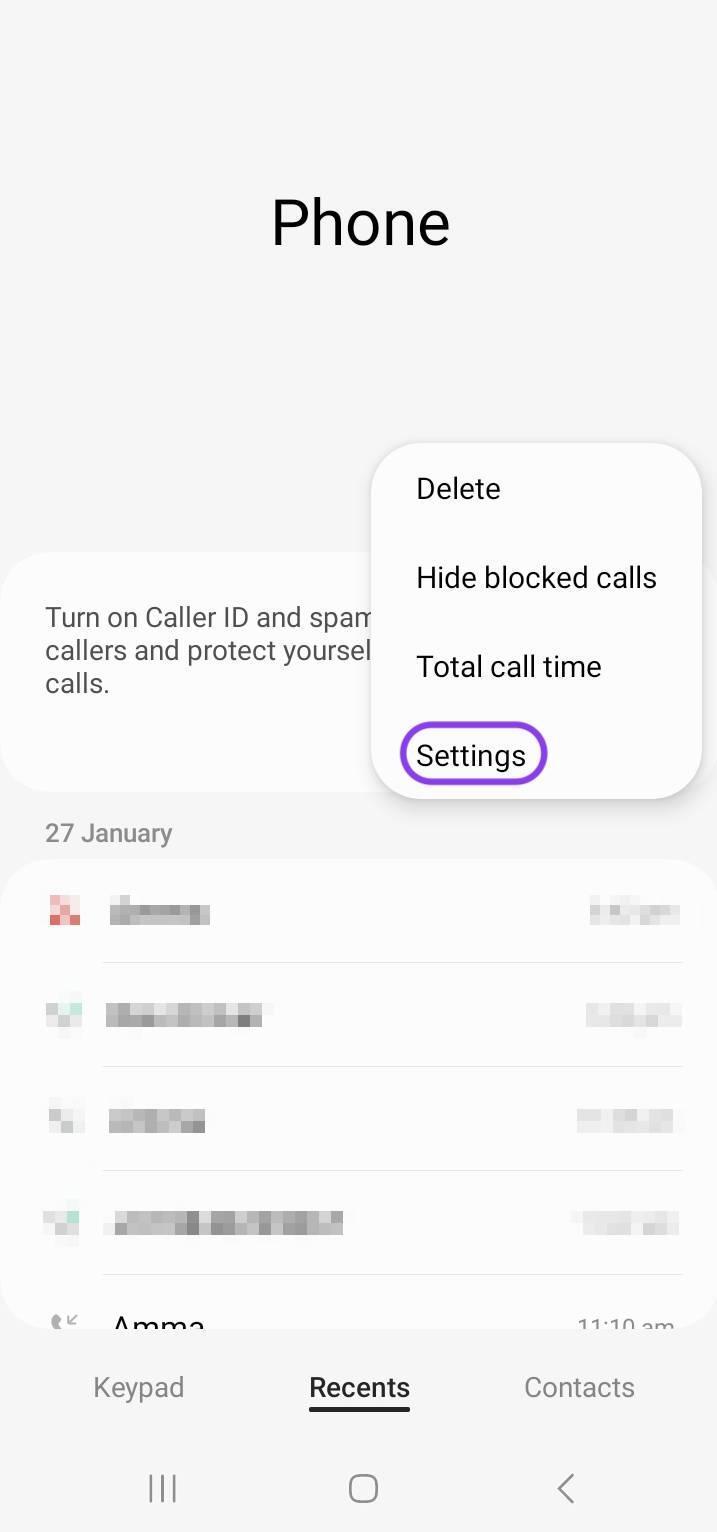
- Launch the Phone app.
- Select the three-dot menu in the top right corner and choose Phone Settings.
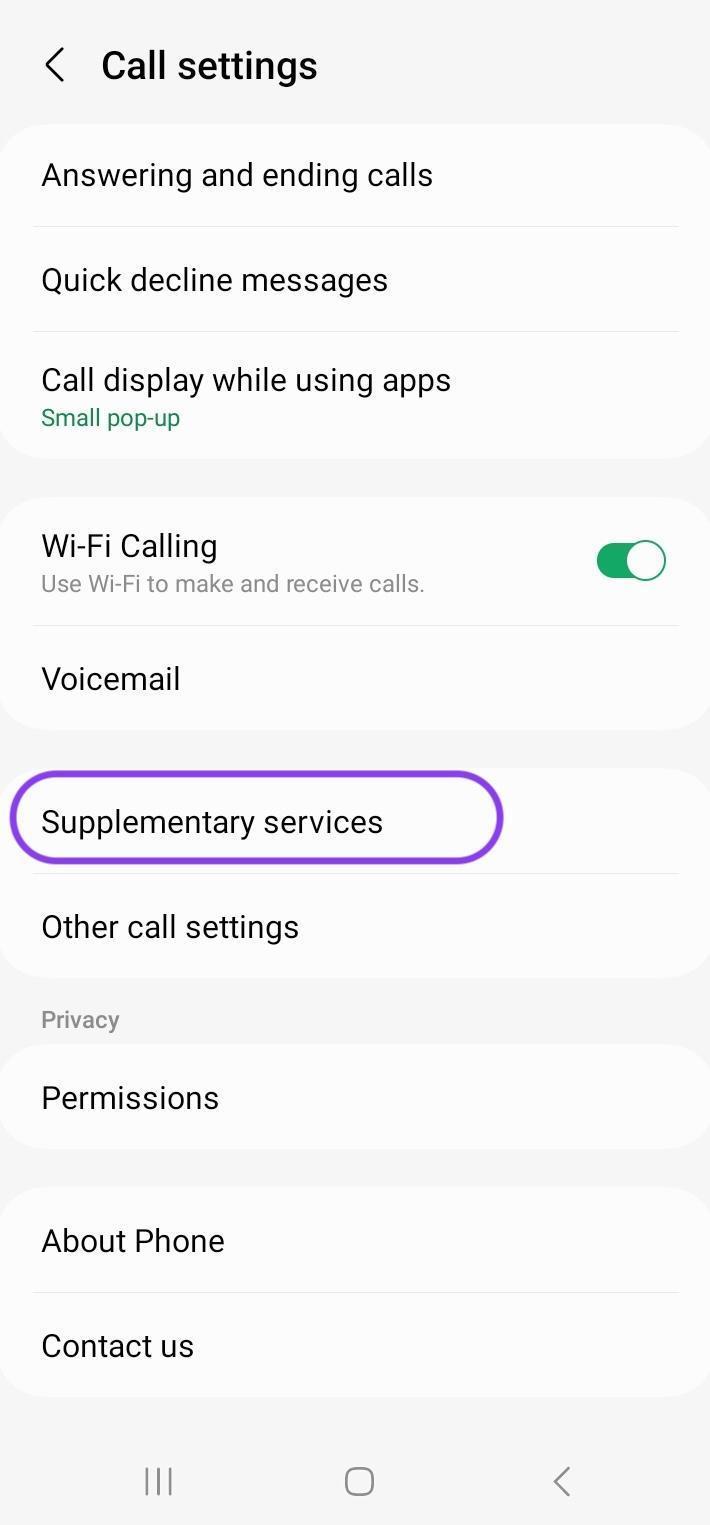
- Select Supplementary services. (If you have a Pixel phone, tap Calling accounts and select the right SIM card.)
- Select Call forwarding.
- Turn on the options for call forwarding and add the numbers you’d like to forward calls to:
- Always forward: Forwards all calls to another number
- Forward when busy: Forwards calls if you’re on another call
- Forward when unanswered: Forwards if you do not answer the call
- Forward when unreached: like when your phone is on Airplane mode, turned off, or has no cell signal
6. Enter the phone number that will receive your forwarded calls and confirm.
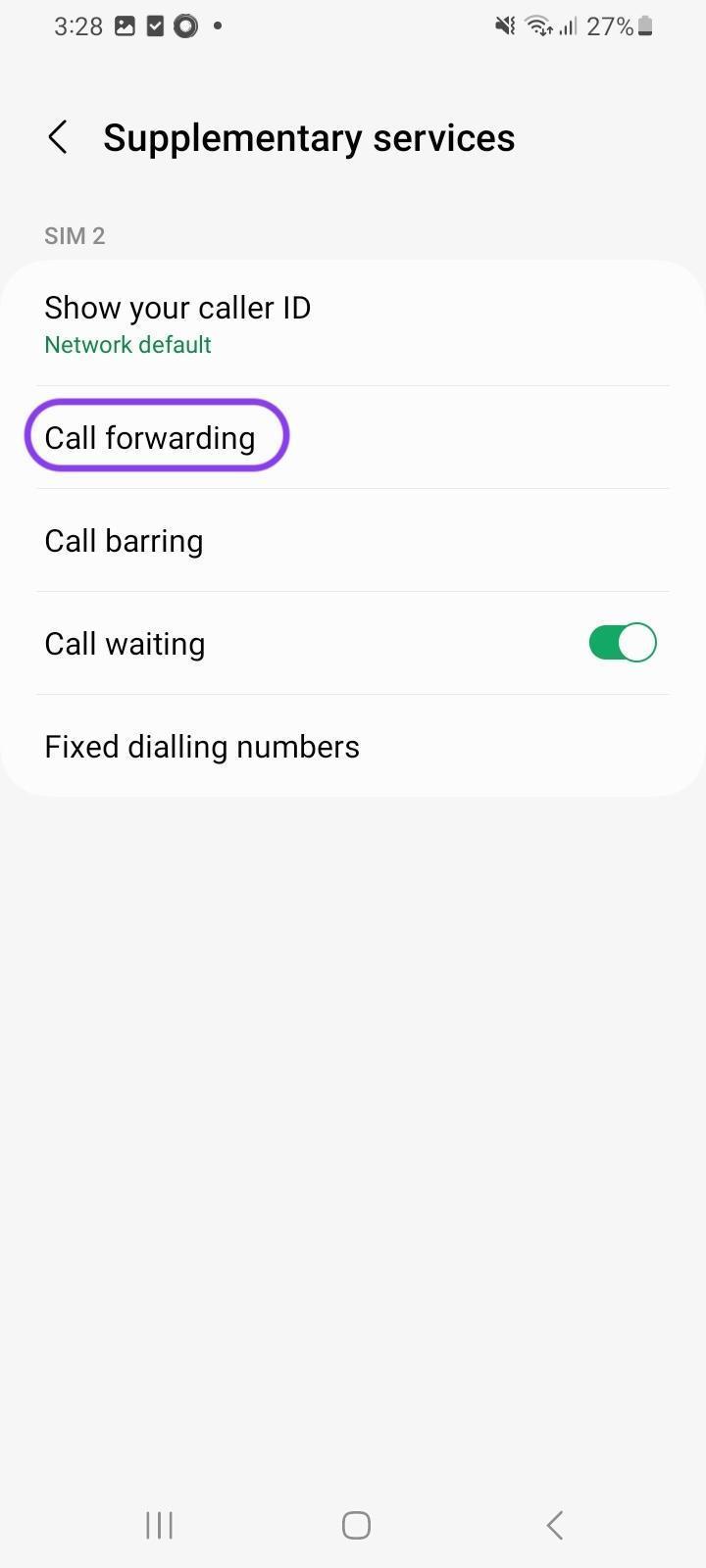

To turn off call forwarding, tap on whatever option you enabled and select Turn off.
If Goldilocks were forwarding her calls this way, she might think, “too big!” While you have four different call forwarding options, they’re all-or-nothing settings. You don’t have much control over the call forwarding, like forwarding only at specific times of day.
Method #2: How to set up call forwarding on Android using star codes
If your Android mobile device doesn’t support call forwarding natively, you can set call forwarding options at the carrier level. To do this, you’ll do the following within your phone’s dialer:
- Press the star key (*).
- Dial the 2-digit code based on the chart below.
- Enter the 10-digit number you’d like to forward calls to.
Some carriers automatically process and confirm the forwarding request once you’ve entered the full string. Others will need to end with the pound sign (#).
Below are the major U.S. mobile phone carriers and their codes for activating and deactivating call forwarding:
| Phone provider | Feature | Activate | Deactivate |
|---|---|---|---|
| Verizon | Forward all calls | Dial *72 followed by the 10-digit forwarding phone number. Listen for a series of beeps, then wait for the call to end automatically. | Dial *73. Listen for a series of beeps, then wait for the call to end automatically. |
| No answer or busy call forwarding | Dial *71 followed by the 10-digit forwarding phone number. Listen for a series of beeps, then wait for the call to end automatically. | Dial *73. Listen for a series of beeps, then wait for the call to end automatically. | |
| AT&T | Forward all calls | Dial *72, enter a forwarding number, then press # | Dial *73# |
| No answer call forwarding | Dial *92, enter a forwarding number, then press # | Dial *93# | |
| Busy call forwarding | Dial *90, enter a forwarding number, then press # | Dial *91# | |
| Safe call forwarding (during an outage) | Dial *372, enter a forwarding number, then press # | Dial *373# | |
| Exclusive call forwarding (send select calls to another number) | Dial *63# and configure up to 20 numbers in the online portal | Dial *83# | |
| T-Mobile | Forward all calls | Press **21*, enter a forwarding number, then press # | Press ##21# |
| No answer call forwarding | Press **61*, enter a forwarding number, then press # | Press ##61# | |
| Unreachable call forwarding | Press **62*, enter a forwarding number, then press # | Press ##62# | |
| Busy call forwarding | Press **67*, enter a forwarding number, then press # | Press ##67# |
Each carrier has a similar process for deactivating call forwarding.
That said, the call forwarding settings using carrier codes can be confusing. Goldilocks might declare “too small!” as she squints to read a cheat sheet she created for herself.
She probably also thinks, “I don’t have time to set this up every time I need call forwarding.”
She moves on to the next option.
Method #3: How to set up call forwarding on Android using a virtual number app
You need two things if you use the call forwarding options within your Android device:
- Cell service in order to turn on call forwarding
- A second phone number to receive forwarded calls
A virtual number service like Quo eliminates the need for call forwarding when you’re traveling as long as you have an internet connection. You can take calls from anywhere in the world, as well as share phone numbers with your team members (more on that later).But if you still need to set up call forwarding while you’re traveling and don’t have cell service or are in airplane mode, you can do so easily. You can even forward calls without having the phone with you.
How to set up call forwarding on Quo
Here are the steps to set up call forwarding using the Quo app on your Android device:
- Log in to your existing Quo account or create a new one. (You can try Quo with a seven-day free trial.)
- Go to Settings, Phone numbers, then select the number you want to set up forwarding on.
- Tap Forward all calls.
- Enter the destination number (in your workspace or an external number).
- Tap Save
Forward all calls is now on!


If you want to disable call forwarding and switch back to your default call flow, tap on Forward all calls, delete the number, and tap Save.
6 scenarios when you may opt for a virtual number over Android call forwarding

If you want to avoid the hassle of transferring calls to another phone, getting a virtual phone number can be that “just right” solution for your team.
Virtual phone systems like Quo let you make and receive calls using your internet connection. They can function as a call forwarding app and offer key features to help you avoid missed calls without needing to turn on call forwarding.
Here are a few scenarios where a virtual number can be a great fit:
1. You want to answer calls from anywhere
Many people set up call forwarding if they travel out of the country and don’t have cell service. You can still use Quo from your computer or the Android app on your smartphone, as long as you have internet access.
2. You need call forwarding at specific times
When you turn on call forwarding on your Android device, every call will be forwarded until you turn off the setting. This is known as unconditional call forwarding. But what if you want to set up call forwarding for only certain times of the day, like after business hours, on weekends, or based on who’s on shift? With unconditional call forwarding, you’d need to remember to turn call forwarding on and off.
Quo has conditional call forwarding, so you can set up call forwarding based on certain conditions, like time of day such as forwarding calls to an answering service after your business hours.
3. You want to split responsibility for incoming calls
When you’re busy and need your team members to take your calls, Quo allows you to share business phone numbers with your team, so you can divide responsibility for incoming calls and texts.
Using a shared number, the call will ring multiple people in a call group to help prevent missed customer calls. You can also set a ring order, so if the first person doesn’t answer or is on Do Not Disturb mode, the call goes to the next group or person in order.

Quo also has warm transfers, so if the person answering the call isn’t able to help, the call can be easily transferred to another team member. Even if you can’t answer the call yourself, you can ensure your customers still have a great experience.
4. You want oversight of conversation history
If you’re forwarding phone calls to other team members, you want to be assured that calls are handled with the same care you’d provide.
The best virtual phone systems (like Quo 😉) keep all your texts, calls, and voicemails in one shared thread, so your team stays aligned and responds more confidently, regardless of who’s on shift.
You’ll also get call recordings, AI call tags, transcripts, and AI-generated summaries so you can quickly review the interactions with your customers. (These can also be invaluable training tools.)

5. You want to automatically divert calls to another number or specific teammates
Tired of transferring calls to another phone when a client calls the wrong department? You can set up phone menus for your virtual numbers, so clients can choose where they need to go — for example, by dialing 1 for sales or 2 for customer support and instantly being routed to the right place.
6. You need business texting features
A smartphone does its job with back-and-forth texting, and you may even be able to forward a text on Android if you’re not available to respond.
But Quo has additional texting features for businesses that help you save time. You can use snippets, which are like templates for text responses you use regularly. You can also set up auto-reply texts on your Android device (or computer) to let your customers know you’re unavailable or direct them to another resource (like your website).

How teams can forward calls conditionally in Quo
Here’s how to set up a conditional call forwarding step in your call flow on Quo:
- From your workspace, navigate to Settings, and Phone number, then pick the phone number you want to set up call forwarding on.
- Scroll down to the Call flow section, hover over the canvas, and click Edit call flow.
- You’ll see a visual workflow editor. This is where you manage how incoming calls are handled.
- Drag and drop the Forward call step onto the canvas. You can place it:
- Right after the Incoming call trigger to forward all calls
- After a Ring users block to forward only if no one picks up
- After the After hours condition to forward when you’re closed for the day

- Click on the Forward call step to configure it in the right-hand panel.
- Enter an external US or Canadian number (like an answering service or backup cell) you wish to forward calls to.
- Click Publish changes in the top-right corner when you’re done.
Upgrade your call forwarding with Quo (formerly OpenPhone)

Forwarding calls can work when you just need a simple workaround. But if you manage a growing business and need to forward calls consistently, Quo’s shared numbers will be a more future-proof solution.
Quo lets you route calls how you want using shared numbers and customizable call flows so you’re not constantly updating settings.
You also get business SMS and texting automations like auto-replies. Plus, you have the option to send calls to Sona, Quo’s AI agent, which can step in after hours or when no one’s available to answer FAQs and take messages.
Virtual phone numbers through Quo take you far beyond the standard smartphone features of your Android device, whether it’s more control over call forwarding or other business needs. See if Quo is right for you with a seven-day free trial.
FAQs
On your Android device, you can deactivate call forwarding in your phone’s settings. If you have set up call forwarding through your carrier, you’ll need to use a star code (*) specific to your carrier. Refer to the chart above for the specific star code to use.
No, your phone must be turned on or within your service area to set up call forwarding using Android’s native settings. To redirect calls in those situations, you need to enable forwarding in advance or use your carrier’s forwarding options, which may still work when your phone is unreachable.
There is no cost for call forwarding.
You need to remember to turn off call forwarding when it’s no longer needed. There’s no way to activate call forwarding at specific times, such as outside your business hours. Additionally, call forwarding is all-or-nothing, so you have no way to forward business calls while still receiving personal calls. You also won’t be able to have a call simultaneously ring on multiple Android devices and other smartphones and computers.
Yes, you can forward calls from an Android to an iPhone by setting the iPhone’s number as the forwarding number in your Android call settings or using a carrier code.