Imagine this…
You’re on your long-awaited vacation, but all you can think about is missing out on potential customers. “What if they call while I’m gone? Will they move on to a competitor?” are your most pressing concerns. You could have a colleague handle incoming calls, but they’re in a different time zone. How can you ever take a breather?
The answer: by enabling unconditional call forwarding so no potential customer goes unheard.
In this article, we’ll help you set up unconditional call forwarding and suggest a more convenient alternative (skip ahead to see the better alternative).
What is unconditional call forwarding?
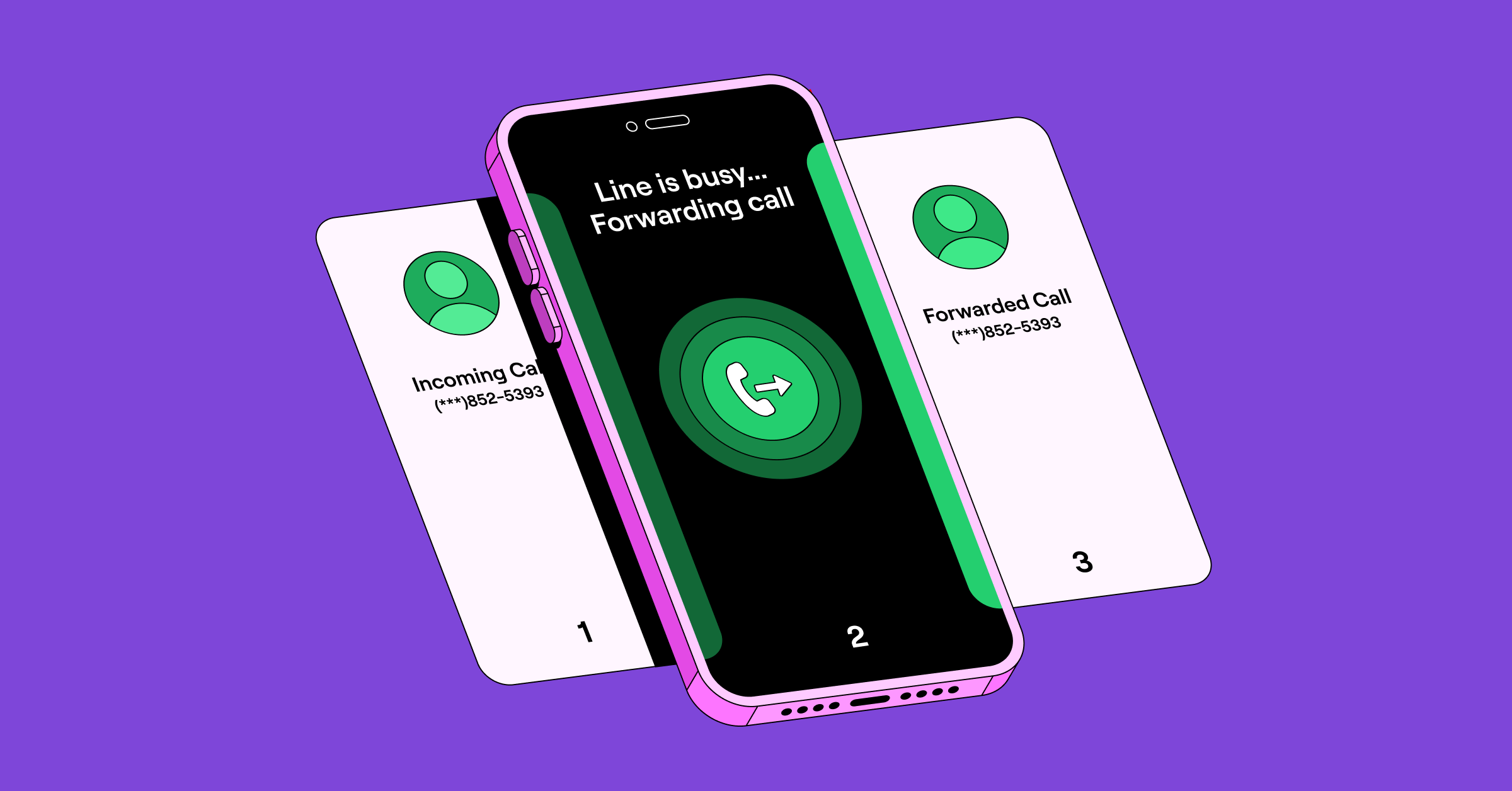
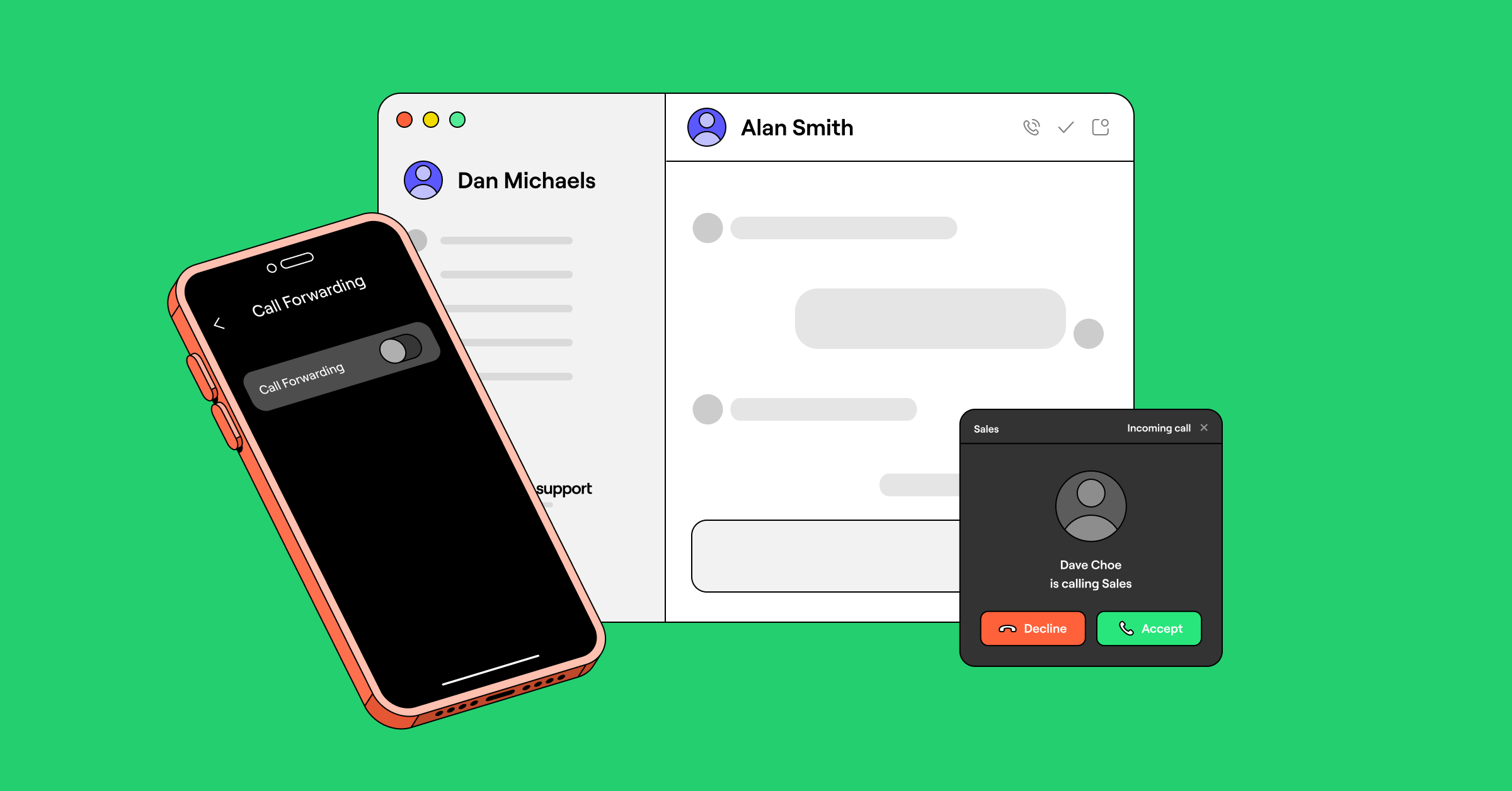
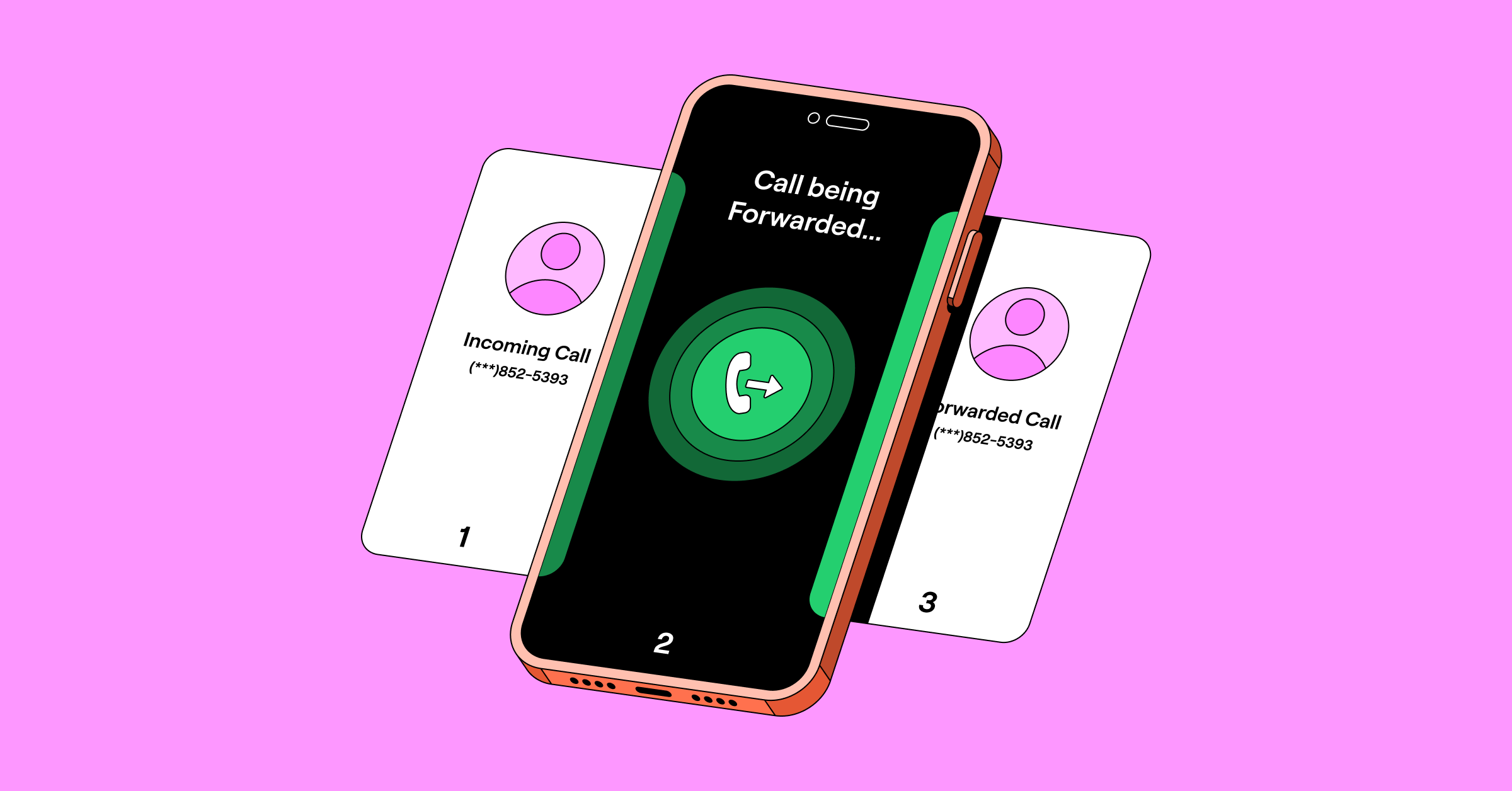
Unconditional call forwarding is a phone feature that automatically redirects all incoming calls to another number — without ringing the original phone first. It ensures every call is forwarded immediately, regardless of whether the phone is busy, unanswered, or unreachable. Businesses often use this to manage calls more efficiently.
It’s “unconditional” because it does so without any conditions, such as:
- The original number getting a call notification first
- Displaying the original number as ‘busy’
- Checking the original number’s network status (e.g., out of service area, phone turned off)
That way, you don’t miss important calls if you’re unable to answer your primary phone, or if you’re traveling and want to avoid roaming charges.
On the flip side, this feature can lead to calls going unnoticed if no one attends to the forwarded number.
Conditional vs unconditional call forwarding
Unconditional call forwarding redirects your calls directly to another number, much like mail being sent straight to a new address without ever going to the old one. Conditional call forwarding is like asking a neighbor to check your mailbox and to leave your mail at the kitchen counter only if you aren’t home.
There are three critical differences between conditional and unconditional call forwarding:
Conditional call forwarding
- Sends incoming calls to another number based on predetermined rules
- Used by business owners or support teams
- Lets you add numbers for specific conditions (busy, no answer, unreachable, etc.)
Unconditional call forwarding
- Sends all incoming calls to another number immediately (no ring)
- Used by individual users
- Sends calls to the designated forwarding number automatically
How to set up unconditional call forwarding on iOS
iPhone’s call forwarding settings only allow you to set up unconditional call forwarding. Here’s how:
- Navigate to the Settings on the home screen. Then, navigate to Apps.
- Select Phone.
- Choose Call Forwarding from the menu.
- Toggle on the Call Forwarding button (it should turn green).
- Add a number for call forwarding.
- To turn off call forwarding, toggle off Call Forwarding in the phone settings.


How to set up unconditional call forwarding on Android devices
You can set up unconditional (always forward) and conditional (forward when busy, unreachable, etc.) call forwarding on most Android phones. Here’s how:
- Launch the Phone application.
- Choose Phone Settings under the three-dot menu in the top right corner.
- Click on Supplementary services. (If you have a Pixel phone, tap Calling accounts and select the right SIM card.)
- Once in the Call settings menu, choose Call forwarding.
- Turn on the Always forward option for call forwarding and add the number you’d like to forward calls to. Leave the other options (busy, unanswered, unreachable) turned off.
- To deactivate, turn off Always forward in the phone settings.


💡 If the steps above don’t work for you, go to Settings and search for Call settings. Then navigate to Call forwarding.
How to set up on a traditional cell phone or landline
A star code from your service provider allows you to manually activate and deactivate unconditional call forwarding. To set up unconditional call forwarding on a landline or older cell phone, follow the steps below.
| Phone provider | Activate | Deactivate |
|---|---|---|
| Verizon | Dial *72 followed by the 10-digit forwarding phone number. Listen for a series of beeps, and then wait for the call to end automatically. | Dial *73. Listen for a series of beeps, and then wait for the call to end automatically. |
| AT&T | Dial *72, enter a forwarding number, and then press # | Dial *73# |
| T-Mobile | Press **21*1+phone number# | Press ##21# |
5 reasons why a virtual number may be a better alternative than unconditional call forwarding
Unconditional call forwarding is a quick fix for the short term, but you may eventually run into problems if:
- You receive a high volume of incoming calls or aren’t always available, and need to share responsibility for incoming calls with colleagues for your business.
- You only need calls to route after business hours to an answering service for call overflow to take calls on your team’s behalf.
- You’re incurring additional charges for forwarded calls, especially when forwarding to numbers that are out of network or in different regions.
Unless you have a brick-and-mortar shop where a landline is all you need, virtual numbers are a better alternative for most small businesses.

Virtual numbers let you easily call and text from your preferred device (computer, laptop, or cell phone). All you need is WiFi. That’s just the tip of the iceberg, though. Here are a few key benefits to getting a dedicated business number through a virtual phone provider (or porting your existing number to a better service):
1. You can work as a team to manage incoming calls
Avoid missing important calls and potential customers slipping through the cracks by using shared numbers. Unlike a basic call-forwarding app, shared numbers simultaneously ring multiple people at once. If you have people at your company who you want to take calls first, you can even set a ring order so they get call notifications first.
Working together as a team using a virtual phone service like Quo is even easier, since you can tag each other and collaborate on responses via internal threads.
2. You can automatically document all incoming calls and messages
Your team doesn’t have to scramble to look up a conversation history or update the CRM. With Quo (formerly OpenPhone), every interaction, including incoming calls, missed calls, business call recordings, texts, and voice messages — is automatically logged.
This works when you connect Quo to tools like HubSpot, Zapier, or Make. You can also use the Quo API to build custom integrations with the tools your team already uses.

Anyone on your team can also easily view the full conversation history for a customer using Quo.
3. You can set up auto-replies for missed calls
If you do miss a call, you can give customers an immediate touchpoint with auto-replies and set expectations for when you’ll get back to them. You can also offer the option to schedule a call-back and confirm a specific time over text.
4. You can manage business calls more professionally
With a dedicated business phone number that automatically forwards to your cell phone device, your personal number stays private so you’re never guessing if an incoming call is work related. This way, you maintain a better work-life balance while keeping your business communications in one place.
5. You can take calls internationally (without breaking the bank)
As long as you have stable WiFi, your number goes where you go, making it easy to call and text internationally. Since virtual phone numbers don’t have international roaming charges, calling and messaging internationally is a fraction of the cost of traditional cell carriers.
How to set up in Quo
Let’s say you’re overseas and won’t have a reliable internet connection. If you need all incoming calls to go to another phone number, here’s how to set up unconditional call forwarding from your computer using the Quo web or desktop app:
- Navigate to the left-hand menu and select Settings.
- Then click on Phone Numbers under Workspace.
- Choose the phone number you want to activate call forwarding on.
- Select the phone number you want to set up call forwarding on, then scroll down and tap Edit call flow under Call flow.

- Select Default call flow.
- Choose Forward all calls from the menu.
- Enter the phone number that’ll receive your forwarded calls (Your forwarding number can be any US, Canadian, or toll-free number you have access to.) and press the Forward button.
- After entering the number, you’ll be taken to the Forward all calls call flow.
Note: This flow can’t include additional steps — you can only change the forwarding destination. - To activate your call flow, click Enable this call flow button at the top of the screen.

If you want to switch back to your default call flow, it’s easy!
- Click Enable this call flow.
- Select Default call flow from the dropdown.
This will disable Forward all calls and publish your default call flow.
If you wish to encourage incoming callers to text or email you instead, you can even set an option in Quo to play an audio recording instead of giving them the option to leave a voicemail.
If you wish to encourage incoming callers to text or email you instead, you can even set an option in Quo to play an audio recording instead of giving them the option to leave a voicemail.
Bonus: How to route calls with conditional forwarding inside or outside of business hours
Along with the option to set a ring order, Quo users can set up conditional call forwarding (available on our Business plan). That way, unanswered calls can ring an answering service you’ve hired or another phone number your team doesn’t manage in Quo.

To set up conditional call forwarding during business hours:
- In the Workspace section, click on Phone Numbers.
- Choose the specific phone number where you wish to enable call forwarding.
- If you haven’t already, add your business hours.
- Scroll down to the Call flow section and click edit Call flow.

- From here, you can use the Quo call flow builder to drag and drop different call flow steps during and after business hours. For example, if you wish to forward calls after hours, drag and drop the Forward call step below After hours. This step can also be below a ring group so that calls only forward to an external number if no one on your team picks up.
Pro tip: You can also add Sona, Quo’s AI agent, below a ring group. Instead of forwarding the call, Sona automatically answers it, takes customer messages, and responds to FAQs.
- With the Forward call block selected, then click Pick a phone number and enter the number you wish calls to be forwarded to.
To learn more about the call flow builder and your different options, check out our guide to setting up the call flow builder or watch the video below with more call flow examples.

A few key points about forwarding with Quo:
- You can forward calls to US and Canadian numbers.
- Currently, we don’t support forwarding calls to non-US/Canadian numbers or US territories like Puerto Rico. Use Quo directly on your phone via the mobile apps (iOS and Android) if you’re located outside the US or Canada.
- When the forward function is enabled, any texts you receive will be sent to your Quo app, not to your personal number.
- With Quo (formerly OpenPhone), you can still make and receive calls directly. No call forwarding required!
Improve the way you handle client calls with Quo (formerly OpenPhone)

Effective call forwarding is critical for businesses that pride themselves on great service. You don’t want to leave your customers unattended — or worse — eyeing competitors. But a virtual phone system is even better because it lets you easily establish a professional phone presence with features like business hours and a phone menu. Plus, you can use auto-reply to automatically follow up on missed calls and set expectations outside business hours.
Try out call forwarding and more by signing up for a free seven-day trial of Quo.
FAQs
Unconditional call forwarding immediately directs all incoming calls to another number without any preconditions. Alternatively, conditional call forwarding is activated under specific conditions. These can include the phone being busy, unanswered after a set number of rings, or out of service.
In the Quo mobile app, click on Settings and then navigate to Phone numbers. Select your number and tap on Forward all calls. Remove the call forwarding number and click Save to save your changes. Keep in mind if you turn on call forwarding for all calls on the mobile app, you’ll need to turn it off within the mobile app.
In the Quo web or desktop app, go to your number’s settings and click Edit call flow. Then, tap the drop-down menu and select Default call flow. That’s it!
The best way to use unconditional call forwarding is to only redirect calls to a number where someone can always pick up. That way, you’ll never miss a call — even if you’re unavailable. You can also test it ahead of time to make sure it’s working properly. If anything changes, it’s easy to update the number in your phone’s settings.
This error usually means your phone couldn’t forward the call — often because there’s an issue with the number or your carrier. First, double-check the number you’re forwarding to is active and includes the right area or country code. You can also try restarting your device or forwarding it to a different number. If that doesn’t work, your carrier may need to enable call forwarding on your account.
When every call is forwarded unconditionally, there’s no backup if the other number doesn’t pick up. That can lead to delays and confusion, especially if your team doesn’t know a call has come in. You also can’t loop in other reps to share responsibility for solving customer issues. For most small businesses, virtual phone numbers offer more flexibility and make it easier for them to scale.