Do you worry about missing incoming calls? Setting up a text message autoresponder on your iPhone can help you stay connected with people who reach out.
For business owners, auto-replies can reduce missed calls and voicemails by letting customers know you’re not available but will respond soon.
If you’re not sure how to set up an auto-reply text on an iPhone, this article will provide step-by-step instructions. We’ll also show you an option that’s more flexible than the clunky workaround iPhone provides.
Does an iPhone auto-reply feature exist?
iPhones don’t have an auto-reply feature per se, but there are a couple of workarounds. The most straightforward one is using Driving Focus mode.
On Apple’s iOS 15 and higher, you can use the Driving Focus feature. Most Apple focus modes, like on your iPhone and iPad, function as a “do not disturb” feature and simply silence calls and other notifications. But with Driving Focus turned on, you can auto-reply to text messages.
But using the Driving Focus feature is just a band-aid solution. It’s hard to scale, and while using it, your phone becomes more or less unusable. You won’t receive incoming call and text notifications from customers unless you change your Focus settings or turn it off.
Employees would also need to set up auto-responders using Driving Focus mode and remember to turn it on and off as needed.
🧳 Going on vacation? Unfortunately, there’s no option for an iPhone auto text reply while on vacation — like a Vacation Focus mode — unless you’re willing to activate Driving Focus manually. In this scenario, a VoIP app like Quo, formerly OpenPhone, gives you more control. You can create separate auto-replies for business hours, holidays, or out-of-office periods in advance.
How to send auto-reply texts from your iPhone using Driving Focus mode
If you’d like to set up auto-replies in Driving Focus mode, here’s what you need to do:
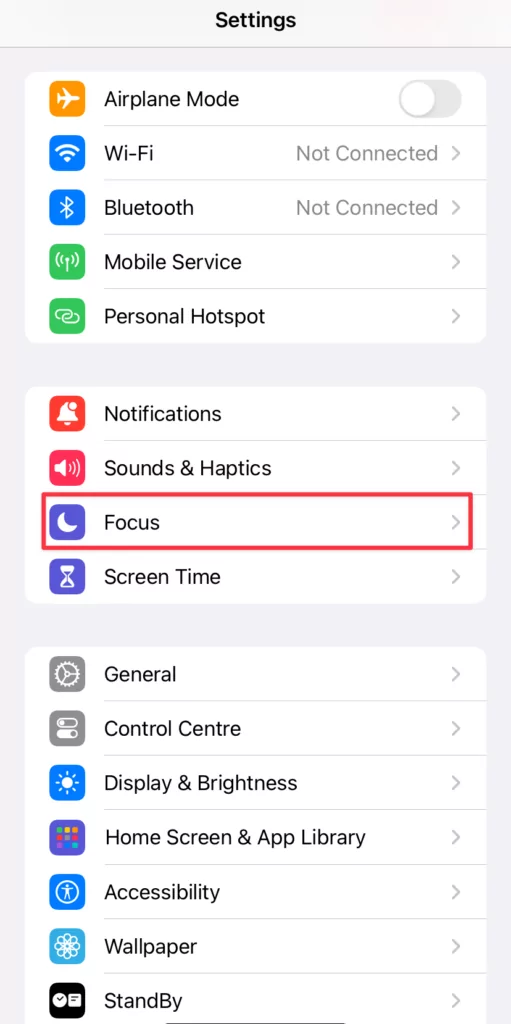
- Open Settings on your iPhone device and tap on Focus.
- If you don’t see Driving Focus on your list, tap on the + in the upper right corner.
- You’ll see a list of available Focus modes. Tap on Driving.
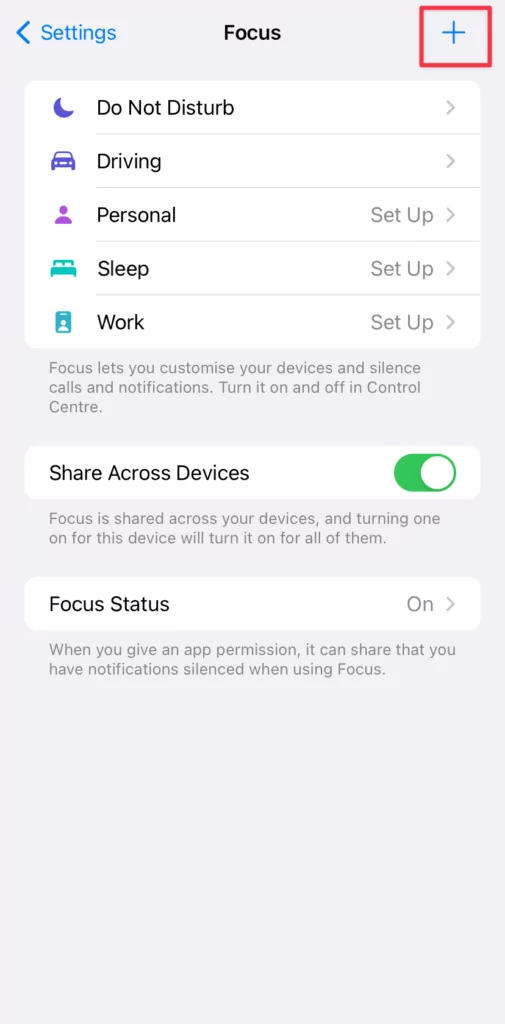

- On the next screen, tap on Customize Focus.
- Within Driving Focus, choose if you want to allow notifications from specific people. Then tap Auto-Reply and choose who to send replies to: All Contacts, Favorites, Recents, or No One.
- Type in the Auto-Reply Message you want to send.

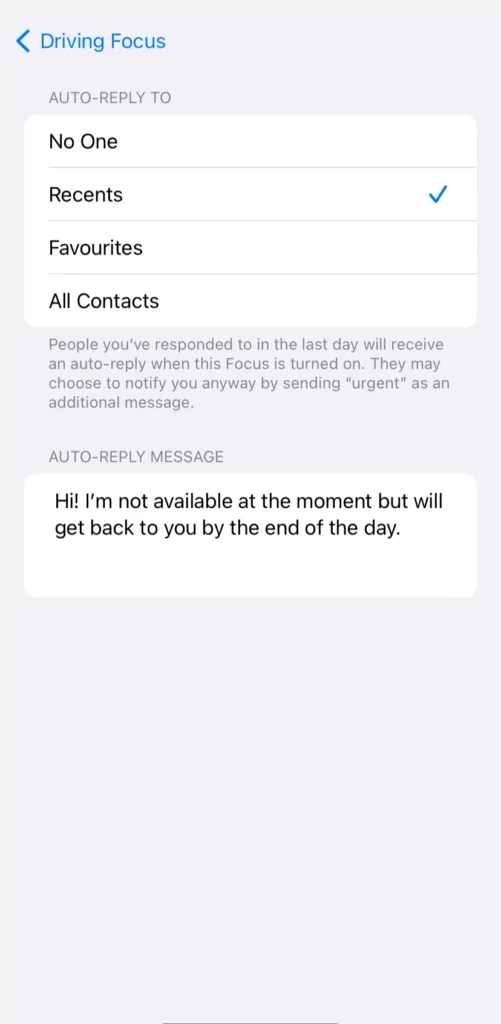
- At the bottom of the screen, select Activate Manually under Turn On Automatically.
- When you want to activate the focus mode, swipe down to open the Control Center, and tap Focus.
- Select Driving to turn it on. Repeat to turn it off.


While Driving Focus mode can technically work to send an automated text response, it’s still just a workaround and has limitations. For example:
- Manual-only activation: You have to remember to turn Driving Focus on and off every time — there’s no way to schedule it.
- Can’t set different messages for different times: You’ll need to manually update your reply if you want different messages during the day vs after hours.
- One reply for everything: You can’t send different auto-responses for missed calls vs texts, which can confuse customers.
- Not built for teams or Android users: Every teammate would need to set it up manually, and it only works for iPhone users, making customer communication feel disjointed and inconsistent.
How to send SMS auto-replies from your iPhone using the Shortcuts app
You can also use auto-replies with the Shortcuts app, though it’s an even clunkier process than the Driving Focus mode. Here’s the step-by-step guide:
- Open the Shortcuts app.
- Tap the Automations tab at the bottom.
- Tap the + icon to create a new shortcut. If it’s your first shortcut, tap the New Automation button.
- Tap Message.


- Select Sender to choose the recipients of your automatic text replies.
- Tap Message contains to filter by certain keywords or phrases. If you want to reply to every message from the recipients, you can leave the field empty or add a single space.
- Choose Run immediately. This means you won’t have to confirm an auto-reply every time before it can go out.
- When you’re done, press Next.

- Tap New blank automation.
- Select Search actions and search for Send message.
- Tap the Message field and populate it with your default message. Like “Hey, I’m out of office right now, will get back to you tomorrow morning!”


- Tap and hold Recipients, and choose Shortcut Input.
- Select Done.
Make sure to do some trial runs of the automation from different numbers to make sure it works. And remember, this method isn’t a long-term solution for growing businesses.
Some drawbacks of Shortcuts to keep in mind include:
- Limited to known contacts: You have to manually select specific senders from your contacts. If a new lead or customer messages you, the automation likely won’t send out the reply.
- Manual setup for each contact: You’d need to add every customer or lead manually, which isn’t scalable for business use.
- Clunky and unreliable: Even once set up, this method isn’t very intuitive and doesn’t offer scheduling, conditional replies, or message variations.
What’s the best way to set up auto-replies for growing businesses?
We might be biased, but the best way to set up iPhone auto-replies is to use a VoIP service for businesses that already comes with auto-reply features.
As a VoIP business phone provider, Quo lets you:
- Set up auto-replies for missed calls, messages, and voicemail for anyone who reaches out.
- Set up different auto-replies for during and after business hours.
- Use shared phone numbers and a unified inbox to share the responsibility of answering customer requests.

- Call and send messages, including automated texts, from any of your internet-enabled devices, like your computer and tablet.
- Easily schedule future text messages to send in your recipient’s time zone.

- Quickly reply with frequently used templated responses like snippets.
- Take calls and texts from any internet-connected device.
Set up even more texting automations using Zapier and Make integrations. For example, if a customer fills out a form on your website, you can automatically send a welcome text. Or use the Quo API to build custom workflows with any tools you already use.
How to send auto-replies with the Quo app
To set up auto-replies for your Quo phone number, log in to the Quo web app.
- Click on Settings.
- Within Workspaces, click on Phone Numbers. Choose the phone number you want to set up auto-replies for.
- Scroll down to Auto-Replies and select from the six different auto-reply options.

- Type in the text of your auto-reply and click Save. It’s that easy!

How to write auto-replies your customers respond to
A good auto-reply should set expectations and keep the conversation going. Here’s how to write better messages:
- Keep the message short: Stay under 160 characters so they’re sent as a single SMS message instead of multiple texts. Plus, auto-replies are less overwhelming that way.
- Set clear expectations: Let people know when they can expect callbacks or hear from you — whether that’s within a few hours or the next business day.
- Prompt a helpful next step: Use your auto-reply to invite a response. For example, ask the customer to share more details about their request so you can help faster when you follow up. You can also share helpful links, like your booking page, so customers can take action on their own.
- Match your brand’s tone: If your usual messages are friendly and casual, your auto-reply should sound the same. If you’re more formal, stick to that voice.
18 iPhone auto-reply message examples for different business scenarios
Here are some message templates to use for your Apple iPhone’s auto-replies. Keep in mind that your iPhone will always send the same automated text message unless you manually change it. With Quo, you can set auto-replies based on different conditions.
You can also check out our longer list of auto-reply text examples.
Incoming text auto-reply during business hours

When you’re setting up auto-replies to texts you receive during working hours, let customers know why you’re unavailable to respond and when you can get back to them.
- Hey! Thanks for your text message. I’m busy all day but will get back to you by 10 AM tomorrow.
- Hello, I’ve received your message. I’m currently out of the office, but I’ll respond when I’m back on Monday.
- Hey, we aren’t available to respond right now. We will get in touch when a rep is available.
Missed calls auto-reply during business hours
A missed call auto-reply should indicate your team is available but couldn’t answer the call.
- Hey, I can’t take your call right now, but I’ll get back to you as soon as I’m available.
- Hey, we can’t take your call right now, but can I answer your questions over text?
- Hello! Our team is out celebrating Thanksgiving with our loved ones. We’ve received your call and will get back to you on November 29!

💡Pro Tip: Want to stop losing customers to competitors when you’re not there to take their calls? Quo users can integrate Sona, Quo’s AI voice agent, into their call flow. Sona acts as a fallback option when you’re unavailable and can take routine calls, answer FAQs, and take a message so you can call back with full context once you’re available.

Voicemail auto-reply during business hours
When you’re writing auto-replies for missed voicemails, make sure it acknowledges that you’ve received their voicemail so you don’t leave them hanging:
- Hey! Thanks for leaving a message. We’ll get back to you as soon as possible.
- Hi! I got your voicemail. I can’t get to it right now, but I’ll listen to it and call you back when I’m available.
- Hello, we’ve received your voicemail and will give you a call back within the next couple of hours. Thank you for your patience.
After business hours incoming message auto-reply
If customers text you outside of business hours, let them know when they can expect to receive a response.
- Hey! Sorry we missed your call. We’re currently closed, but we will get back to you tomorrow morning.
- Hello. Our office is currently closed. We are open from 8 AM to 6 PM Monday–Friday.
- Hello, we aren’t available right now but will get back to you once our office reopens tomorrow morning.
💡Related: After-business-hours text messages
After business hours missed calls auto-reply
When customers call your business phone when you’re closed, let them know you’re aware of their missed call and will get back to them.
- Hey! Sorry we missed your call. We’re currently closed, but we will get back to you tomorrow morning.
- Hello. Our office is currently closed. We are open from 8 AM to 6 PM Monday–Friday.
- Hello, we aren’t available right now but will get back to you once our office reopens tomorrow morning.
After business hours voicemail auto-reply
If a customer calls your business and leaves a voicemail after the workday has ended, send an auto-reply message that lets them know when to expect a response.
- Hey! Thanks for leaving a message. Our office is closed right now, but we’ll get back to you in the morning.
- Hello. Thanks for the voicemail. Once our team is back in the office tomorrow, we’ll respond to your voicemail!
- Hey, thanks for your message. We’re closed for the holidays, but we’ll get back to you as soon as possible once we’re back on January 2.
Quo: The better alternative to send auto-reply texts from your iPhone

For most people, setting up auto-replies using the iPhone’s Driving Focus feature is too limiting. It might work for one-time use, like stepping out of the office for a few hours, but using it daily for customer calls and texts will likely frustrate you.
Here are some other signs you need a dedicated app for auto-replies:
- You need different messages for different times of day
- Your team shares responsibility for customer communication
- You want auto-replies that work across multiple devices
- You need integration with your existing business tools
Quo gives you more options to send auto-replies from your business phone number. And because phone calls and texts are shared, your customers won’t rely on your individual availability. A team member can jump in and take care of your customers more quickly.
You can check out Quo by signing up for a free seven-day trial.
Frequently asked questions about iPhone auto-replies
Yes, but your options are limited. iPhones don’t have built-in support for scheduled or rule-based auto-replies. One workaround is the Driving Focus feature, which requires manual activation and sends the same message to everyone. It also makes your phone unusable while it’s activated. You can also try the Shortcuts app to set up your own automation.
But the process is clunky and only works for contacts you manually add. If you want a smoother, more flexible way to automate texts — like replying outside business hours or to missed calls — a business phone app like Quo is a better fit.
You can create a basic auto-reply on an iPhone using workarounds like the Driving Focus mode, but these methods are clunky and limit you to one generic message that you have to turn on and off manually.
For a true business solution, Quo lets you create multiple custom auto-replies for your business phone number. You can easily set different messages for missed calls, texts, and voicemails.
You can create auto-replies for specific contacts using Shortcuts. Go to the Shortcuts app, then select Automation. Select + or New Automation, then Message. Finally, tap Sender to specify which specific contacts you want to send the auto-reply to when they message.
Keep in mind you won’t be able to schedule automated responses to send at specific times or for certain conditions like you can in a business phone app like Quo.
Auto-reply text messages help small businesses stay responsive even when they can’t reply right away. They’re especially useful for:
– Reducing missed opportunities: Let customers know their message was received and you’ll follow up soon.
– Improving customer experience: A quick auto-reply can reassure people you’re not ignoring them.
– Staying professional after hours: If you get messages at night or on weekends, auto-replies help you set clear boundaries without going silent.