
Pipedrive
This is an official integration by the Quo team
By
Quo
Plans
Business, Scale
Bring Quo and Pipedrive together in one seamless workflow


Overview
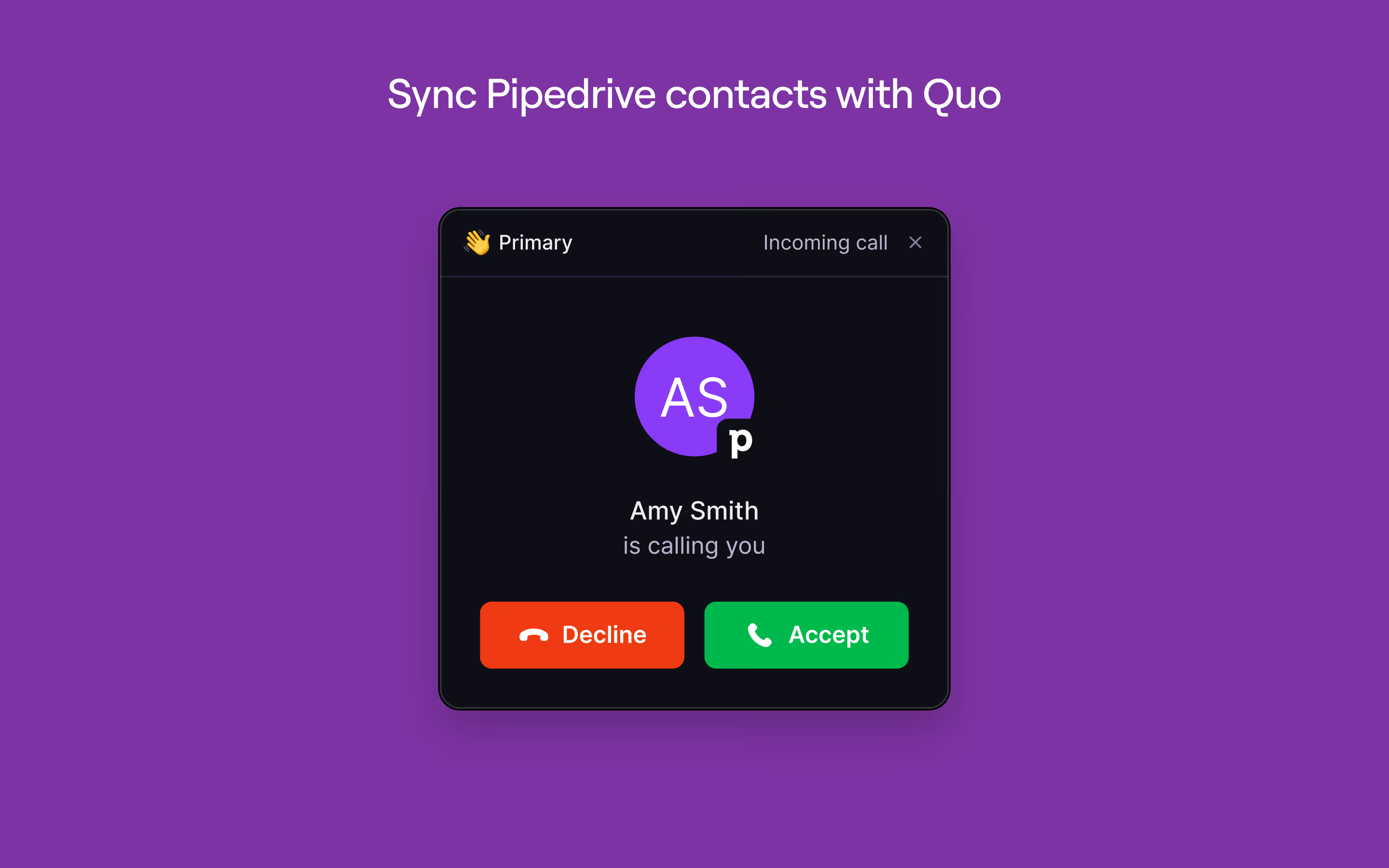
Pipedrive and Quo integrate directly to streamline your team's entire communication workflow by automatically syncing contacts and logging all communication activity (calls, texts, voicemails, recordings, and AI generated call summaries) back to the correct Pipedrive records.
Sales teams can work entirely from Pipedrive with complete customer context without manual data entry or switching between tools saving your business time and money.
With a one-way contact sync from Pipedrive to Quo, your phone system stays consistently up to date, eliminating duplicate records and ensuring your contact data is always accurate.
“This integration finally brings our phone system and CRM together in a way that fits how small teams like ours actually work–quickly, seamlessly and people-first.”

Allen Starrett
Managing Attorney at Starrett Law Firm
Get started
Follow these steps to connect Pipedrive with Quo:
- Open the Quo web or desktop app.
- Navigate to Workspace settings → Integrations, select Pipedrive and click Connect to Pipedrive .
- Pipedrive will ask you to confirm the account you’d like to connect to Quo.
- After confirming, you’ll be redirected back to Quo’s integration settings. Under phone numbers, choose the numbers you want to sync call and message activity into Pipedrive.

.jpeg)