You’re on a call with a new prospect when you hear it: the dreaded stutter. So you move closer to the router to boost audio quality. The call ends up dropping. You call back, and it connects. But now the caller can’t hear you. They try again later, and it goes straight to voicemail.
Running a business is hard enough without your VoIP phone system acting up. And minor issues like these add up to major problems — like losing potential customers.
Thankfully, most issues with your phone system have simple fixes. Here’s how to tackle the eight most common VoIP problems so you can get your phone ringing again.
How to fix 8 common VoIP problems

Spoiler: most issues with VoIP, or Voice over Internet Protocol, stem from your internet connection. That’s because VoIP lets you text and call over the internet, as opposed to using a cell carrier’s service.
The good news is, most VoIP problems are easy to fix.
Let’s start with one of the most common disruptions and how you can solve it.
1. Poor call quality or choppy audio
As mentioned, VoIP voice calls work by converting audio into voice packets. This means your voice travels over the internet to get decoded by the customer’s device on the other side. You’ll need sufficient internet bandwidth to ensure clear audio. For example, the FCC states that your download speed should be 100 Kbps of bandwidth per simultaneous call.
Most insufficient bandwidth problems stem from older telephony equipment, such as routers. But it can also be a problem on crowded WiFi networks. Too many devices streaming and syncing apps at the office can raise jitter and latency.
Jitter is when voice data is sent out of order. This makes your audio sound choppy.
Latency is the time it takes your device to contact an internet server and get a response. High latency causes audio delays and long, awkward pauses during phone conversations.
How to fix
Start by running a VoIP test to check your connection performance. For example, you can try OpenSpeedTest or fast.com.
You should look for:
- Jitter under 30 milliseconds
- Latency under 150 milliseconds
- Packet loss under 1%
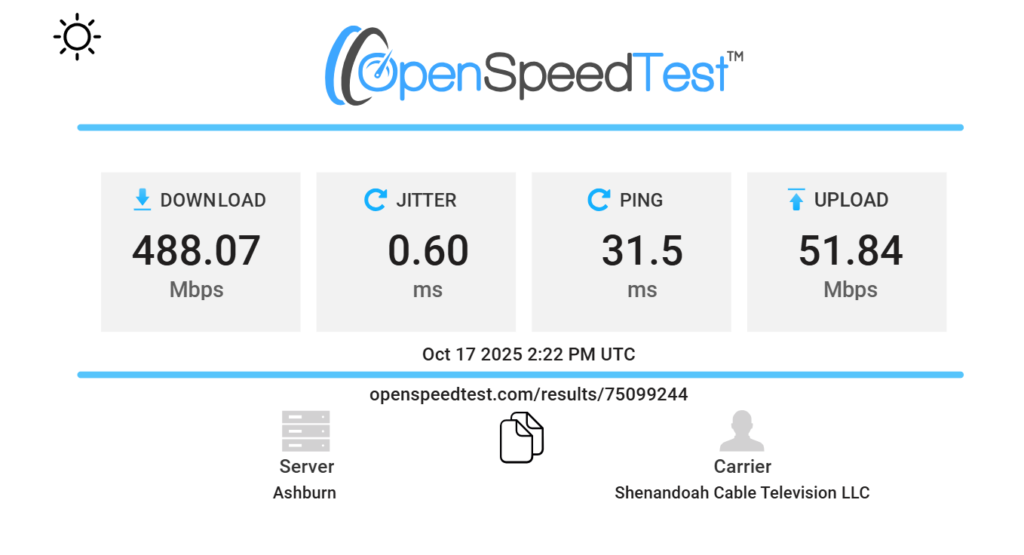
If your numbers are higher than this, try moving from WiFi to a wired Ethernet connection. This can be more reliable than hotspots or WiFi. If you make a lot of calls and spend most of your time at a desk, you can easily set up a wired connection.
💡Related: How to set up VoIP
You should also close apps that use a lot of internet bandwidth before taking calls. For example, video meetings, large downloads, gaming, or streaming apps. This frees up more bandwidth, improving voice quality.
For the best possible performance, you can enable QoS, or Quality of Service, on your router. That means VoIP calls will receive bandwidth priority, regardless of other apps or devices using your internet. Let’s say someone at the office is on a video meeting. QoS will limit their bandwidth until you’ve finished the conversation with your VoIP caller.
2. Calls drop
Dropped calls happen when a call disconnects without warning. You’ll notice more of these if you get a lot of outbound calls or run a call center, since calls are likely to drop during peak hours when your team juggles numerous calls.
There are a couple of reasons your calls might keep dropping. First is SIP ALG, or Session Initiation Protocol Application Layer Gateway. This is a router feature that rewrites call data to prevent firewall-related issues. When enabled, it can change call data in unexpected ways and can cause calls to fail. For example, it can send outbound data packets to the wrong IP address.
Another cause: UDP, or User Datagram Protocol, timeouts on the router. This setting quickly transfers voice packets to your caller’s device . If calls drop at nearly the same call length each time — like 30 seconds or 2 minutes in — your firewall could be terminating the UDP route too soon.
How to fix
First, check if SIP ALG is enabled in your router settings. Turning this off resolves VoIP issues, like calls dropping, because it prevents the router from rewriting call data.
Next, increase UDP timeout spans. The exact process for this will depend on your router model. If you can’t find details online or in the user manual, your VoIP provider may be able to help.
You can also try migrating from WiFi to Ethernet. Wired connections can help you avoid dropped calls with a more reliable connection.
And if you haven’t already, turn on automatic updates for your VoIP software and hardware. Keeping apps, devices, and routers up to date can help prevent call drops.
💡 Related: Why does my phone keep dropping calls?
3. Phone echoing
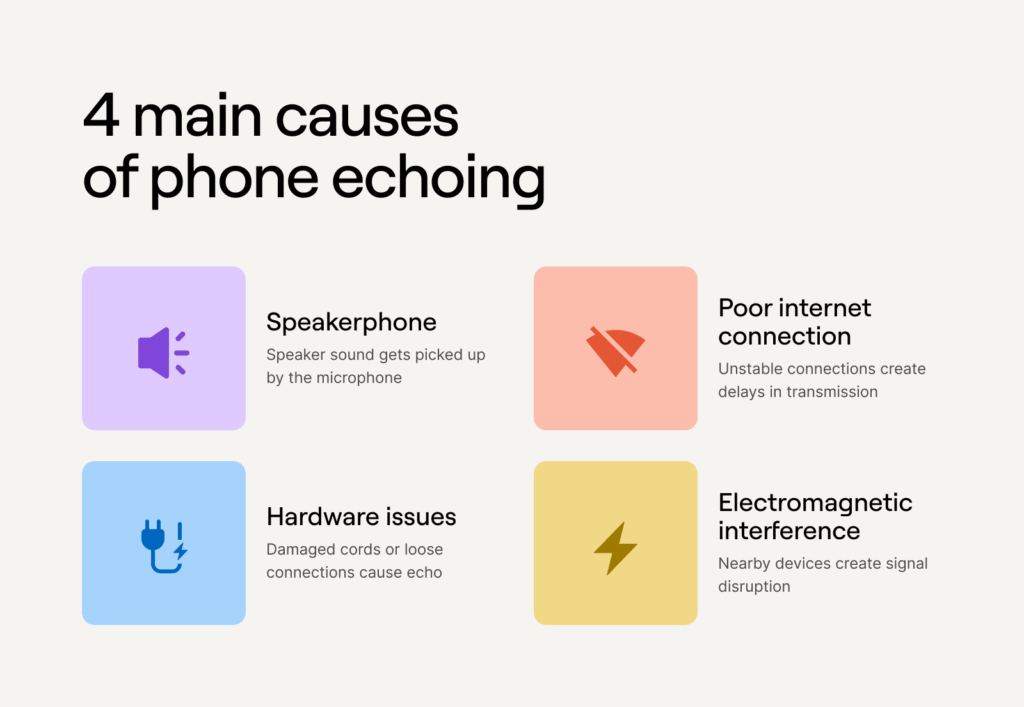
Phone echoing happens when you or your caller hears a repeating voice during a call. This disrupts conversations and can lead to misunderstandings. For example, the customer may not hear you over their own voice.
There are typically four culprits behind call echoing:
- Speakerphone. This can create a loop when the caller’s voice plays through your speaker and your mic picks it up.
- Hardware issues. Damaged VoIP handset/headset cords, faulty Ethernet cables, or loose wall jacks can cause echoing.
- A poor internet connection. Bad VoIP connections can add transmission delays that sound like an echo. This is also known as jitter.
- Electromagnetic interference from nearby electronics or power sources. If you’re near electronic devices like a computer, the electromagnetic field can disrupt your VoIP phone’s signal and create an echo.
How to fix
The first and easiest solution is to turn off the speakerphone. You can also switch to headphones to stop echoing. But if that’s not possible, lower the volume of your speakerphone so the caller’s voice is less likely to get picked up by the speaker.
Next, try moving VoIP phones away from electronics like monitors, routers, and power bricks. This will reduce the likelihood of electromagnetic interference.
If all else fails, check for damaged hardware. Start by testing another wall jack to see if it fixes the echo. You can also try replacing one part at a time, like handsets or Ethernet cables, until you fix the issue.
Speaking of Ethernet: switch to a wired connection if possible. You can also try reducing the number of devices on your network.
💡 Learn more about how to stop phone echoing.
4. Call connects, but there’s no sound
When you hear your caller, but they can’t hear you — or the other way around — you’re experiencing one-way audio.
Sometimes there’s a simple reason behind one-way audio. Your device might be muted, or your calling app might have selected the wrong mic or Bluetooth speaker. Other hardware issues, like loose cables, can cause calls to sound silent after picking up.
But one-way audio problems are sometimes more complicated — especially when it comes to VoIP codecs. Both people on the phone need compatible VoIP codecs to convert voices to digital packets and back again. When settings aren’t compatible, your call audio might not play or have quality issues.
How to fix
First, check if you’re using the right mic and speaker in your VoIP provider’s app. You should be able to choose microphones and speakers from your dashboard. Then try checking whether you’re muted or have your volume settings set low.
If that doesn’t fix things, check for loose wires. Pull out the handset and plug it into a different cable or port. Then, disconnect Bluetooth so your device doesn’t try to connect to it automatically. Using a wireless headset? Disconnect and reconnect Bluetooth to reset your connection.
If all else fails, you may have a VoIP codec issue. But you won’t always need to manage or adjust settings yourself. With a business phone system like Quo, codecs are handled behind the scenes by our engineers.
5. Can’t make or receive calls
Maybe your outbound calls won’t connect, or your inbound calls never ring. You may see an error like “call failed” or an “X” on your screen when you try to call or pick up.
These are signs that data packets are getting lost or blocked somewhere in your network. It could be due to outdated software on your VoIP app or router. But it most often happens if you’ve enabled the SIP ALG feature on your broadband router. iIt can also occur with two routers on the same connection. This is known as double Network Address Translation, or NAT.
NAT is a protocol that enhances security by letting multiple devices on a private network, like your office, share a single public IP address. Double NAT occurs when two routers do this at the same time. This may cause VoIP data packets to get lost, since routers won’t know which internal device to send them to.
How to fix
Failed calls are usually a simple fix once you log into your router’s admin dashboard.
First, turn off SIP ALG in your router settings. There’s usually a box to uncheck within your router’s admin dashboard.
Next, update your VoIP app and router. Make sure to restart the device and the app to ensure changes take effect.
To try to fix double NAT, you can set up bridge mode on one of your routers.
If you’re in a large office running multiple routers, try cutting back to just one.
If you absolutely can’t drop to a single router, consider a virtual local area network, or VLAN. These can help isolate your VoIP devices by separating their traffic from other devices on the network. It won’t completely fix double NAT. However, it does give your calls a clearer path through your main router. It also makes it easier to activate QoS.
6. Calls go straight to voicemail
Not getting notified of incoming calls is annoying — but it’s an easy fix.
You may have routed all incoming calls to voicemail by accident in your call flow, so they never have a chance to ring your devices. You also might have switched on Do Not Disturb, or DND, mode on your phone or business phone system. This will send your calls to voicemail.
How to fix
The first setting to check is Do Not Disturb mode. Switching this off in your admin dashboard will enable call notifications so your phone can ring again.
If that doesn’t work, check how calls are routed in your business phone system. You may have settings enabled that forward calls to another number, for example. With Quo, you can make sure calls ring your device first, instead of going straight to voicemail, with our visual call flow software.
7. Security issues
Security risks aren’t your typical VoIP problem. But they can be incredibly dangerous to you and your customers.
One common threat is packet sniffing, which allows bad actors to capture packet data as it moves across a network. If they’re not properly encrypted, hackers can analyze packets to steal sensitive information. You may unintentionally expose account details, login credentials, or even call content.
Considering that 79% of small businesses have experienced at least one cyberattack in the past five years, there’s never been a better time to upgrade your VoIP security.
How to fix
Strong passwords and two-factor authentication will always be your first line of defense. Even if someone does guess your password, two-factor authentication makes it impossible to log in without your phone or security code.
Next, choose a reliable VoIP provider like Quo with a strong security framework.
This framework should include:
- Data encryption: This encodes your call and message data so only the sender and receiver can read or hear it. Quo uses AES-256 encryption, which is a symmetric encryption algorithm that protects your data from security attacks. It’s a method approved by the US government and used by banks.
- Infrastructure protection: Quo is hosted on Amazon Web Services, which is one of the most secure cloud platforms in the world. Your data benefits from the same protections used by Fortune 500 companies, such as monitoring backups and having strict access controls.
- Ongoing security improvements: Cyber threats change all the time. To keep you safe, Quo conducts annual security assessments and implements improvements.
- Compliance certifications: You should know whether third-party experts will vouch for the security and confidentiality of a system. For example, Quo is SOC 2 Type II certified for security, availability, and confidentiality with VoIP data.
8. One device works, the other doesn’t
Sometimes, one of your VoIP phones works perfectly while another refuses to make or receive calls. The culprit is often the Media Access Control address, or MAC address.
Your VoIP provider uses your device’s MAC address to identify it on a local network and ensure data is delivered to the right place. If it’s not added to your account or if the setup is outdated, that phone simply won’t connect properly.
A swap test is a quick way to pinpoint the issue:
- Plug the non-working device into a cable or port that you know is already working on another device.
- If it still doesn’t work, the problem is with the device or its account setup.
- If it does work, the issue is likely with the original cable or port.
How to fix
Start by moving the phone to a port or jack that’s handling calls successfully. If it works, you can rule out wiring problems. If it doesn’t, replace the cabling to rule out bad connections.
Next, make sure the device’s MAC address is correctly added to your VoIP provider’s system.
If your phone still doesn’t work, contact your provider for support. There might be a problem with its firmware — so consider replacing the device.
VoIP troubleshooting checklist
Here are 10 troubleshooting tips to diagnose problems with your VoIP phone system:
- Check the connection: Run an internet speed test on a platform like packetlosstest.com. Then, review latency, jitter, and packet loss. If your numbers are high, you may need more bandwidth before VoIP implementation.
- Place a test call: Call someone on a different network. Does the VoIP call quality change? If yes, you may need to consider a different internet service provider or upgrading your package. Be sure to test your VoIP texting service as well.
- Confirm audio settings: Pick the right mic and speaker in your app. Make sure you’ve unmuted before starting the call. Finally, raise and lower volume on a test call to set a general range for incoming calls.
- Restart and update: Update your business phone app and router regularly. Then, restart them after each update to ensure you’re running the latest patch.
- Fix router conflicts: Turn off SIP ALG, which is a router feature that rewrites call data. This can help you avoid common issues with VoIP phones, like one-way audio, dropped calls, and inconsistent call quality.
- Enable Quality of Service on your router: This ensures VoIP calls get bandwidth priority when the network is busy.
- Damaged cables: Make sure there’s no visible damage to your cables. If there is, you may need to replace them.
- Place your router near connected devices: Keep your router close to your devices to optimize call quality.
- Purchase a new or second router: Upgrade your router and/or buy a new one to increase current bandwidth.
- Ensure your cables are connected correctly: Check that your cables are plugged in at both ends.
How to prevent VoIP problems
You can stop common VoIP issues before they start by:
- Choosing a reliable provider: Pick one that protects calls and data.This includes ensuring data encryption, infrastructure protection, compliance certifications, and ongoing security improvements. It should also offer fast, helpful support in case you get stuck. Learn more about how to choose a VoIP provider and how to get a VoIP number.
- Using business-grade internet: Choose a plan with enough upload speed for your team. You should also factor in a jitter buffer and additional bandwidth as you grow. Be sure to ask your ISP for options around voice and video calls.
- Using Ethernet for desk setups: When possible, set up a wired connection. You can still use WiFi for mobile phones and tablets.
- Keeping software up to date: Be sure to update your VoIP app, devices, and router regularly. You can put this on autopilot by turning on auto-updates. Be sure to restart VoIP devices after major updates.
- Protecting accounts and calls: Use strong passwords and two-step verification. This will keep bad actors from accessing your data. If available, turn on call encryption. Also, set user roles and remove access for former staff.
Ensure reliable calls with Quo
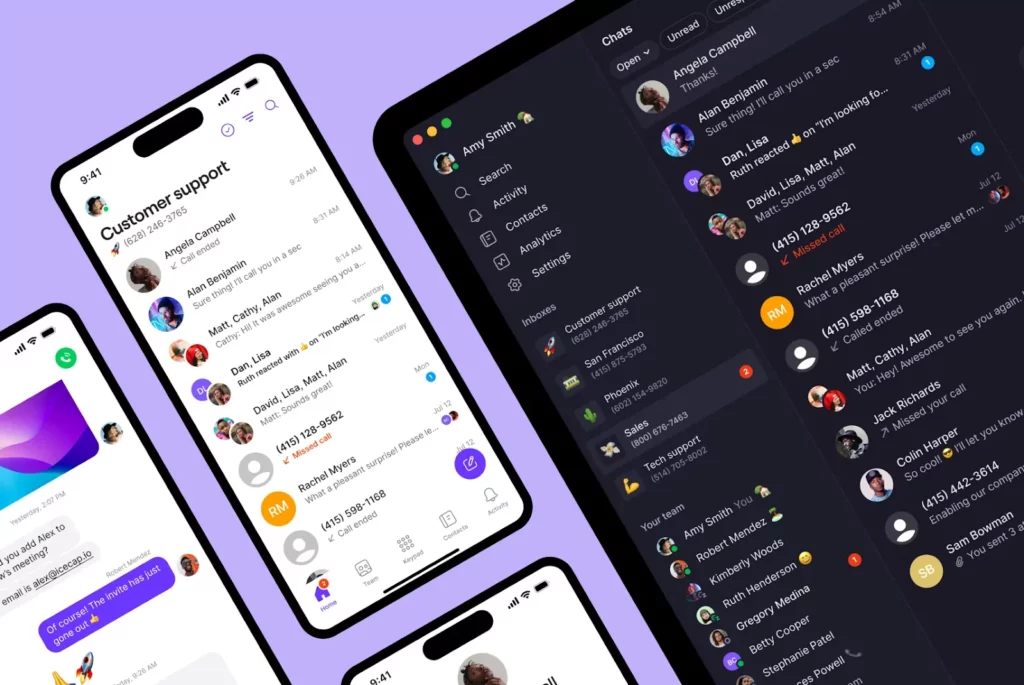
No small business phone system can guarantee high-quality calls every time. But with a platform like Quo, you’ll get pretty close.
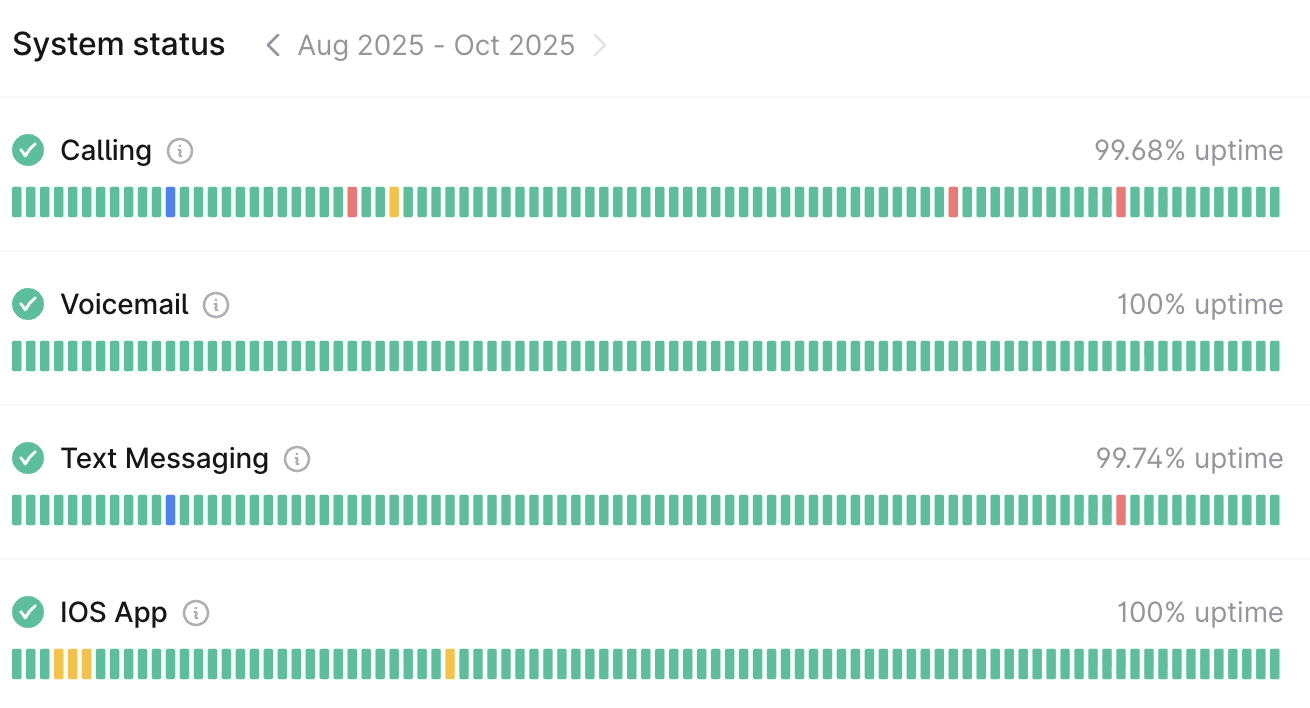
We help you diagnose and fix call quality issues with our troubleshooting guide. If any known issues are occurring, we keep them up to date on our status page.
Still running into trouble? Just contact support. You’ll also have access to email, live chat, and/or phone support, depending on your plan.
It’s easy to see why Quo is rated the best VoIP app for customer satisfaction on G2. But why take our word for it when you can try us yourself?
Put Quo to the test with a seven-day free trial and see why 90,000+ brands trust us with their customers.
FAQs
VoIP depends on your internet connection, so weak WiFi or limited bandwidth can impact call quality. You may need to choose a different internet service provider or upgrade your plan to maintain call quality.
But there are other options too, like switching to an Ethernet connection instead of WiFi. You could also enable Quality of Service, or QoS, if you have a modern router.
Of course, choosing a reliable service like Quo can provide a lot of VoIP advantages and help you significantly reduce these issues.
Mobile VoIP works from anywhere with an internet connection. This includes WiFi and mobile data. It also reduces hardware costs since you can make and receive calls and texts over the internet using any device.
In contrast, traditional calls use your carrier’s voice network and minutes. You may need to pay extra for hardware like modems and PBX phones. They also can’t offer features that traditional calling solutions don’t support. This includes:
– Shared numbers
– Automated texting
– On-demand and automatic call recordings
– AI voice agents that automatically answer the phone
Learn more by comparing VoIP vs cellular service.
A business phone system like Quo gives you multiple ways to perform call listening:
– Call recording so you can listen to calls after they’ve ended
– AI call summaries and transcripts with speaker timelines so you can easily scan what was said
– Group calling so you can shadow live calls
First, set up call forwarding. This lets you redirect incoming calls to another phone number if your VoIP network goes down. It’s easy to automatically send calls to a mobile or landline number with Quo, for example.
Shared phone numbers also help. Let’s say your connection is down, but your teammate’s isn’t. With a shared phone number, they can still pick up the phone. That way, you’ll have time to sort out connection issues, and customers can still reach your business in the meantime.
Poor internet bandwidth causes jitter and packet loss. These distort audio into “robotic” sounds. You can fix jitter and packet loss by:
– Using an Ethernet cable instead of WiFi
– Pausing apps that use lots of bandwidth
– Rebooting/updating the router and app
VoIP providers like Quo are secure and compliant for business phone calls. But that’s not to say all providers are. Look for a system that offers data encryption, infrastructure protection, and compliance certifications.