Imagine this…
You’re at the helm of a customer-facing team, and your team is frantically answering calls. They often have to redirect them to the right department or relay information that could have been prerecorded. As a result, you have overwhelmed employees and impatient customers.
Though it takes an initial time and cost investment, an IVR call flow makes fielding incoming customer calls much more efficient.
In this article, we’ll show you how to set up a call flow using an IVR customer service solution in a few simple steps. Plus, you’ll learn best practices so your customers and employees get the best experience.
Key terms to know for IVR phone menus
- Call flow: Describes the entire journey of a call from start to finish. This includes interactions with the IVR system, routing to different departments, and talking to representatives.
- IVR, or Interactive Voice Response: The automated portion of the call flow triggered by voice and keypad commands. It can route to certain team members or external numbers.
- Auto-attendant: A subset of a conversational IVR function that answers inbound calls and provides a menu of options to the caller. Unlike full-featured IVR systems, it doesn’t retrieve information from a database. It’s primarily used for IVR call routing based on the caller’s selection. The term auto-attendant phone system is sometimes used interchangeably with IVR.
- Call routing: The process of directing calls to the right department, team member, or information based on predefined rules. These inbound call routing rules can include the caller’s input, the time of the call, or the dialed number.
Why you need an IVR call flow: 5 advantages
Using an IVR call flow is a win-win situation, reducing frustration for your team and your customers. An IVR menu also helps you:
- Increase customer satisfaction. Customers are happier when they can reach someone who can answer their questions or solve their problems without a transfer or hold. In a study by TCN, 68% of Americans cited long hold times and disconnections as the top frustration when calling contact centers. About 64% were annoyed by having to contact multiple departments for one issue. Meanwhile, 59% worried about the time it takes to resolve their concerns.
- Decrease handle time and save resources. Having an IVR flow eliminates the need to hire a receptionist or use team members to manually field incoming calls. Plus, an IVR call flow also automatically screens out spam calls to save you time.
- Prevent leads from slipping through the cracks. When your company doesn’t answer the phone, a potential customer is likely to hang up and call a competitor. IVR menus help keep your prospects on the line.
- More professional appearance. Having a business phone with a call flow and a call flow script helps you look organized and professional to your customers. This builds their trust, helping them feel more confident about doing business with you. A survey by Emplifi found that 61% of consumers would be willing to pay at least 5% more if they know they’ll get a welcoming customer experience.
- Manage high-call volume more effectively. Since cloud IVR automatically routes callers to the right service or department, it reduces wait times. It can also be used to set up call fallback to another number, ensuring every call is answered — setting the right expectations for customers.
How an IVR works in 6 steps

Once an incoming call initiates the process, the business’s phone system guides callers through the IVR call flow.
- Incoming call from caller: The hosted IVR process flow starts when the recipient’s phone system receives a call from a customer.
- Business hours: When someone calls, the recipient’s phone system checks the business hours to decide how to route the call. If a call comes in outside business hours, it can be directed to voicemail or an AI voice agent, or give an automated response with a callback option. Then, if using an AI agent like Quo’s Sona, it can transfer urgent calls to your on-call rep. That way, emergencies like a property flooding don’t go unanswered.
- Caller hears IVR menu: During business hours, let’s say you have a phone menu set up. The caller hears a recorded phone menu greeting. Here you can include a default option for callers who stay on the line without making a selection, such as ‘Go to voicemail.’
- Caller chooses option: The caller makes their choice using the touch keypad or voice commands. This step uses dual-tone multi-frequency signaling, or DTMF. This is a technology that allows callers to navigate your phone menu efficiently.
- Call routes to the appropriate destination: The call goes to a specific department, a team member, or a message box. On the backend, you can set up configurations like shared numbers and ring orders. These features let you choose whether calls ring all at once, randomly, or in a custom sequence to give you more control.
- Caller reaches a team member, AI agent, or voicemail: You can also set up auto-replies for when a customer leaves a voicemail or calls after hours.
10 best practices for designing an effective IVR call flow
Not all IVR phone menus are created equal. Below are best practices and tips to create the best experience possible for both your reps handling calls and customers on the phone.
1. Keep your IVR menu options concise
Customers dislike waiting through lengthy menus to get to their destination. Having a long list of options can confuse or overwhelm them. Keep your IVR menu concise so your customers quickly get to where they need to go.
2. Set up self-service options
Customers are often looking for fast answers, not detailed interactions. Offer them a self-service options so they can find information about your business address, company hours, and other frequently asked questions.
For example, if you’re using an AI agent, callers can simply ask questions and get automatic answers without waiting to speak to your team.
💡Learn more about scaling with self-service automation.
3. Keep your IVR menu updated
An IVR menu is often your first interaction with customers — make sure it’s updated to reflect what you offer. Refresh it for holidays, feature upgrades, and service interruptions so your customers know when to expect a response.
Also, you can offer a callback option to customers so they don’t have to wait on hold.
4. Test and iterate your interactive voice response systems with data
By examining call activities, you get insights into what motivates your customers and what their actions mean. For example, a high transfer rate might indicate the initial menu options aren’t directing callers accurately. This can lead to unnecessary handoffs and make it harder for callers to reach the right person. You can use this insight to customize your IVR menu in a way that works for your business and customers.
Pro tip: Quo users can see if customers are abandoning phone calls before selecting an option. You can also see if they’re listening to playback recordings and getting the information they need before hanging up.
5. Place common menu options first
Putting popular menu options first reduces your customer’s resolution time and your call volumes. Since people come and go more quickly, your support team can serve more customers.
For example, let’s say you receive the most queries about returns, including extension requests and status checks. By placing return support first on your menu, you can meet customers’ needs faster.
Audit your customer support tickets to identify the most common queries and design your IVR call flow accordingly.
6. Add language options
If your target customers are spread across multiple geographies, adding language options puts them at ease. They can pick their native language to communicate their concerns, which improves how they see your customer service. Studies show 75% of consumers are more likely to buy a product again if customer care is offered in their language.
7. Try different call routing options
Call routing options offer different operational advantages. A skills-based option sends calls to the specific teams or individuals best equipped to handle a particular query. The shift-based option routes calls based on the time of day or when specific colleagues are available to take calls. This helps ensure your business serves customers at all times.
If your team works from a shared number, Quo users can set work schedules to specify the hours they’re available. This ensures they’ll only receive incoming call notifications during those times.
Plus, you can use conditional call forwarding. This feature lets you send incoming calls to an automated answering service during lunch hours, after hours, or on holidays. You can also divert VoIP calls to an alternate number so they don’t go unanswered.
8. Add an option to speak to a human
The human touch has become more important than ever because of AI. Customers often feel inundated with chatbots, automated responses, and generic auto-attendant scripts. If you shorten the path to a live representative for frustrated customers, you have a much higher chance of retaining them. Fifty-five percent of Americans say that being able to easily reach a live rep is the most important feature of customer service. For your phone menu greeting, you can as simply include, “To speak to a representative, press zero.”
9. Integrate call flow with other tools
IVR call flows shouldn’t exist in isolation. Give your team the context they need to achieve first call resolution. For example, you can link your cloud-based phone systems to your CRM so your team has access to the caller’s contact information.
10. Set reps up for success
Make sure your reps understand how the IVR call flow works so they can better understand the customer journey and handle calls with empathy.
Consider using a range of methods to train your reps, including meetings, self-paced modules, and coaching.
How to create an IVR call flow in Quo in minutes
ISetting up an IVR call flow with a virtual phone solution like Quo is straightforward. All you need to access Quo is WiFi, as Quo works on laptops, computers, and mobile devices, both iOS and Android.
Here’s your step-by-step guide to get started. If you’re not an existing customer, you can sign up for a free seven-day trial of Quo.
Invite team members
To do this:
- Log in to your Quo account and select the Member section.
- Here, you can let your teammates choose a dedicated phone number for their work account. Alternatively, you can share access to a phone number already in your workspace.
Set business hours and work schedules
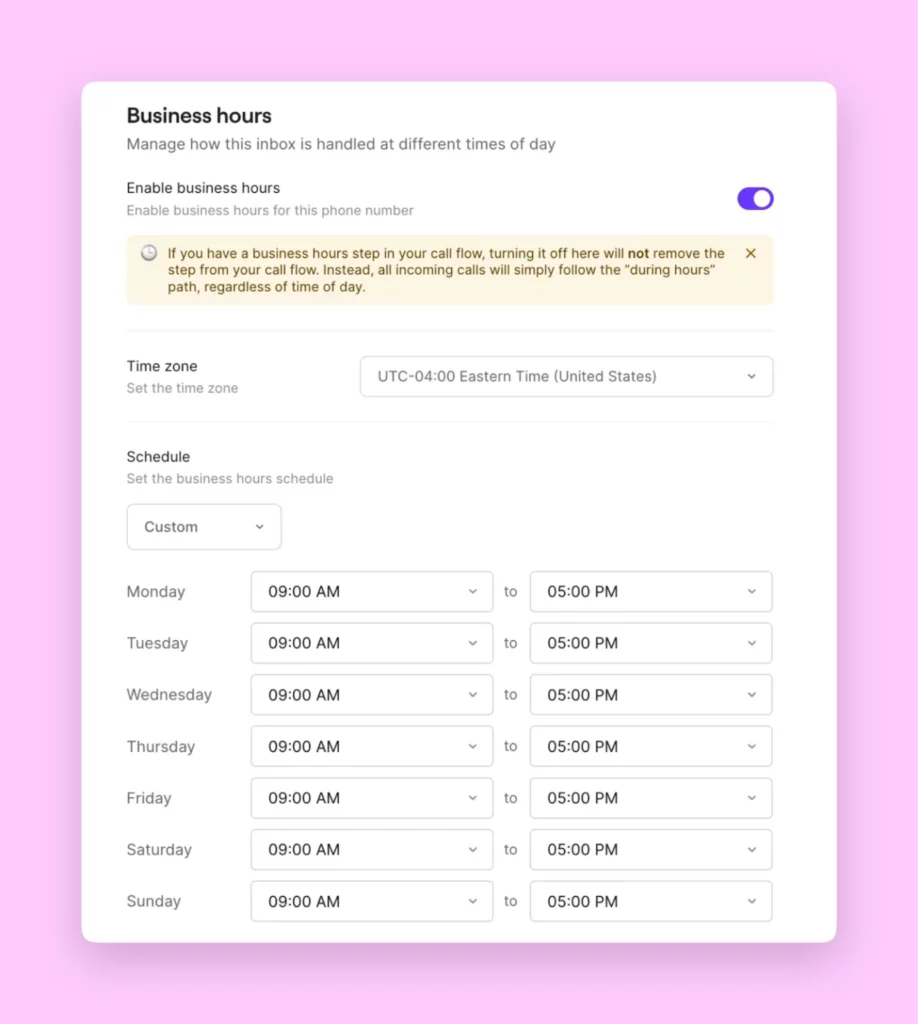
Here’s how to set your business hours:
- Go to the Phone numbers section.
- Choose the number you wish to add business hours to.
- Scroll down and toggle on Enable business hours under Business hours.
- Using the dropdown menu, select the appropriate time zone and enter the hours your team is available. You can set the same hours every day, weekdays, or choose custom hours.
Set up an IVR phone menu
To set up an IVR or phone menu that works via automation:
- Scroll down to Call flow and click Edit call flow to start setting up your menu. You’ll be taken to the call flow builder that lets you map out your call routing.
- The Incoming call step is always your first step. After that, drag and drop the Business hours step from the right-hand menu.
- Then drag the Phone menu block below either During hours or After hours.

- Add an auto-attendant that callers will hear when they call your phone number. Click Add greeting message to upload an audio file, record a message, or type out a message to generate an automated voice recording.

- Under Menu options, you can set up to 10 menu options. These can include the numbers 0-9, which callers can choose via voice command or keypad.
- Next, you can route callers based on the menu option. Simply click Replace step in the right panel of the builder to pick a different call step. You can choose from Voicemail, Ring users, Another phone menu, Play audio, Sona, or Forward call.
- Once you add extensions to your phone menu, you can choose a default destination for callers who don’t type or say any command. Under No selection, you can configure its settings to choose a destination, making sure your callers get help.

Set up a ring order

Quo lets you choose between three ring orders — all at once, random, or custom. Read our guide on setting up a ring order if you want to dig deeper.
Note: Quo Starter users can upgrade to the Business plan to use the IVR system and custom ring order features. Learn how to upgrade.
Set up after hours call flows
Stop missed calls by forwarding calls to a number of your choice during or after business hours. This can be a number outside of Quo, such as an answering service. Or you can redirect the call to a phone number within your Quo workspace.
If you want to set your phone to ring an external phone number after business hours, do the following:
- Drag and drop the Forward call step below After hours.

- Enter the number you would like to forward calls to.
Want to set your phone to ring Sona after hours? Simply drag the Sona step below After hours instead.
- Hit Publish changes.
And there you go! Your IVR call flow is set up.
Improve call flow efficiency with Quo, formerly OpenPhone
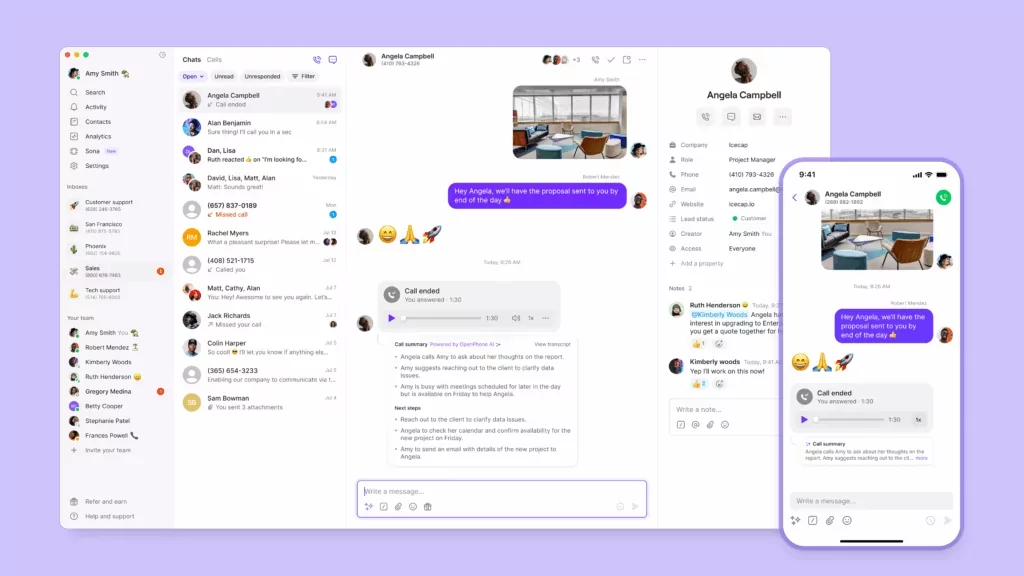
A business phone system with IVR software helps your team handle inbound calls more efficiently. This helps you satisfy your current customers and acquire new ones more easily.
Setting up an IVR call flow is simple with Quo. In a few minutes, you can have your call flow set up, saving your team members and customers time and providing a more pleasant customer experience.
Sign up for a free trial and see how a call flow makes communication effortless.