When a potential client visits your site with a question, the business that replies first usually wins the deal. But if all you offer is a phone number or a website form, you’re slowing things down.
Adding a simple SMS link to your site makes it easy for visitors (especially the 63% of people browsing on mobile) to start a conversation. No waiting, no forms, no phone tag.
The good news is this business SMS function is really easy to set up.
In this article, we’ll take you step-by-step through what an SMS link is and how to add one to your website to improve your communication with customers.
What is an SMS link?
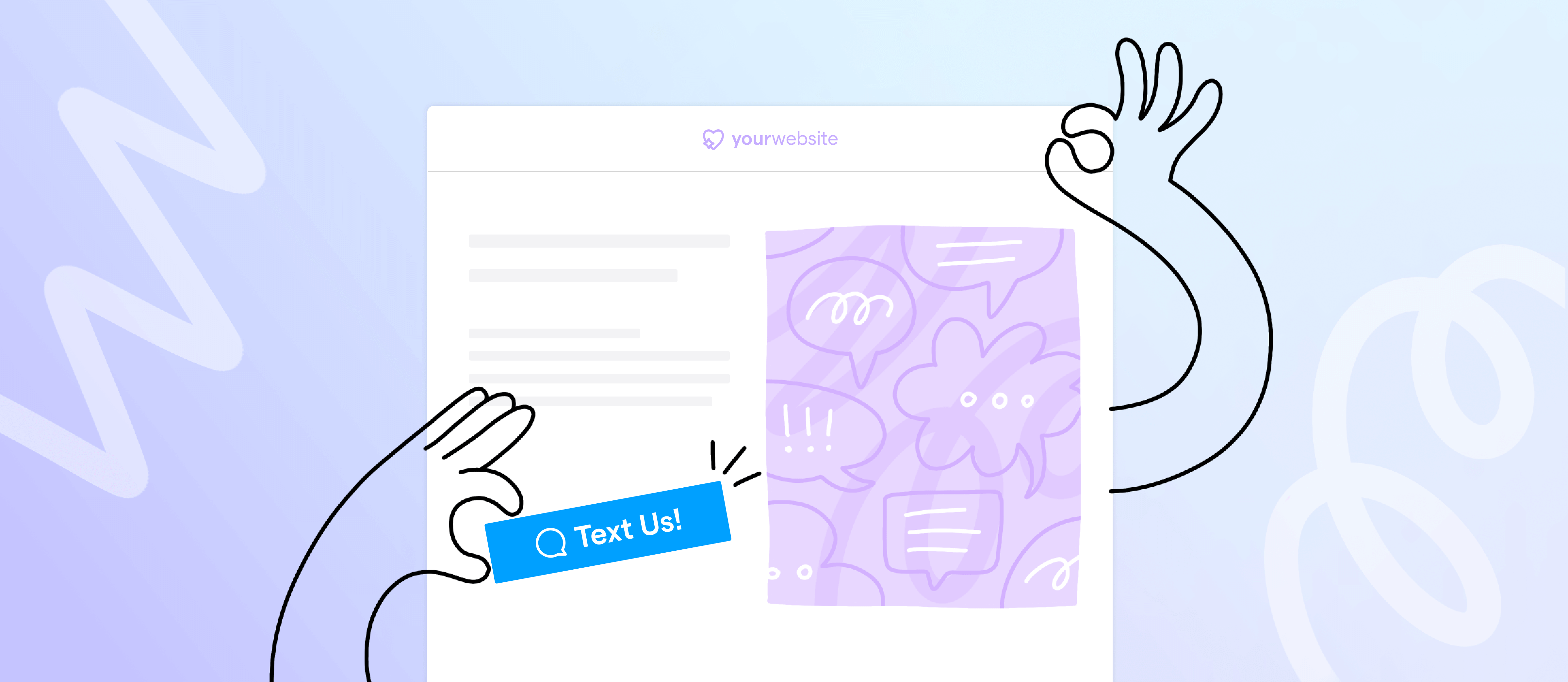
An SMS link, or a click-to-text element, is a way for your website visitors to immediately contact you via text message. It uses HTML code to launch the user’s messaging app with your business phone number already filled in.
Here’s an Illinois law firm with a “Text Us” button on its mobile website:

Instead of sending an email — which might sit unread in an inbox — visitors can send a quick text and see your reply pop up on their lock screen. It’s faster and makes it easier for potential clients to get and stay in touch.
How to add a text message link to your website
The exact workflow for adding an SMS URL to your site will depend on your site builder or CMS (like WordPress). But the principle is the same. You need to:
- Choose the type of SMS link (text widget or button link).
- Write the link or button text.
- Create the default message.
- Add the HTML code (don’t worry, we’ll give you a code generator below).
- Test your SMS hyperlink.
That’s it! Let’s go over things in more detail:
1. Choose the type of SMS link
Decide whether you’ll create a text link or a button link. This will depend on the layout of your landing page and your preferences. You’ll get the same benefits of an SMS link no matter which format you choose, but keep in mind that button links may require some CSS knowledge.
2. Write the link or button text
First, write the text site visitors will see on the button (or link). Don’t overthink it; just keep it short and make it clear what the button does.
“Text us,” “Send a message,” or “Get in touch by text” all work well. Aim for something simple and direct so visitors know what to expect when they tap.
If potential customers aren’t ready to reach out, you can still keep the line of communication open. For example, a button like “Text us with questions” or “Ask about availability by text” feels low-pressure but still encourages contact and lets you collect their number for future follow-ups.
3. Create the default message
On some devices, like most iPhones and Android phones, you can populate your visitor’s text with a default message. So when they tap the SMS link, their messaging app opens with your number and a pre-written message already filled in.
Like the link text, this copy should be short and to the point. Don’t forget to make it relevant to the landing page or offer the customer is responding to.

Here are a few sample default messages to get you started:
- Hi there, can you tell me more about your services?
- Hello, I’m looking for availability this week for [service]. Please let me know!
- I saw your site and wanted to get a quote for [service].
- Can I schedule a consultation with your team?
- I’d like to check if you’re available in my area.
- Just reaching out to learn more about your pricing.
- Do you have openings for [specific day or time]?
Keep in mind that some platforms, particularly some versions of iOS, will not support the autofill feature. Later on, we’ll give you some tips on how to manage this.
4. Add the HTML code
With your text ready, it’s time to build the actual button. To do this, you have to add custom HTML to your website. The process varies slightly depending on whether you’d like to add a button or a link.
How to add a clickable SMS link to your site
You need to know how to code to add a click-to-text HTML link to your site. Here’s a general code template you can copy/paste:
<a href=”sms:phone number;?&body=default message”>link text</a>
Now that you’ve got the code, here’s how to integrate it into the web page you have in mind (like your homepage or services page):
- Open the HTML editor on the desired page. Its name and location will change depending on the website builder you’re using.
For example, in the Gutenberg Block Editor on WordPress, click the + button and type HTML inside the pop-up Block Inserter menu.

- Select Custom HTML (or Code on some website builders) to create an HTML block. The process will be similar on other site builders like Wix and Squarespace.
- Copy/paste the code in the HTML block.
- Replace the [phone number], [default message], and [link text] fields with your information.
- Publish your SMS URL.
How to add a click-to-text button to your site
- Open your HTML editor in your site builder.
- Select Custom HTML (or Code on some website builders) to create an HTML block.
- Copy/paste the button code in the HTML block. If you’re not sure how to code a button for your website, you can use our free SMS link generator to make the code for you.
- Publish your SMS URL.
5. Test your SMS hyperlink
Run a quick test on your SMS link to make sure it texts the right number with the right message.
Visit your landing page on your mobile device, click the text button, and send the default text. Then check your business text notifications to see if the text went to the correct number. If everything shows up where you expect it to, you’re ready to start receiving text messages from your SMS link.
💡 Pro tip: Run your test on iOS and Android phones, as well as different device models (e.g., an iPhone 16, a Pixel phone, and a Samsung S24) to make sure things run as they should for different users.
📖 Want to save time replying to incoming messages? Check out our guide to customer service text examples for templates you can copy/paste.
Where should you put your click-to-text element?
Put your SMS link where it’s most likely to catch a visitor after they’ve shown interest. That’s typically right after they’ve learned enough to consider reaching out. Good spots include:
- Your contact or get-in-touch page
- Service or pricing pages near CTAs
- A sticky button on mobile that remains visible as they scroll
- Below testimonials or trust-building content
- In an FAQ section, especially under “How do I book?” or “How do I get in touch?”
Avoid only burying it in a footer or only showing it in one spot — treat it like any other CTA you want people to notice and use.
That way, customers can reach you by text without having to search for your number — just one click, and they’re in your inbox.
5 quick tips for implementing SMS URLs more successfully
Want to make sure your SMS link works smoothly and actually drives responses? These quick tips will help you get the most value from your setup and create a better experience for your customers.
1. Stay compliant with texting laws
To comply with SMS marketing laws like the TCPA and A2P 10DLC rules, you must obtain a customer’s consent before sending promotional or recurring messages.
If a customer texts you first using an SMS link, you have implied consent, but that only applies to that specific conversation. If you plan to follow up later with reminders, updates, or marketing texts, you’ll need explicit SMS consent first.
Also, avoid using spammy or misleading language in your SMS links or messages. Terms like “Only today,” “Don’t wait,” or “Free” can get your texts flagged or blocked by carriers.
Finally, don’t use generic link shorteners like bit.ly, as they can get your texts flagged as spam by carriers. If you’re including links in your texts, use a branded shortener like Rebrandly.
📑 Learn more about staying compliant in our SMS compliance guide.
2. Check what devices and operating systems your customers use
Support for pre-filled message text (body=) varies by operating system and app. Some iOS versions might ignore it entirely, and Android behavior can be inconsistent depending on the messaging app.
Use a tool like Google Analytics to see which operating systems and versions your audience uses most. That way, you can tailor your SMS link experience — like whether to include a pre-filled message or offer guidance on what to send.

3. Get a dedicated business phone number for your SMS link
If you’re adding SMS links in multiple places — like your booking landing pages or your support center — consider using a different business phone number for each. That way, booking inquiries go to your scheduling team, support questions go to your customer service number, and no one gets overwhelmed by an influx of texts.

With Quo (formerly OpenPhone), you get one phone number for free with each user on our Starter plan ($15 per user per month). You can use these numbers as the destination for your SMS link, or you can add an additional phone number dedicated to SMS for just $5 per month.
You can even share your phone number with your team so everyone can respond to incoming messages from a team calling and texting inbox.
4. Ask for feedback from customers
Once customers start texting you, take a moment to ask if the experience felt smooth. A simple question like, “Was it easy to reach us by text?” or “Any issues using the text button on our site?” can give you quick insight into how the SMS link is working. You might catch bugs you didn’t notice — or learn what’s confusing for mobile visitors.
📚 Not sure how to ask for feedback? Check out our feedback request text guide for templates you can copy.
5. Use automations to save time
Automations help you stay responsive without having to reply to every message manually, especially when you’re busy or off the clock.
If you’re using Quo, you have three ways to set this up:
- Auto-replies let you send a custom message when you miss a voicemail, call, or message during or after business hours. Use this to let customers know when to expect a response or direct them to helpful info in the meantime.

- Snippets are business text message templates you can drop into conversations to answer common questions faster — like your pricing, availability, or hours.
- Automated workflows using Zapier, Make, or Quo’s custom API give you even more options. For example, you can send a text when someone makes an appointment or fills out a form on your site.

Quo: The best way to manage business texts at scale
Adding an SMS link to your site makes it easier for customers to reach you. It’s a low-lift way to start conversations faster and turn casual visitors into leads while they’re still interested.
With Quo (formerly OpenPhone), you can set up a dedicated number just for SMS link messages, share it across your team, and manage replies together with texting automations and snippets. Plus, you can text from your computer, tablet, and phone. It’s everything you need to respond faster without adding more to your plate.
And if you want even more ways for customers to get in touch, check out our guide to adding a click-to-call HTML element to your website. It’s another quick win that can boost response rates from site visitors on mobile and desktop.
Try Quo free for seven days and see how easy business texting can be.
FAQs
An SMS link makes it easier for customers to reach out, especially on mobile. Here’s how your business can benefit:
– Give customers a fast, easy way to get in touch
– Manage all your SMS messages in a single location
– Cater to your consumer base with a high use of smartphone
– Lets customers text instead of playing phone tag or waiting on hold
– Faster and more convenient than filling out a contact form
Here are a few practical ways to use SMS URLs in your growing business:
– Let customers text your support team directly from your site
– Customers booking services online can sign up for appointment reminders to reduce no-shows
– Collect feedback or survey responses through a simple “Text us” link
– Build your SMS list by letting email subscribers opt in by text
– Give people the option to get event reminder texts with an SMS link from the landing page
– Customers can opt in to receive order updates via text message
If you include a link in the text message to your customer, you can add a UTM tag and use Google Analytics to track the click-through rate. Tracking links helps you see how many people are engaging with your messages and which campaigns or pages are driving the most traffic. If you use WordPress as your site builder, you can install plugins like MonsterInsights to generate the link. Otherwise, you can use tools like Google Analytics’ URL builder.
To create a clickable SMS link, embed this HTML code into your site:
<a href=”sms:[phone number];?&body=[default message]”>[link text]</a>
Generating a click-to-text SMS button requires a bit more code. If you don’t want to write the code yourself, you can use Quo’s free click-to-text generator to create a ready-to-use button for your site.
Pre-filling an SMS message makes the texting experience faster and easier for users. They don’t have to think about what to say, and when you know what messages are likely to come in, you can automate responses more easily — for example, by setting up snippets or auto-replies on Quo.
Yes. You must comply with laws, including A2P 10DLC registration for sending text messages from local numbers. With registration, you’ll need to provide examples of your marketing campaigns and other types of texts you plan to send. Failure to comply can result in carriers blocking your text messages.
Yes. A standard format is with the HTML code: <a href=”sms:[phone number];?&body=[default message]”>[link text]</a> You can change the text in the [default message] section as well as add your number and link text.