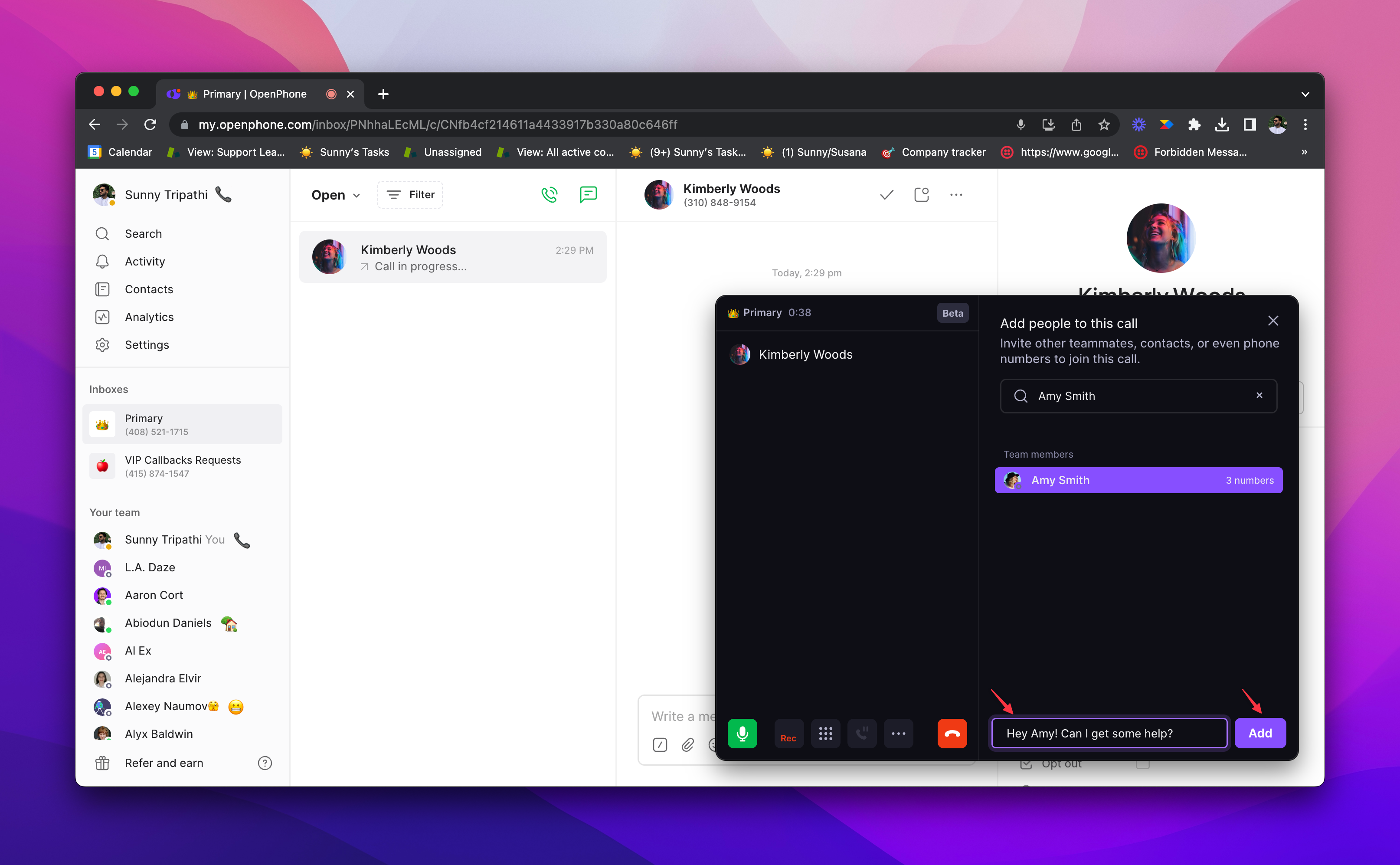
Start a three-way call on your mobile or desktop device with Quo. Add and remove participants as needed. Automatically record your three-way calls and get call summaries and transcripts. Use the best phone system for growth to bring all your stakeholders together.
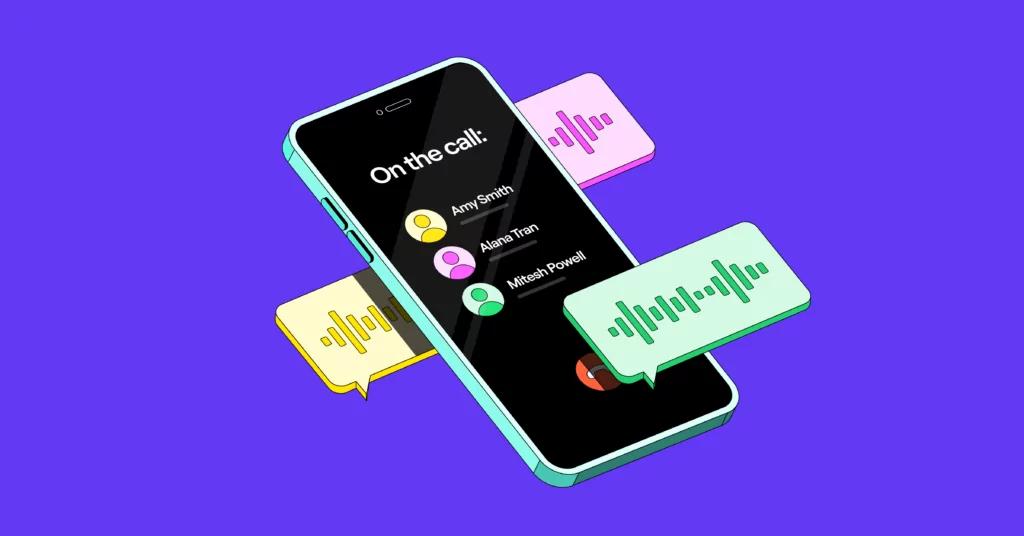







Three-way calling is a type of phone call where a caller can talk to more than two people at the same time. It refers to calls initiated with three people and to calls in which a third party is added to an ongoing two-way call. You can think of three-way calls as a type of conference call that has three or more participants.
Curious about where three-way calling is useful for growing teams? Here are a few quick examples:
Modern phone systems that use Voice over Internet Protocol, or VoIP, technology can quickly start three-way calls. Callers can use both WiFi and cellular data to start three-way calls with a compatible device. Past conference calling software required a conference bridge or a dial-in number to connect callers. VoIP phone service providers like Quo let you start three-way calls without those requirements.
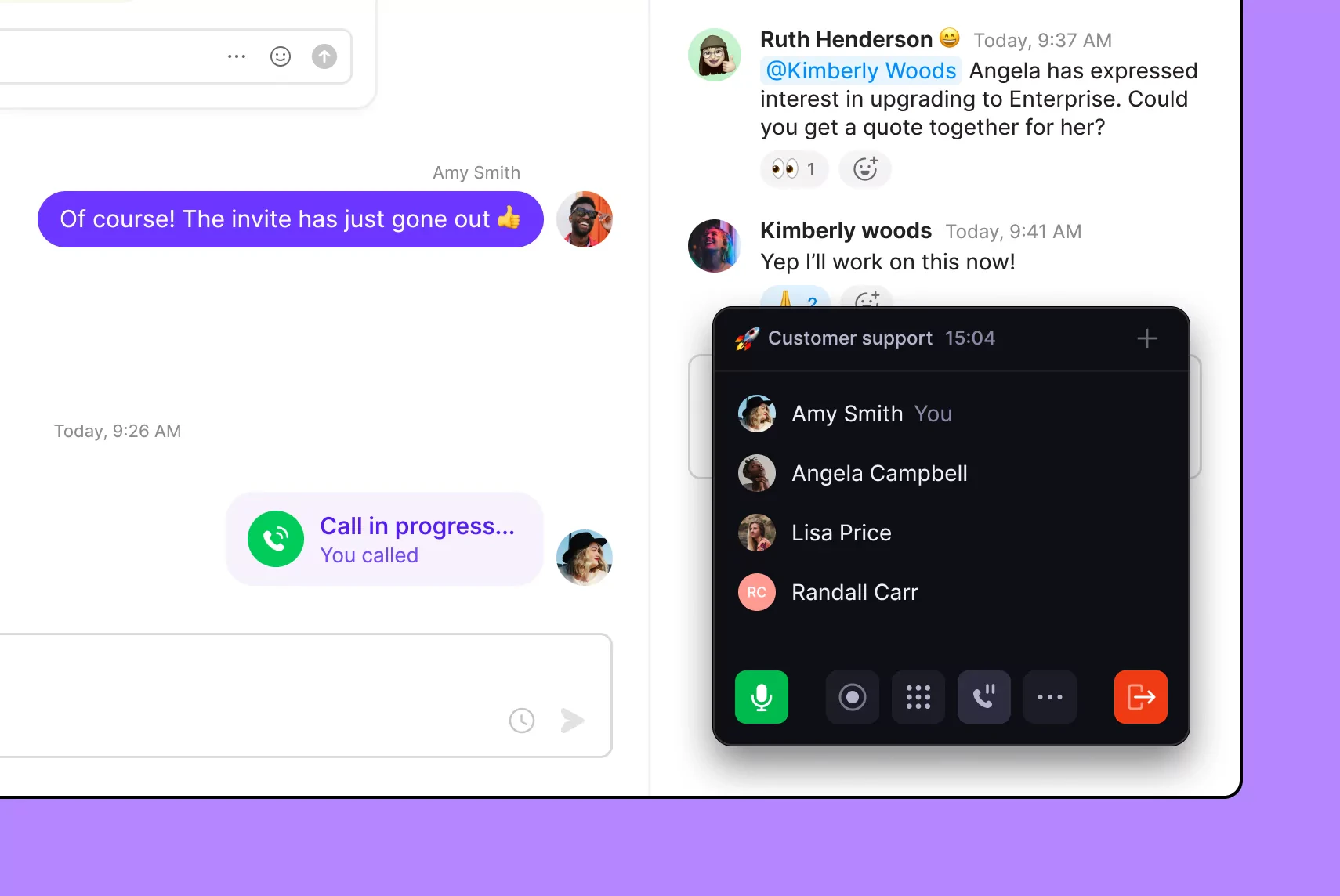
It only takes five steps to initiate a three-way call through Quo:
1. Start with a free trial of Quo's Business plan.
2. Launch the Quo web or desktop app.
3. Initiate a call with one of your contacts.
4. Put your first caller on hold, then add a third-party participant by clicking the + button in the top right corner of the active call screen.
5. Select and add the participant to your active first call.
You can also easily initiate a three-way call from the iPhone or Android app.
Note: You can add up to 10 participants to a call with Quo.
Here are the additional reasons to use three-way calling in Quo:
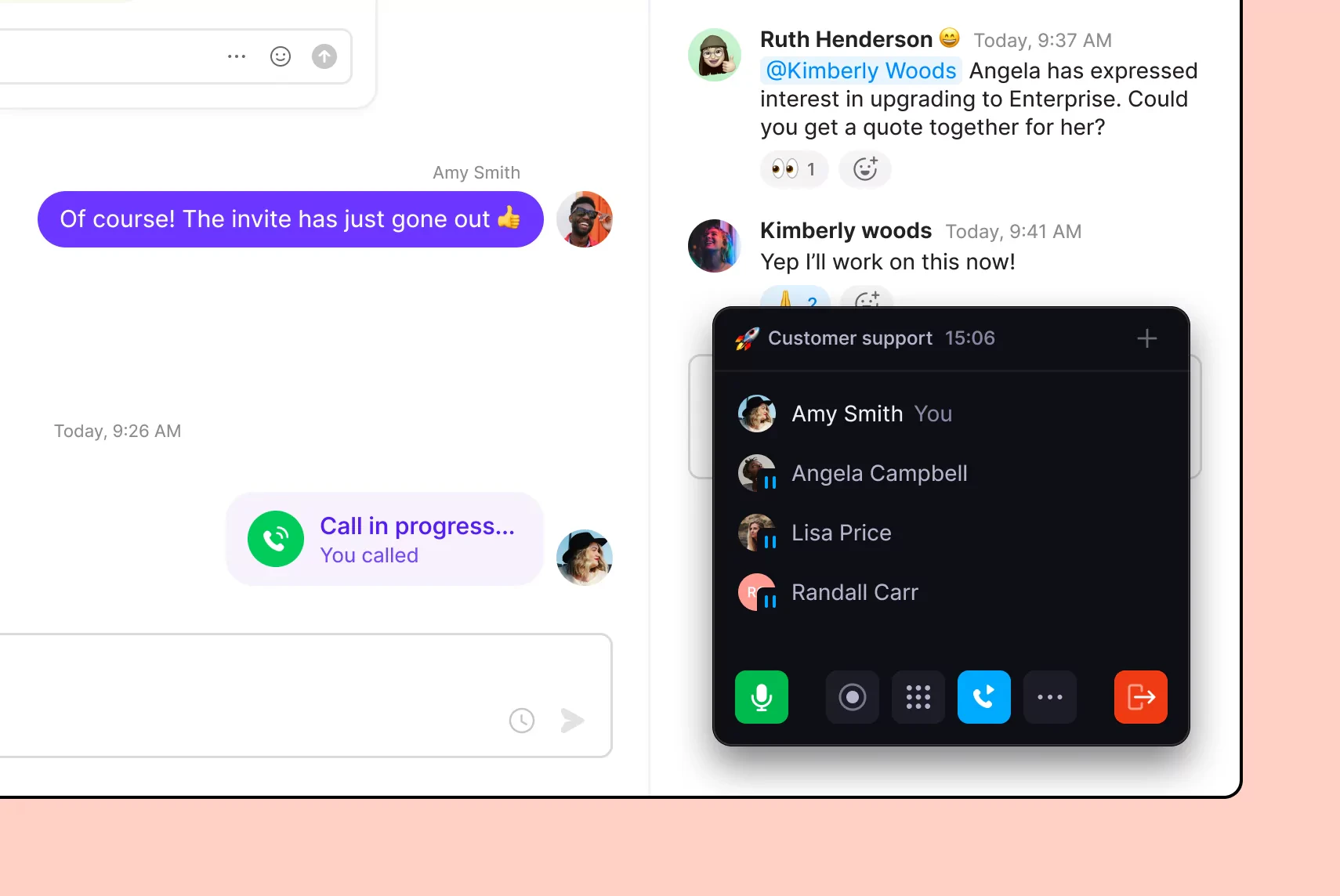
Give your colleagues a heads-up about an incoming call before you add them. Put your customers on hold and talk to your teammates before bringing them on.
.webp)
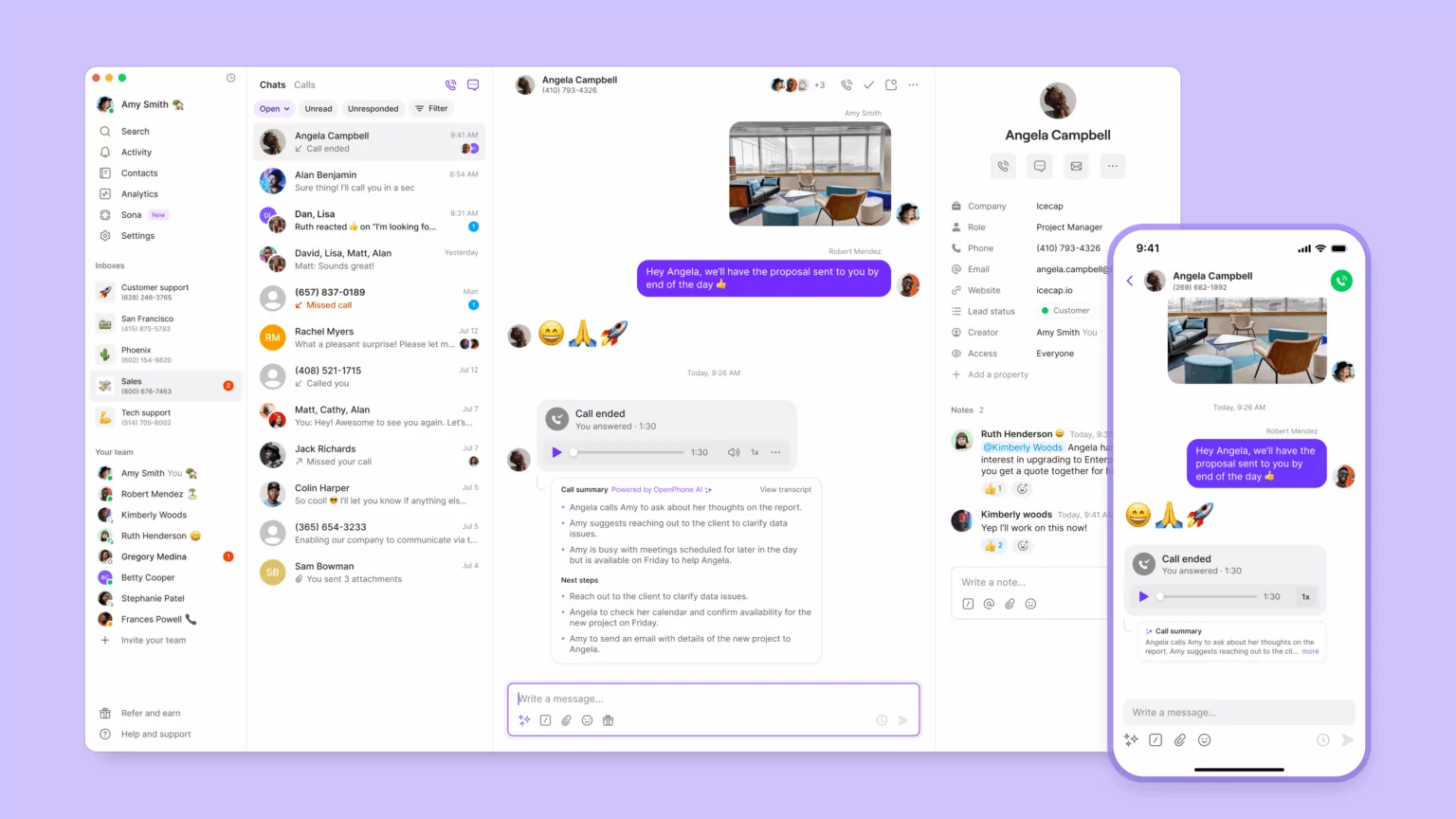
See what participants shared during your calls. Get a complete call summary, action items, and time-stamped call transcriptions.
Make three-way calls on any desktop and mobile device with Quo. Our apps are available for Mac, Windows, iOS, and Android devices. You can even make calls in your browser with our web app.

Michael Chen

See why VoIP three-way calling is the better option.
Feature
VoIP
Traditional
Desktop and mobile phone apps


Share call context with colleagues
Automatic call recording
AI call summaries and transcripts
Learn more about how Quo compares to other three-way calling apps.
See how three-way calling features can help your business grow.

Bring in a product expert to answer questions and overcome objections, helping you to close deals faster and increase revenue.
Quickly connect customers with the right team member. Transfer customers to a specific teammate to resolve their issues more efficiently.
Modern phone service providers let you dial multiple parties simultaneously. You don’t have to rely on old-school conference bridges that require callers to dial in to get connected.
See why thousands of businesses choose Quo as their business phone system.
%20(1).jpg)
Add phone numbers for every team with Quo. Select local US and Canadian phone numbers with your preferred area codes. Build trust with local customers using numbers they’ll immediately recognize.
Get a North American toll-free number for regionwide customer support. Save your customers money on long-distance calling fees. Make yourself even more memorable with a custom vanity number. Select custom numbers like 1-800-FLOWERS or 1-888-FIXIT.
Every user in your Quo workspace gets a dedicated number. You can also set up shared numbers for individual departments or across the company. If you need more numbers, additional ones cost $5 per number per month.
Make call management a breeze with Quo. Set up custom call flows in minutes with our call flow builder. Drag and drop call flow steps in our visual canvas.
Decide how your team receives calls with ring order. Choose from different ring order types, including simultaneous ring and sequential ring. Give your customers self-service navigation options to reach your team with phone menus. Always provide backup call routing options if your team is busy or unavailable. Direct calls to voicemail, to a backup call forwarding number, or to our AI voice agent, Sona.
Help your team work better together with Quo’s collaboration features. Handle incoming calls and texts without losing past context. Shared numbers help your team split responsibility for incoming calls. Share context with your team in real time with shared inboxes.
Loop your colleagues into existing customer conversations with internal threads. Assign follow-up tasks or troubleshoot ongoing issues next to any interaction. See whether your teammates are all caught up with inbox viewers.
Continue your conversations over text with Quo.
Send SMS and MMS messages to customers. MMS messaging lets you send photos, videos, files, and GIFs. Follow up on your three-way calls in a group text thread. You can add up to 10 participants to a group text.
With our automated text messaging features, you can send the right text at the right time. Automatically reply to customers after business hours with SMS auto-replies. Schedule texts to customers based on their time zones. Set up automated text workflows with our Zapier and Make integrations. Automatically send booking confirmations, appointment reminders, and review requests.
Give back more time to your team by automating your administrative tasks. Say goodbye to manual note-taking with AI call summaries and transcripts. Analyze your calls and surface recurring issues and opportunities with AI call tags.
Sync your calls and texts to your CRM with our third-party integrations. Use our HubSpot, Jobber, and Salesforce integrations or build a custom integration with the Quo API.
Take your business phone wherever you want to work. All you need is a compatible device and an internet connection to get started.
Download Quo for Mac, Windows, iOS, and Android. You can also use Quo in your browser with our web app. Sign up today and get started with our seven-day free trial.
Find out how much you’re investing in your business phone solution upfront on our pricing page.
Can’t find the answer here? Check out our Resource Center.

How to set up three-way calls for iPhones
How to set up three-way calling for Android phones
How to set up three-way calling for landlines
To disconnect a three-way call on a landline, you can just hang up. Only the person who initiates a three-way call can end it by hanging up.
The remaining two participants would still be connected. They will be able to continue their conversation without the participant who left the call.
You can initiate a three-way call with any member of your team or any external phone number. You’ll need the intended participant’s number before initiating the call.
Three-way calling is available through Quo’s group calling feature. Group calling is available on the Business and Scale plans.
Yes, you can initiate a three-way call on Quo from any device.
Yes, once all participants have joined the call you can begin recording.
Yes, once all participants have joined the call, you can begin recording.
Here’s how Google Voice three-way calling works for Android cell phones:
Here are a few ways you can improve call quality on your three-way calls: