Call recording with RingCentral comes with serious limitations. It may be difficult to store all the recordings you need or get a better context on older conversations.
In this article, we explain how RingCentral’s call recording features work and how they fall short for most businesses. We also point out five additional limitations and introduce a RingCentral alternative so you can build better relationships with your customers.
How to record calls in RingCentral
There are two different types of call recording with RingCentral plans: on-demand and automatic. With the Core plan ($20 per user per month), you can capture on-demand call recordings by manually pressing the record button. With the Advanced plan ($25 per user per month), you can automatically record every phone call made to a specific number.
You can use the following steps to set up both types of call recording:
- Go to your RingCentral Admin Portal and sign in.
- Click Phone System in the top menu.
- Go to Auto-Receptionist > General Settings.
- If you have multiple sites set up on your company account, click Main Site to select your main company site.
- Click Call Recording to access call recording settings.
- Turn on Enable On-demand Call Recording or Enable Automatic Call Recording, whichever you prefer (or is available on your plan).
At this point, you can start recording calls with RingCentral. Just keep in mind its limitations could make storage and playback complicated. Not only are there storage limits for all the recordings you capture, but you have to upgrade multiple times if you want ‘unlimited’ storage.
The biggest limitation with call recording in RingCentral
While RingCentral offers call recording to customers on all its plans, both on-demand and automatic call recordings are only stored for 90 days unless you upgrade to their Ultra plan ($35 per user per month). This means you can’t access past recordings with your contacts whenever you need them.
Not having access to past recordings can negatively affect your team’s productivity. If you have long sales cycles, for example, you may not have access to initial sales call recordings that could be helpful as your lead progresses. You also won’t have access to your customers’ past interaction history as you build a base of repeat customers. This means you can’t provide a personalized experience whenever VIPs or other customers call your support team.
Call recording isn’t RingCentral’s only feature with significant limitations. Keep reading to learn more about other major cons for RingCentral around texting, AI, and more.
5 other key limitations to RingCentral
Now that you know the biggest limitation with call recording in RingCentral, it’s best you know about a few more major limitations to how RingCentral works:
1. Limited SMS and MMS messaging
RingCentral customers have a limited number of text messages they can send per user per month.
On each plan, you get:
- Core: 25 messages per user per month
- Advanced: 100 messages per user per month
- Ultra: 200 messages per user per month
No matter how much you upgrade, you can’t send more than 200 messages per user per month. Any additional messages cost extra per month, which may be more than your business wants to budget for.
Thankfully, this major limitation isn’t shared by most cloud phone systems — other VoIP providers (including Quo) provide unlimited SMS and MMS messaging in the US and Canada.
Keep in mind also customers also report issues completing RingCentral TCR registration including unclear reasons why their registration gets rejected and long approval times. This prevents them from being able to text.
2. Lack of smart SMS features
Even if capped SMS messages with RingCentral don’t bother you, you might be surprised by RingCentral’s lack of smart SMS features.
First off, you can’t save or send templated messages. This means you have to manually type the same responses to customers, even if they’re asking the same questions. You also can’t send scheduled texts, which makes it difficult to reach international customers during reasonable hours. Want to split responsibility for incoming messages? No dice — you can’t text from a shared SMS inbox on your RingCentral account. Everyone on your team has to use a separate number to send texts to business contacts.
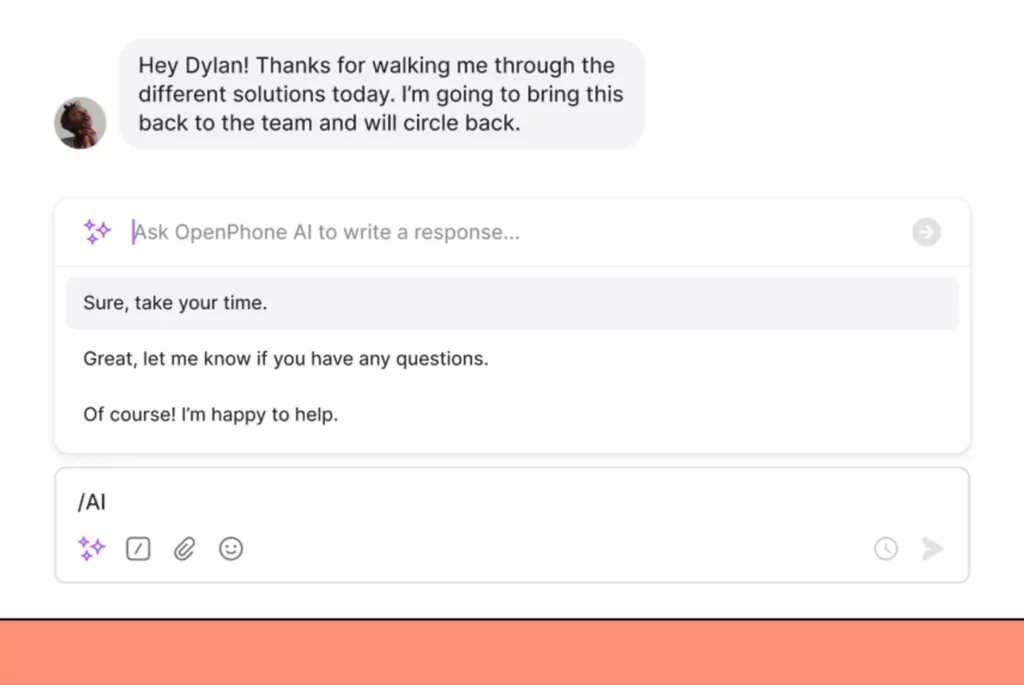
Pro Tip: Let AI draft your messages in Quo
If you use Quo, you can save time responding to messages with our built-in AI text response generator. All you have to do is start texting customers — Quo (formerly OpenPhone) AI analyzes your messages and offers two to three AI responses based on your style, language, and tone.
3. Highly fragmented context for customers
All calls, texts, and voice messages in RingCentral are kept in separate inboxes unless your source of truth is the RingCentral Salesforce integration (or another CRM). This means you can’t see every point of contact between a customer and your business, which makes it difficult to follow up or get clarity on a situation. It also makes it more difficult to delegate tasks to other team members. Some conversations might fall through the cracks, which leads to a less-than-delightful experience.
A shared inbox helps your team stay in sync by having access to calls and messages for all your contacts. Internal threads enable team members to tag each other so they can collaborate on customer communications, bringing your collective knowledge to every single conversation.
4. AI-powered features included for video only
AI tools are the way of the future for modern business phone systems. Unfortunately, RingCentral’s AI tools only apply to video meetings. You can’t get call summaries, transcriptions, or conversation highlights on standard phone calls.
Instead, RingCentral provides these features as a paid add-on for sales teams with its RingSense for Sales offering. This makes their AI features even more expensive for small businesses just wanting to increase their productivity.
In addition to our AI text response generator, Quo also offers AI call summaries and transcriptions. Each summary is generated instantly after a call and they include a list of action items for your team. With the power of AI, sales teams can stay in sync and follow up with leads faster.
5. Limited file storage
As mentioned, RingCentral has time-based storage for both on-demand and automatic call recordings. You also need to worry about the number of recordings you store. You’re limited to just 100,000 automatic call recordings per account and 200 on-demand call recordings per user.
As you can see, storing call recordings with RingCentral can be stressful and confusing. First, you have to upgrade to the highest plan if you want unlimited storage space for your data. Then, you have to worry about time-based and size-based storage limits — not ideal for growing brands.
RingCentral’s limited data storage doesn’t just affect audio files. They also have restrictions on how long you can store voicemails, texts, and more.
For example:
- All call logs with customers expire after 12 months, even if you’re paying for the most expensive plan
- Any faxes sent to your company disappear from your history after 30 days
- You’re limited to 5,000 stored text messages per user per account
- You can keep a max of 200 unread voicemails per user (old voicemails disappear to make room for new ones)
The longer you store call recordings with RingCentral, the harder it gets to keep tabs on business relationships. Thankfully, systems like Quo can help you store unlimited file types without space, time, or retention policies.
Once you have an audio recording, it’s stored in your account forever — just find your contact thread, search for the recording, and listen back as often as you need.
Curious about what else Quo can do? Read on to see why Quo is the #1 rated business phone solution on G2.
Quo: The best RingCentral alternative

Call recording tools should make it easier to run your business. You shouldn’t have to pay extra for storage or worry about losing past conversations.
At Quo, we’ve made it easy to record unlimited calls for your business in just 15 minutes or less. Pricing starts at $15 per user per month for on-demand call recording, local and toll-free phone numbers, and free inbound calls and outbound calls in the US and Canada. Want automatic call recording? Look no further than our Business plan ($23 per user per month).
But call recording isn’t the only thing Quo can help you do. Here’s why hundreds of business owners rate us the best alternative to RingCentral:
- Permanently store your call recordings so anyone on your team can get context at any time
- Unlimited file storage on every plan (with no time-based storage limits)
- Unlimited SMS and MMS in the US and Canada — you’re never limited to a certain number of messages per user per month
- Smart SMS features like auto-replies, snippets, scheduled texts, and AI-generated message responses help you save time while sprinkling in delight for your customers
- Shared numbers for calls and texts so everyone on your team can split responsibility for incoming calls
- Shared team inbox — you can look at every touchpoint with a customer in a single thread
- Call recording AI tools like call summaries, transcripts, and action items
- Customizable phone greetings to make call recording compliance easy
- Desktop, mobile, and web apps — communicate with your customers on any device.
Sign up for a seven-day free trial of Quo today.