Google Voice has well-documented reliability problems, and if you’re here, you’re probably dealing with one right now. Whether it’s the buggy app, dropped calls, or not receiving calls at all, Google Voice not working can make your brand come across as amateur to your customers.
In this guide, we’ll help you troubleshoot 11 common problems. Then we’ll explain how switching to a Google Voice alternative can be a one-step remedy for all your GV woes.
11 common Google Voice issues
Google Voice doesn’t have a flawless track record when it comes to VoIP calls. Just enter “Google Voice not working” in your search bar to see recurring complaints and issues.
If you’re using Google Voice and having issues with crucial business phone features, you’re not the only one.

We’ve identified 11 common issues that lead to Google Voice not working properly for businesses.
1. Can’t access your Google Voice account
At a minimum, your VoIP service should be one you can access. As a Google Voice user, you may log in to find error messages in your workspace instead of your call dashboard.

One common error message you may see is: “Something went wrong. Try again later.” While this message could refer to several Google Voice issues, it often refers to a server issue. Another common error message is: “You are unable to access Google Voice with this account.” This error message usually shows up when you log in to Google Voice with the wrong Google account.
Here’s how to troubleshoot common issues if you run into errors with Google Voice not working:
- Check your internet connection. If necessary, reset your WiFi or switch to a stronger connection.
- Update to the latest version of the Voice app. Check for updates in your Google Play Store or App Store. Outdated versions can cause compatibility issues.
- Make sure you don’t have multiple numbers. You can run into issues if you have more than one Google Voice number on your phone.
- Make sure you’re using a supported web browser. Google Voice only works on Chrome, Firefox for Windows and Mac, Microsoft Edge, and Safari.
- Check for outages. Google Voice can sometimes go down due to server issues, leaving the app and website unusable. When that happens, there’s no real workaround — you just have to wait until Google resolves it.
- Assign licenses before assigning phone numbers. If you’re using Google Voice for Google Workspace, admins need to assign each user a Google Voice license before assigning a phone number. If a license hasn’t been assigned, users will see the message: “Your account isn’t ready for Google Voice yet.” Plus, forgetting to enable Voice for individual accounts can also cause issues that team members can’t fix themselves. This is an easy problem to solve in the Users section of the Google Admin console, but it makes getting started with Google Voice a hassle.
2. Incoming Google Voice calls not ringing
You’ve made it into Google Voice. So, why aren’t you alerted when you have incoming calls or SMS messages? A long list of missed calls or voicemails is never a good sign for customer satisfaction.
In some cases, your phone won’t ring at all but a voicemail will still appear — meaning the call went straight to voicemail without ever reaching your device. This is a known issue that multiple users have reported in Google’s support forums, and there’s no documented fix beyond the standard troubleshooting steps below.
If your Google Voice isn’t ringing, here are a few things to check:
Check your Do not disturb settings. Open the app settings to see if you’ve toggled on Do not disturb mode and turn it back off.
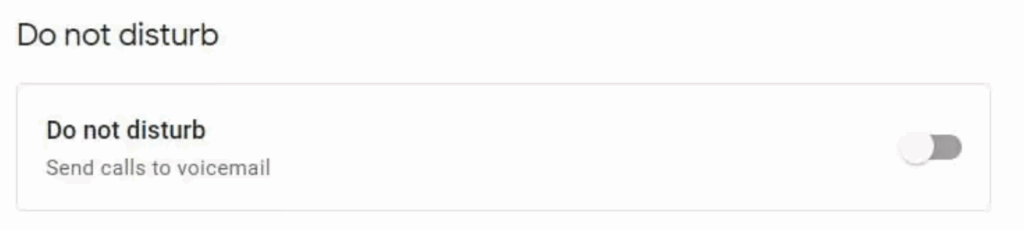
If not, tap on the Calls section of your settings to see if you’ve accidentally turned off call answering on the web, Android device, or iPhone.

Keep your Google Voice tab active.
Even if all your browser settings are perfect, Google Voice will still mute audio if you stop interacting with the platform for a while. The only fix is to jump back on the tab and click around for about 10 seconds.
Google Voice doesn’t work reliably in the background. On busy workdays, when you’re focused on tasks outside your business phone app, you may forget to tap into the platform and then miss a slew of calls.
3. Can’t make or receive phone calls
Having trouble calling on Google Voice? When you make a call, and it doesn’t go through, you may hear a message like, “We could not complete your call.” Similarly, your Voice number doesn’t accept calls when people try to reach you.
To address these two issues, try the following solutions:
- Use WiFi or mobile data to make calls. If you’re on Voice’s mobile app, you can update your settings so Google Voice uses your WiFi connection or mobile data. Also, check that the mobile app is up to date.
- Double-check the number format. Google Voice may not complete the call if the number isn’t formatted correctly. This can happen if you copy and paste a number that includes extra characters, like dashes or a duplicate country code. Try re-entering the number manually to be safe.
- Double-check call settings. Make sure your settings are configured to allow calls on the web and your mobile devices:
- Navigate to the Calls section of your settings to see if you’ve turned off call answering on your computer, Android device, or iPhone. You can also choose if you want to have your calls screened.
- You should also make sure to toggle off Do not disturb. Reload your browser to ensure the changes take effect.
- Since Google Voice doesn’t have a desktop app, check that you haven’t closed your browser tab. Otherwise, you won’t be able to receive calls on your computer.
- Double-check your calling credits for international calls. If you’re using Google Voice to make international calls, make sure you have enough calling credit. Your calls may not be going through because you’re trying to reach an international number without enough credits in your account.
4. Major sound quality issues
When choosing your VoIP service, quality matters. Unfortunately, Google Voice doesn’t have a reputation for great sound quality. Google Voice not working during calls is a common complaint from business users.
A lot of users report audio dropping or one-second delays during calls. Plus, you might face common VoIP sound quality issues like jitter, lag, and dropped calls. Here are a couple of solutions you can try to improve your sound quality:
- Upgrade your internet connection: Your internet speed may not be fast enough to handle VoIP calls. Test your connection and consider upgrading your data plan.
- Get an Ethernet connection for calls from your computer: Ethernet is faster than WiFi. Switch to Ethernet to ensure better call quality.
- Get a headset and a microphone: Use a wired or Bluetooth headset so that you can hear your customers better. Many headsets have a built-in microphone to improve your speech clarity on calls.
Assuming you don’t have WiFi or mobile data issues, this is a Google Voice problem that users alone can’t fix.
But with no customer support for free users, getting help may not be as manageable as you’d hope. With no one to ask, it’s hard to say if you’re experiencing an internet connection issue, a platform issue, or something else. If you’re on a paid Google Workspace plan, you can contact support for help, but resolution times may vary.
5. Google Voice loading slowly on your browser
One perk of Google Voice is accessing your phone from any computer or mobile device. The problem is users report Google Voice not working reliably when accessing it via a browser on voice.google.com.
Check your internet connection and your browser.
To fix load times in your browser, you can try a few things:
- Check your internet speed: Google recommends speeds above 50 kbps.
- Check your browser: Google specifies you must use Chrome, Microsoft Edge, Safari, or Mozilla Firefox when using Voice. Plus, double-check that they are also up to date, as older versions may cause the platform to load slowly.
- Check your network: Does it have any restrictions or filtering policies for users?
- Are you using a virtual private network, or VPN? Check your VPN’s server location. Longer server distances can increase latency in your network, which might be slowing down your speed.
- Try clearing your browser’s cache and cookies: Clearing them can improve browser performance.
- You can try a reboot: Restarting your computer can resolve glitches that affect browser performance.
If none of these help, and slow loading remains a consistent issue, there’s not much you can do.
6. Can’t port your existing phone numbers
Google Voice states it can port phone numbers, but users may run into a number of porting issues on the platform. For example, Voice doesn’t support porting toll-free numbers to Google Voice. And if you decide to port a number to the free version, you’ll need to pay a $20 fee.
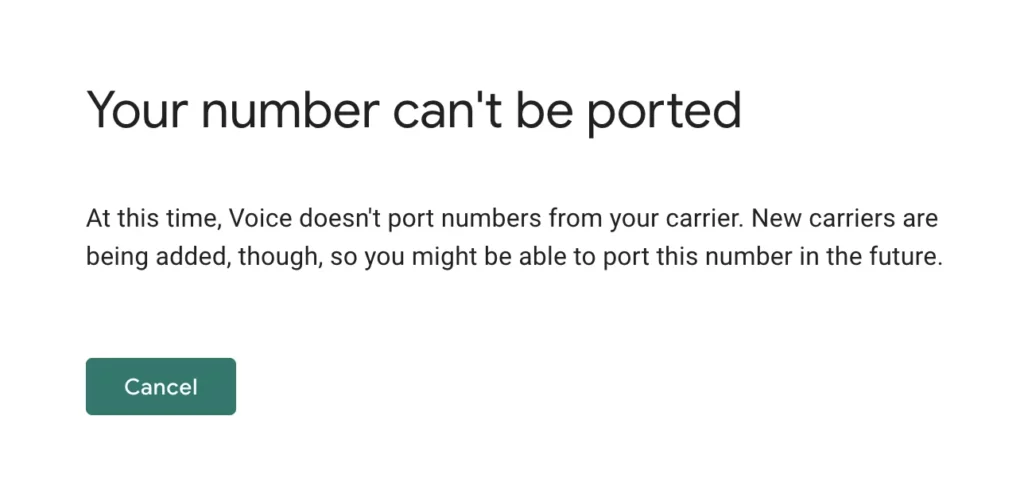
The process doesn’t make it easy, either, as users report:
“Porting a number is super hard, there is zero customer support.” G2
“The support team wasn’t able to provide any further guidance.” Reddit
A smooth transition for your business phone numbers into Google Voice isn’t possible for every company, even when it should be.
7. Can’t make international calls
Got a global team or international clientele? You might find Google Voice not working properly for international calls.
Purchase calling credits.
First, depending on where you’re based, you have to purchase calling credits for international calls. But you’re only allowed to have a maximum of $70 in your account. If you frequently make international calls, you’ll have to add credits regularly.
Google Voice also states that users may have issues with international calls if another app conflicts with the service. However, it doesn’t specify what apps can cause these issues, so it’ll take some trial and error to figure out which app is at fault.
You may also need to restart the Google Voice app if there’s a glitch.
Make sure the region you’re calling isn’t blocked.
You can make international calls on the free plan, even from outside the US. Just note that if you do, your mobile carrier might charge roaming fees. Some countries, such as China, may block Google Voice calls altogether. And if you’re in India, you won’t be able to use Google Voice to call Indian phone numbers. Plus, you won’t have the option to text internationally at all, even if you’re using Google Voice for business.
8. Google Voice number missing
We admit this Google Voice not working issue may sound a little weird. But it’s true: these days, even your Google Voice number can ghost you.
There are more ways this can happen than you might think. It makes sense for VoIP services to revoke access if you fail to pay. But the free version of Google Voice will take back your phone number if you don’t use it or open the Voice app on an Apple or Android phone in three months. You’ll only have 45 days to reclaim the number before it’s gone for good.
For business owners, the risk of losing a phone number is never ideal, even if it’s easily avoidable. This issue is specific to Google Voice and doesn’t happen with other VoIP phone providers.
9. Google Voice voicemail isn’t working
If your Google Voice voicemail isn’t working, whether it isn’t appearing or transcriptions are missing, you wouldn’t be the first. Some users report issues with delivery and transcription quality. There could be a few reasons for this:
- You turned off Get voicemail via email in your settings.
- You’re looking for voicemail transcriptions via text. Note: Voice has permanently disabled this feature.
- Your caller’s audio quality was poor, and Google couldn’t decipher the message.
- You don’t have voicemail transcripts enabled in the Google Voice settings.
- Check your Spam folder, as voicemails marked as spam won’t appear in your main inbox.
Even if you resolve your issue, keep in mind that Google Voice offers limited options for receiving voicemail transcriptions.
10. Google Voice not sending texts
Google Voice not working for text messages? Ensure you have the latest version of the Google Voice app installed on your device and are connected to a reliable internet connection.
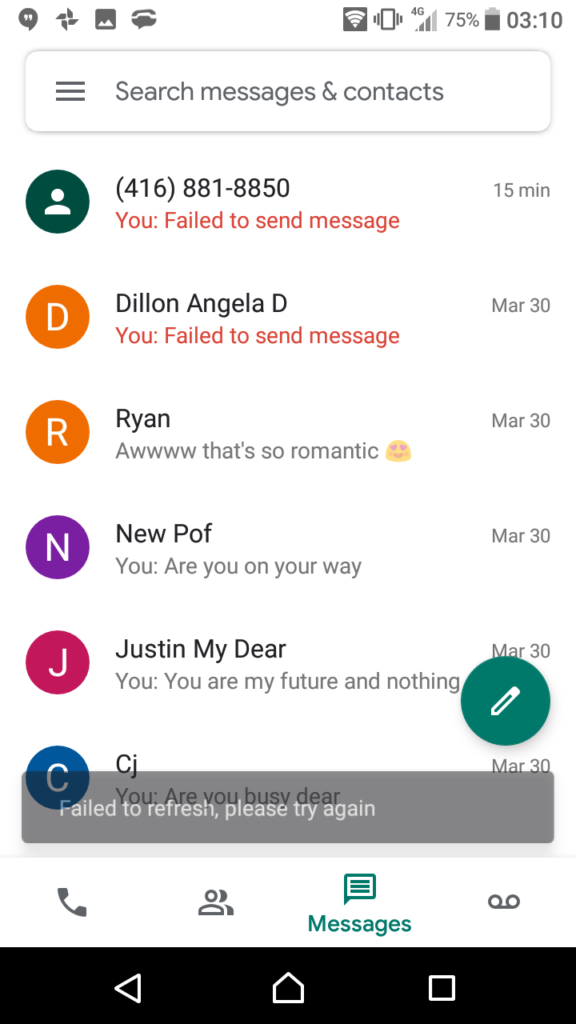
Google Voice may block you from sending messages for several reasons, including:
- Making many outbound calls of short duration
- Sending identical text messages to multiple recipients at once
- Sharing URL links
- Sending a high volume of text messages in a short time
- Using browser plugins or extensions that block Google’s cookies. If you’re not sure which one is causing the issue, try disabling or uninstalling them temporarily
If Google Voice suspends or blocks your number, wait 24 hours and try again. After that, your only recourse is to submit an appeal via your Google Voice account.d try again. After that, your only recourse is to submit an appeal via your Google Voice account.
11. Google Voice call forwarding not working
If you aren’t receiving forwarded calls on a new phone, it might not be linked to your Google Voice account. Here’s how to link a number to Google Voice:
- Go to voice.google.com.
- In the top right, click Settings.
- Under Account and Linked numbers, click New linked number.
- Enter the phone number to link.
- Google Voice sends you a verification code.
- To verify a mobile number: click Send code. Google Voice sends the code in a text message.
- To verify a landline: click Verify by phone and Call. Google Voice calls the phone number and gives the code.
- Enter the code and click Verify.
Here are a couple of other solutions you can try to fix call forwarding:
- Make sure you haven’t hit the six-number cap. Google Voice only lets you forward calls to a maximum of six linked numbers. If you’re already at the limit, you’ll need to unlink one before adding another.
- Don’t try to forward to a toll-free number. Google Voice doesn’t reliably support forwarding to toll-free numbers, so if that’s what you’re attempting, it may not work.
- Check if a custom call forwarding rule is overriding your settings. If you’ve set up custom rules for specific contacts, those take priority over your default forwarding behavior. Double-check your rules under Settings > Calls to make sure nothing is routing calls somewhere unexpected.
If you need to create or edit a custom call forwarding rule, here’s how:
- Navigate to voice.google.com on a computer.
- Open Settings and click Calls.
- Click Create A Rule under Custom Call Forwarding.
- Enter or search for the contacts you want to create a rule for.
- Customize your forwarding rule — you can forward calls to one or more linked numbers, send them to voicemail, play a custom greeting, or screen caller IDs.
- Click Save.
Google Voice should ring all linked numbers for call forwarding at the same time. If a linked number isn’t ringing, the issue may be carrier-related — some carriers block automated call routing, which can prevent forwarded calls from coming through.
When troubleshooting isn’t the fix
If you’ve worked through these fixes and realized the problem isn’t a bug but a missing feature, it’s worth understanding what Google Voice can and can’t do. Check out our full guide to Google Voice limitations to see where the platform falls short.
If you’ve seen enough and want to evaluate what else is out there, check out our roundup of Google Voice alternatives.
FAQs
Your iOS device might not be activated to receive incoming calls in your Google Voice account. To address this:
1. Go to the Calls section of your Google Voice settings menu.
2. Go to My devices and ensure your iOS device is activated.
If it’s toggled on and is still not receiving calls, delete all the devices listed in your account and start over.
Also ensure that your Google Voice iOS app is up to date.
Your Android device might not be activated to receive incoming calls in your Google Voice account. To address this:
1. Go to the Calls section of your Google Voice settings menu.
2. Go to My devices and ensure your Android device is activated.
If it’s toggled on and is still not receiving calls, delete all the devices listed in your account and start over.
Also ensure that your Google Voice Android app is up to date.
Having an important group text conversation with your clients, but getting messages that are delayed or out of order? It’s a long-standing issue with Google Voice accounts.
Here’s an example from February 2019: “I am receiving text messages in a group chat out of order and very late.”
While that support issue wasn’t resolved, more issues with out-of-order and delayed messages were raised in November 2023 and 2024.
Unfortunately, there is no clear solution to this issue, but it’s another sign of Google Voice’s bugginess when it comes to delivering your messages.
Google Voice won’t let you get a number for the following reasons:
• The personal number you used during signup is ineligible or is already associated with a Google Voice number.
• The submitted personal number is from outside the United States. You can only sign up for a personal Google Voice account from within the US.
• Your Google account might have been flagged for violating Google’s Terms of Service.
Read this community post for more information on why you might not be able to get a Google Voice number.
No, Google Voice doesn’t work without a phone number.
Google Voice numbers are virtual phone numbers. However, you still need a phone number at signup to verify your identity and prevent fraud while using the platform. The alternative is to port your own phone number and use it with Google Voice.
In either case, you cannot use Google Voice without your own phone number.
VoIP providers like Quo are a much better alternative to Google Voice in terms of reliability and features. With Quo, you can access everything Google Voice lacks, such as toll-free numbers, caller ID names, and auto-replies. Get a seven-day free trial to see the difference.