It’s late. You’re finally catching up on messages after a long day. You draft a text for a customer or teammate. But you don’t want to message them outside of business hours and risk sounding unprofessional.
That’s where scheduled texts come in. They let you write a message now and send it later — no need to remember or set a reminder.
This guide explains whether you can use Google Voice to schedule text messages. Plus, we’ll talk about the platform’s other limitations and introduce an alternative that can help you schedule texts from anywhere.
Can you schedule texts with Google Voice?
Short answer: no. Google Voice doesn’t support scheduled texts at all, whether you’re using the free plan or paying for Google Voice for business.
This might be more than just an inconvenience, especially if you work (or plan to work) with customers in different time zones or overseas. You can’t queue texts for later or time them to align with your customer’s business hours, which means you might accidentally message someone too early or too late. You might also unintentionally violate the TCPA, which charges fines between $500 and $1,500 per violation.
You can see Google Voice’s texting features leave much to be desired. And unfortunately, the lack of scheduled texts is just the beginning.
Keep reading for 10 more Google Voice cons that might make you rethink using it as your business phone system.
Beyond scheduling: More Google Voice texting limitations
If you thought the lack of scheduled texts was bad, just wait until you see other texting limits with Google Voice.
You should know that:
1. Google Voice doesn’t support auto-replies
Time is money, but Google Voice doesn’t make it easy to save it. On top of not supporting scheduled text messages, Google Voice doesn’t offer auto-replies at all. There’s no easy way to automatically respond to customers when you’re busy or closed for the day.
The longer you leave customers without a confirmation or next steps, the sooner they might start looking for someone else to answer their questions (i.e., a competitor).
And speaking of not being able to send texts quickly…
2. You can’t use snippets to send texts faster
Not only can you not send auto-replies in the Google Voice app, but you also can’t create message templates (snippets) to send everyday messages faster.
So if you tend to receive the same types of messages from customers, you’ll have to manually retype each reply as they come in.
3. No way to automate texts when it matters most
You should know Google Voice doesn’t let you automate text touchpoints at all.
For example, you can’t connect with tools like Zapier or Make to set up messages that trigger automatically (think sending a text after someone fills out a form on your website). Plus, Google Voice doesn’t offer an API for you to build custom automations (like sending a confirmation text after someone books a meeting through Calendly).
This is surprisingly limited compared to other business phone systems like Quo that offer texting automations on every plan. And considering how much you pay for Google Voice’s pricing, it might feel like you’re paying a lot for a little.
📌 Heads up: You’ll have to pay for a Google Workspace subscription just to use Google Voice — that’s on top of your Voice plan. Want a full breakdown? Check out our guide to Google Voice pricing to see how much it really costs.
4. Texting is for US customers only
With Google Voice, you can only send texts if you’re based in the US.
Work with international customers? You should also know texting is only available to US and Canadian numbers.
This means if you port your number from another provider, you might lose the ability to send SMS messages overseas. That means customers outside North America may suddenly stop receiving your texts. If that’s how they stay in touch with your business, they might assume you’ve gone silent and switch to a competitor.
Sure, you can have international customers call you, since it’s possible to make international calls with Google Voice. But many customers prefer texting — and if calling feels like a hassle, they may not bother reaching out at all.
5. No way to text from shared phone numbers
Google Voice won’t let you share a business number or create a shared inbox so multiple people can write, edit, or respond to text messages together.
This means you might be on the hook for sending every single text, even when you’re out of the office or knee-deep in another task. The only workaround is sharing your login details, which gives teammates access to everything in your account. Plus, you won’t have a record of who sent what; if a mistake happens, it’ll be hard to figure out what went wrong to ensure it won’t happen again.
6. No desktop app
There are two ways to access a Google Voice number: through the web browser at voice.google.com or through Google Voice’s mobile apps. There’s no desktop app for Google Voice, so your team will have to switch between browser tabs or their cell phones to send texts and make calls.
Want to access your phone service without sifting through tabs? Or getting distracted by phone notifications? Google Voice won’t work for you.
7. Texts, calls, and voicemails live in separate folders
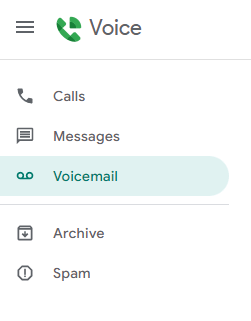
Google Voice automatically “sorts” conversations for you by sending calls, texts, and voicemails into separate inboxes. But for most small business owners, this is more of a drawback than a benefit. There’s no single view of a customer’s conversation history, making it harder for your team to get context or pick up where someone else left off.
It also makes it difficult to track past interactions, so customers might end up repeating themselves on the phone with your team. Considering that 46% of customers will leave a business after two bad customer experiences, this could unintentionally send clients to your competitors.
8. No toll-free numbers
You read that right: Google Voice doesn’t support toll-free numbers. Not even if you already have one and try to port it in.
This means your customers might have to pay to call or text your business, which isn’t ideal if you’re trying to grow internationally.
And if you already have a toll-free number, you’ll have to keep it on a different phone plan if you want to continue using it.
9. No third-party integrations
Google Voice’s integrations are limited to Workspace apps like Google Calendar and Gmail. There are no third-party integrations at all. This means there’s no way to connect your business phone system with the tools you already use that are outside of the Google ecosystem.
You can’t:
- Push conversations to your CRM (like HubSpot or Salesforce)
- Trigger automated texts when someone fills out a Google form on your website
- Send notifications to a Slack channel when you miss a customer call
10. You can’t handle calls when your team is unavailable
Google Voice is what you’d call a “legacy” phone system, meaning it’s not necessarily built for modern communication. You’ll notice, for example, there are no Google Voice AI features. Even though most other business phone services provide them.
For example, you can’t set up AI agents, so there’s no way to handle calls automatically whenever your team is unavailable. And you won’t be able to use AI-suggested messages or AI call tagging. This means you’ll have to type out responses to every text message (and manually label and organize calls).
Why you should choose Quo to schedule texts

Google Voice may not support scheduled text messages — but OpenPhone does.
Quo is a VoIP platform built specifically for small and growing teams. With us, you can make unlimited calls and texts to anyone in the US and Canada. You’ll also get access to a full suite of messaging features designed to save time and help you stay on top of conversations.
This includes scheduled text messaging, which can help you keep customers informed, follow up after hours, and reduce manual work without lifting a finger.

All you need is your smartphone and a WiFi connection to:
- Change or cancel scheduled texts anytime: You can easily cancel a message before it goes out or let Quo automatically skip it if a contact replies early. That way, you don’t accidentally send outdated or duplicate info.
- Schedule texts based on your customer’s time zone: OpenPhone uses your contact’s phone number to schedule texts in the customer’s time zone. What if your contact’s area code doesn’t match where they live? No worries: you can manually set a different time zone in Quo.
- Send prewritten snippets to save time: No need to manually type (and retype) the same messages over and over. With Quo (formerly OpenPhone), you can save and reuse text templates with teammates or set up shared inboxes so everyone can respond quickly and consistently.
- Automate texts based on customer actions: OpenPhone connects with tools like Zapier and Make. These integrations let you automatically send texts after someone books a meeting, fills out a form, or takes another action. Quo also integrates directly with CRMs like HubSpot and Salesforce, so you can log texting activity under the relevant contact. Want more flexibility? You can use the Quo API to connect with other CRMs in your tech stack.
How to schedule texts in Quo
Here’s how to send scheduled texts in Quo:
- Log in to Quo using the web browser, desktop, or mobile app (iOS and Android phones).
- Open a conversation where you wish to schedule a message.
- Compose your message. Keep in mind you can schedule both SMS and MMS texts, which means you can include images, videos, and documents alongside text.
- Tap the clock icon.
- Decide what happens if your recipient contacts you before the scheduled message goes out. You can either send it anyway or automatically unschedule it if they reply first.
- Pick the time you wish to send your message. Keep in mind this is scheduled in the recipient’s time zone, although you can adjust this manually if needed.
What if I already use Google Voice? Can I switch? You can easily switch from Google Voice to Quo by unlocking your Google Voice phone number. Learn more about how to port your number from Google Voice.
The best Google Voice alternative: Quo (formerly OpenPhone)

If you’re ready to stop sending every text manually (or you’re worried whether your phone system can keep up with your texting needs), Quo is your best Google Voice alternative.
It comes with everything you wish Google Voice could do — complete with modern features that help you follow up faster, delegate tasks, and keep customers happy, without adding extra work to your plate.
Here’s a taste of what you can do with Quo:
- Keep records of every conversation for training or compliance by automatically or manually recording calls.
- Never miss another call with Sona, Quo’s AI agent that automatically answers calls when you’re unavailable to pick up the phone.
- Stop getting call and text notifications after hours by setting up business hours and call routing rules.
- Organize phone calls by topic, theme, or sentiment by enabling AI call tags.
- Set up ring groups to send callers to different reps based on your phone menu, business hours, and other call routing options.
- Respond to calls, texts, and voice messages as a team by turning your local, toll-free, or vanity number into a shared phone number.
- Identify and prioritize calls that need your attention by sorting through call views.
- Automatically log call and text activity in your CRM, like HubSpot and Salesforce, with our native integrations.
You can schedule text messages together with your team by signing up for a seven-day free trial of Quo.